The PwrAgent desktop
The desktop app is where you live day-to-day. It drives a coding agent — Codex by default, or Gemini, Grok, Kimi, or Qwen if you install and enable them (see Agent backends). On Codex it reads and writes the same on-disk session state Codex Desktop uses, so your threads, transcripts, and authentication are shared between the two by default — open either one and your work is there.
What makes the PwrAgent side worth running:
- Per-thread settings for provider, model, reasoning effort, Fast mode, and access mode. Codex Desktop scopes these globally; PwrAgent lets a high-stakes refactor run on a stronger model under Full Access in one thread while a throwaway script runs on a cheaper model under Default Access in another, without the settings bleeding into each other.
- Worktree workspaces so the agent can rip apart a branch in a
git worktreePwrAgent manages while your main checkout sits undisturbed. Hand a thread off between Local and Worktree when it’s ready to land. - Codex environment hooks — when you spawn a thread on a worktree, PwrAgent can run the environment’s setup hook (install deps, warm caches, run codegen) and stream the output into the transcript before the agent takes its first turn.
- In-place Markdown composer —
```opens a code block,>opens a blockquote, bullet and numbered lists auto-continue. - Persistent draft history — every keystroke autosaves to a per-profile store. Press ↑ in an empty composer to recover and cycle through the last 20 drafts (unsent and sent). Drafts survive thread switches, sidebar refreshes, settings overlays, and full app restarts.
- Profile isolation — two layered profile mechanisms (PwrAgent
- Codex) compose into anything from “one install, one identity” to “N installs running side-by-side with isolated auth and isolated messaging credentials.” Work / personal / side-projects separation without juggling SSH keys.
- Messaging — pair a bot on any of six platforms (Telegram, Discord, Slack, Mattermost, Feishu / Lark, LINE) and you can resume or start threads from your phone. See Messaging for the operator-facing setup; this page covers the desktop side.
- Automations — scheduled and message-triggered agent runs with run history and messaging delivery. See Automations.
- Federation and the Star Map — connect PwrAgent on several machines, drive their threads and terminals from one window, and send a thread to another machine. See Federation and Star Map.
State lives under ~/.pwragent/ (overridable with PWRAGENT_HOME
or --profile <name>). No cloud relay and no PwrAgent-owned
account — see Settings for how the desktop
discovers your local Codex install and how authentication works.
Install the desktop from GitHub Releases: a signed DMG on macOS (or Homebrew), a signed installer on Windows, and DEB, RPM, pacman, or tar.gz builds on Linux. The per-platform steps, including how to verify a download, are on macOS Install, Windows Install, and Linux Install.
The rest of this page is the operator-facing tour of what the desktop does, what’s not in it yet, and what’s on the roadmap.
What’s in the desktop today
First-run onboarding wizard
The first time you launch PwrAgent on a fresh profile, a wizard
walks you through a few short choices, applies them to that
profile’s config.toml, and drops you on the main app with
everything wired up. No surprise modals later — you do this once
per profile.
A Welcome screen opens the wizard, then the progress strip tracks five numbered steps, every one skippable to a sensible default:
- Thread presentation. Theme (dark / light / system) and density (mission-control / compact). Both flip the UI live as you click so you can see what you’re picking.
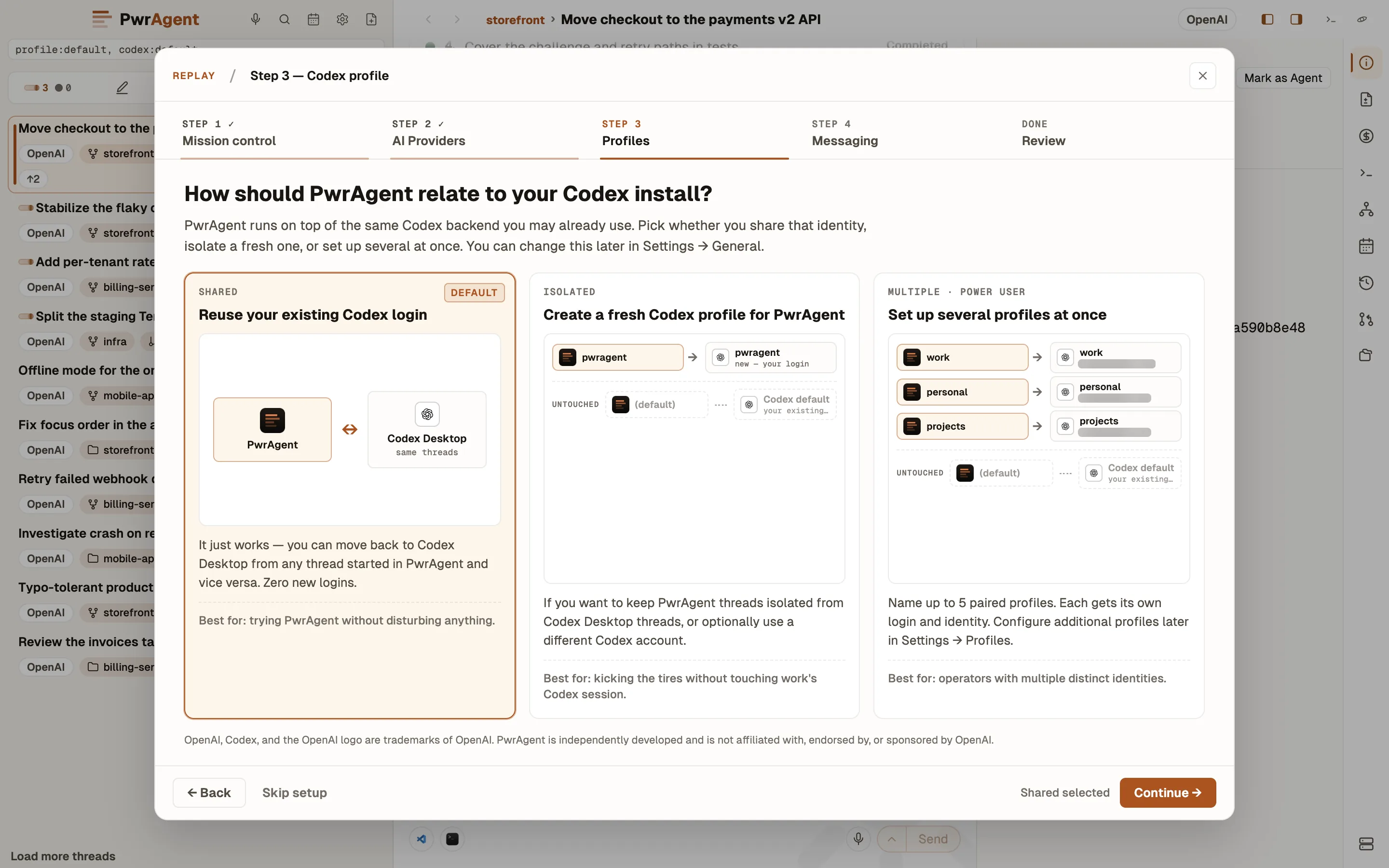
- AI Providers. Which coding agent will back your threads. Codex is the default; the step also carries per-platform install commands (with a copy button) and a docs link for Gemini CLI, Grok Build, Kimi Code, and Qwen Code, and shows which ones it already found on this machine. Skip it if Codex is all you want — see Agent backends for the full picture.
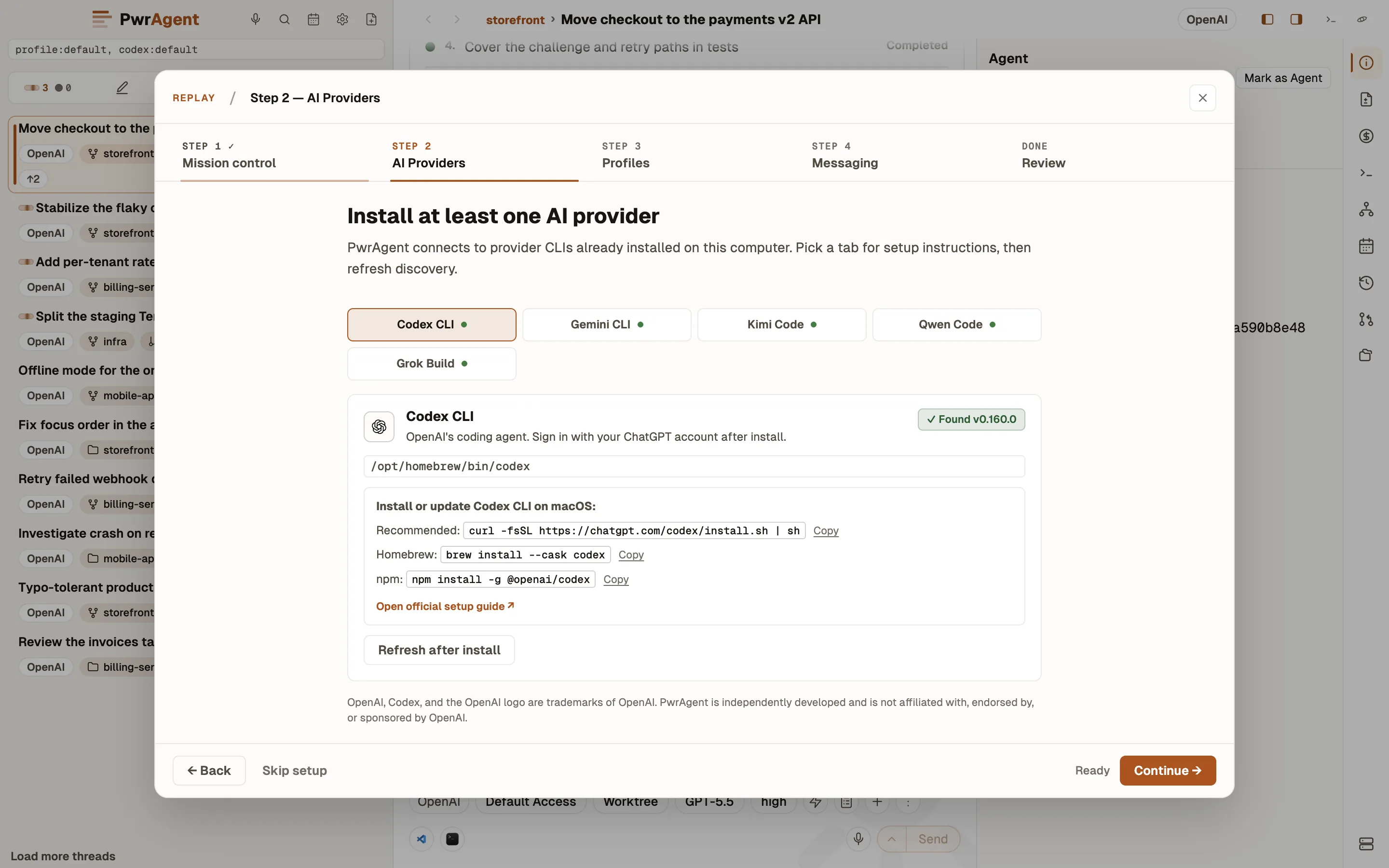
- Profiles. Three ways to pair PwrAgent with Codex:
- Shared — PwrAgent and Codex Desktop share a single Codex auth + thread list. Default; closest to “just install and go.”
- Isolated — one named PwrAgent profile, one matching
CODEX_HOMEdirectory. Pick this when you want a clean split from Codex Desktop or from your other PwrAgent install. - Multiple — up to five paired PwrAgent + Codex profiles in one pass. Pick this when you already know you want work / personal / side-project separation.
Isolated and Multiple prompt you to name the new profile(s) inline before moving on.
- Messaging. Short safety preamble (what messaging is for, what it isn’t, and what gets stored where), then a provider picker for the six platforms (Telegram, Discord, Slack, Mattermost, Feishu / Lark, LINE). Skip is the default — Continue is gated behind an explicit acknowledgement checkbox, so nobody wires a bot by accident. For each platform you tick, a compact inline setup card walks the credential paste / Test / pair flow without leaving the wizard. Scope-aware pairing flips into shared-space pairing where the provider has spaces (Slack workspaces, Discord servers, Telegram supergroups, etc.).
- Review. Recap of what you chose, what got created, and the entry points (Settings → Profiles, Settings → Messaging) for whatever you skipped.
On Finish, PwrAgent auto-switches into the new paired profile if
you picked Isolated or Multiple, so the very next window is
already operating under the right ~/.pwragent/profiles/<name>/
and the matching ~/.codex/profiles/<name>/.
Want to replay it? Help → Replay Onboarding. Reopens the wizard without resetting any of your settings — useful as a guided tour or when you forget where a specific setting lives.
The wizard auto-fires only on profiles that have never finished it
(detected via [onboarding] completed = false in the profile’s
config.toml). Existing profiles upgrade silently.
Sidebar lenses
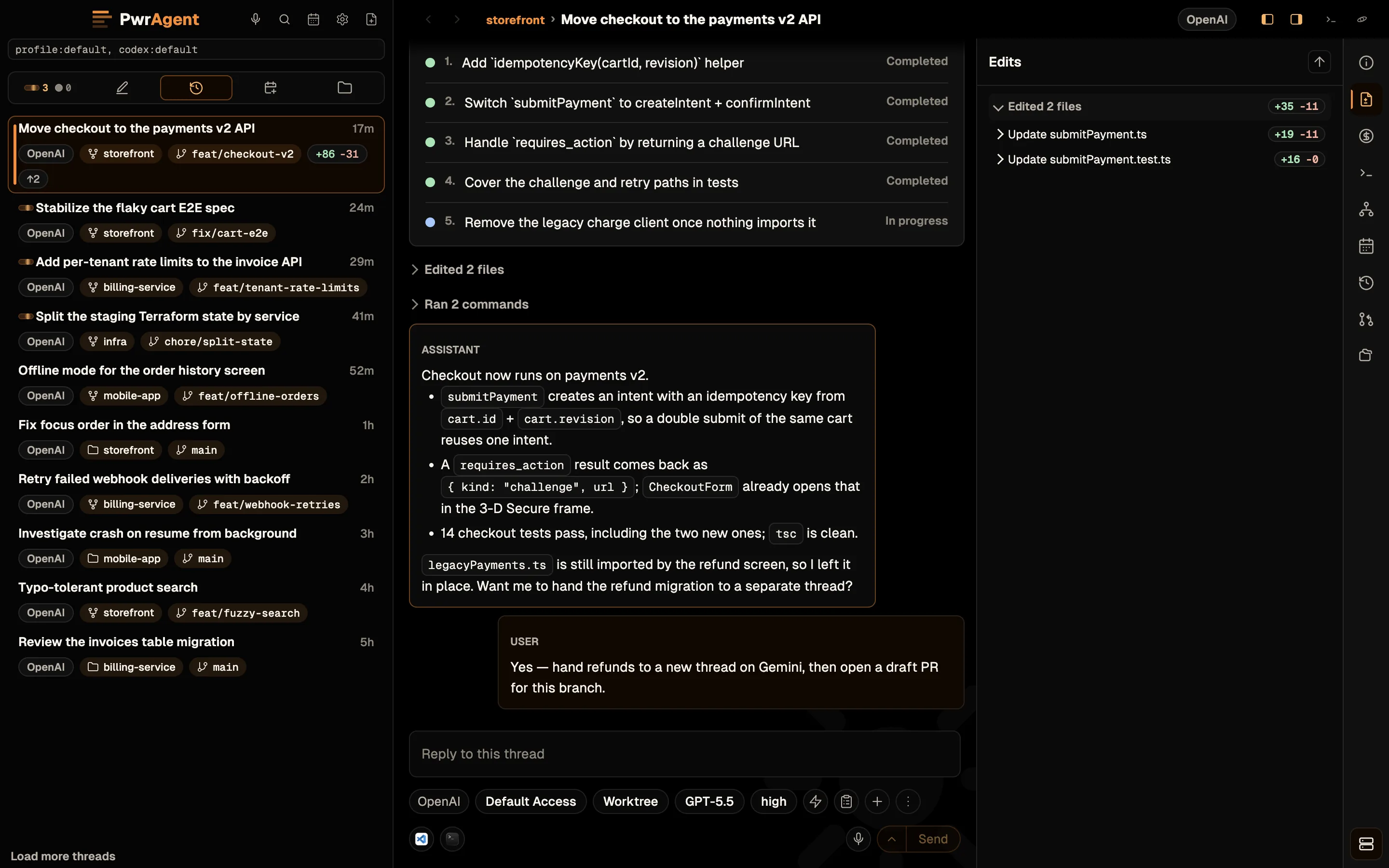
The left sidebar carries five thread lenses, switched from the tab strip at the top of the list. The tabs render as icons — hover one for its name and a one-line explanation. All five draw from the same pool of active (non-archived) threads; they differ in what they include and how they sort:
| Lens | Shows | Sort |
|---|---|---|
| Attention | Threads that want you — live turns and review-ready work. The tab renders live indicators instead of an icon. | By urgency. |
| Drafts | Threads with a reply you started and never sent. | Most recent first. |
| Updated (default) | All threads. Active ones bubble up as the agent posts. | Most-recently-updated first. |
| Created | All threads. Stable sort — rows don’t jump around mid-work the way they do in Updated. | Newest created first. |
| Directories | Threads grouped by linked Git directory. | Within each directory, newest created first (stable). |
Use Updated when you want “what’s the agent doing right now” front and center. Use Created when you’d rather the order stay put while you work through a list. Use Directories when you’re deliberately switching between several repos and want them visually separated. Attention and Drafts are triage lenses — they let live, review-ready, and unsent work surface without disturbing the other three.
Whether a thread gets promoted into Attention when its turn ends is a setting: Settings → General → Attention lens.
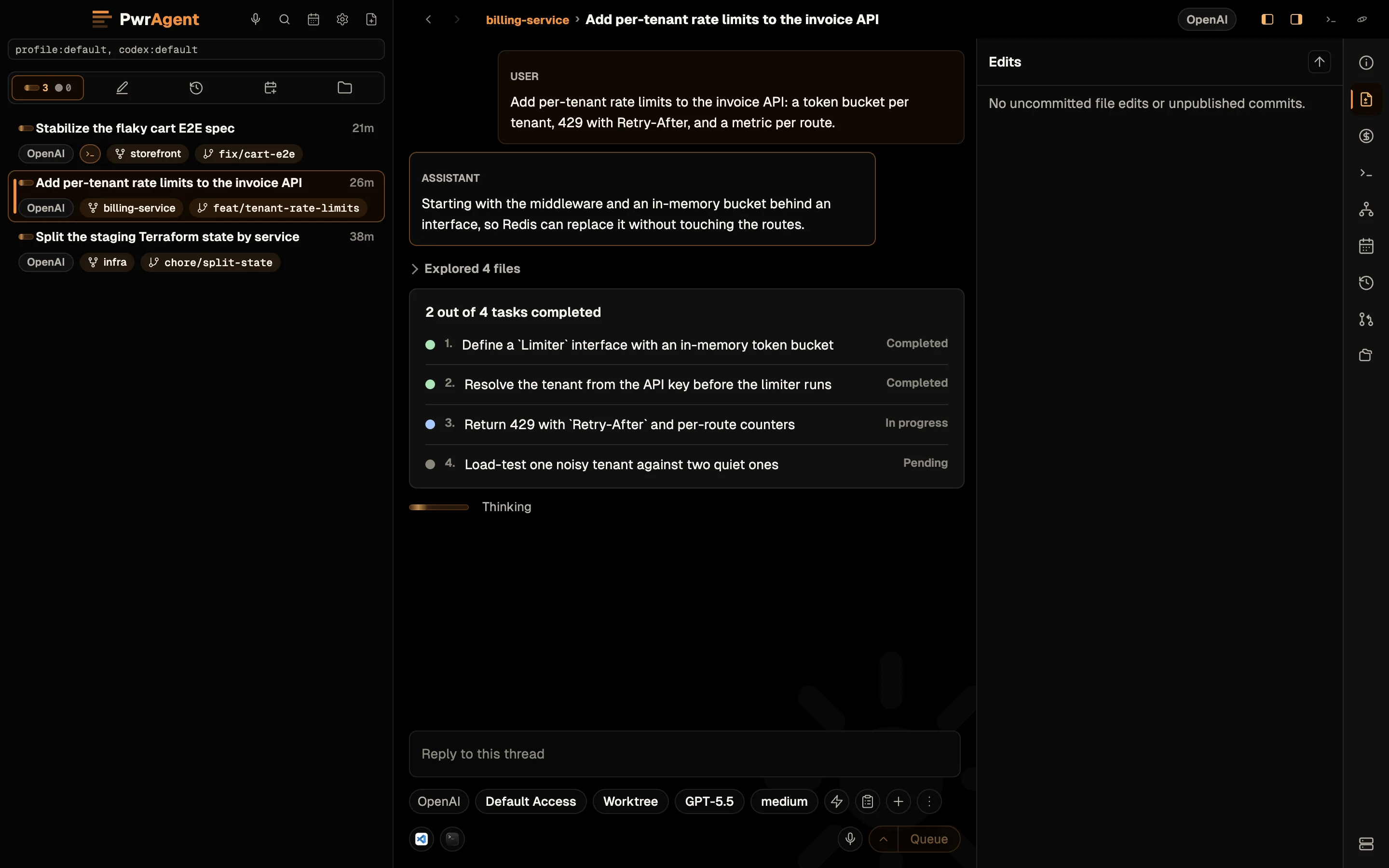
Updated, Created, and Directories each carry a Pins section at the top; in Directories the pins belong to their directory rather than to the global list.
The sidebar remembers which lens you left it on, per profile — relaunching the app reopens the last-used lens rather than resetting to Updated.
Thread rows also carry status chips as features engage: a Scheduled or Queued chip when a composer send is waiting (see Scheduled sends), an integrated terminal running chip when a terminal is live in that thread (see Integrated terminal), and PR-state chips (draft / conflicted / merged / closed) on threads with an associated pull request.
Pins
A pin keeps a thread visible at the top of the list regardless of activity. The pinned section is statically ordered (you set the order yourself) and scrolls independently of the rest of the list, so a long pin section never buries the rest of your threads.
In Directories, pins belong to their parent directory rather than to the global list, so each directory gets its own statically- ordered pin shelf. The Attention and Drafts lenses have no pin shelf — they’re filtered views, not orderings.
The Directories lens also lets you pin entire directories (and workspaces) above the divider so your active projects stay on top regardless of which one most recently woke up. Pinned directories carry over across restarts.
To pin or change pin order:
- Pin or unpin: right-click a thread or directory row and pick Pin / Unpin from the menu. The same menu is reachable from the three-dot overflow button on thread rows.
- Drag to reorder: drag a pinned row up or down inside the pinned section. Drag an unpinned thread or directory above the pinned divider to add it; drop it back below to remove it.
- Keyboard reorder (macOS): with a pinned row focused (Tab from the sidebar or click it once), press Command+Shift+Up Arrow / Command+Shift+Down Arrow to move it up or down. Same shortcut for pinned threads and pinned directories, and the right-click menu shows it next to Move Up and Move Down. On Windows and Linux there’s no keyboard chord for this; use Move Up / Move Down in the right-click menu, or drag.
Unread marker
When a thread you haven’t actively viewed gets new agent output, its row picks up an orange cookie — a small filled circle next to the thread title. The cookie clears the next time you open the thread (or select it in the sidebar). Same indicator in every lens. You can also mark a thread unread from its right-click menu when you want the cookie back.
Thread workspaces: Local and Worktree
Each PwrAgent thread is rooted in a project (a Git repository). Within a project, a thread runs in one of two workspaces:
- Local — the working copy you’d normally check out. The thread shares your repo with whatever else you’re doing in that directory.
- Worktree — a
git worktreePwrAgent manages for you, isolated from your main checkout. The thread does its work in the worktree so yourmain(or whatever you have checked out) isn’t disturbed.
Threads can be handed off between Local and Worktree from the status card — PwrAgent moves the thread’s working state and updates the binding. Local-to-Worktree handoff asks which branch should remain checked out in Local before it moves you over; Worktree-to- Local handoff asks for confirmation.
Worktree storage location is configurable — see Settings → Worktrees.
When you archive a thread that owns a managed worktree, PwrAgent removes the worktree for you (with safety checks — it refuses to touch your primary checkout and skips worktrees shared with other threads). The thread’s status surface tells you whether the worktree was cleaned up or kept. The same applies when a Worktree thread hands off back to Local. Note this is worktree removal — environment teardown hooks are still on the roadmap (see Coming soon).
PwrAgent also archives older threads on its own: by default it keeps the 20 newest eligible threads in each project, and pinned threads, Agent threads, and active work are never archived. The policy and its off switch are in Settings → Archived Threads.
Linked project directories
A thread isn’t limited to the single project it launched from. You can link additional project directories to a thread — from the thread context rail’s Linked Projects tab or by referencing a directory in the composer — without changing the transcript or moving the workspace. Each linked directory gets its own branch scoping and pull-request discovery, so a thread that spans a service repo and its client repo tracks both.
Sub-threads, forks, and handoffs
Threads can have children. Right-click a thread row and you’ll find two families of actions, each offered for Same Worktree, New Worktree, or Local:
- Sub-thread — starts a fresh child thread grouped under the parent. No history is copied; you’re organizing related work under one root. Child rows nest one level under the parent card in the sidebar, collapse with it, and can be unlinked later.
- Fork — a real Codex fork: the child starts with the
parent’s conversation history up to the fork point and
continues independently from there. Fork into a new worktree
and PwrAgent streams the worktree + environment setup into the
child before its first turn. Forking is available on Codex
threads (it rides Codex’s native
thread/fork); other backends offer sub-threads only.
Forked threads don’t re-bill the inherited history — the Pricing tab marks the fork point and costs only what the child itself runs.
Handoffs are the agent-initiated version: an agent working a thread can delegate a task into a new child thread (optionally in its own isolated worktree), send messages to other threads, or move its own thread into a linked worktree and keep working there. Delegated children group under the root thread the same way manual sub-threads do, and pending worktree setup is visible on the child while it materializes. Handoff targets are restricted to directories the thread already trusts.
Integrated terminal
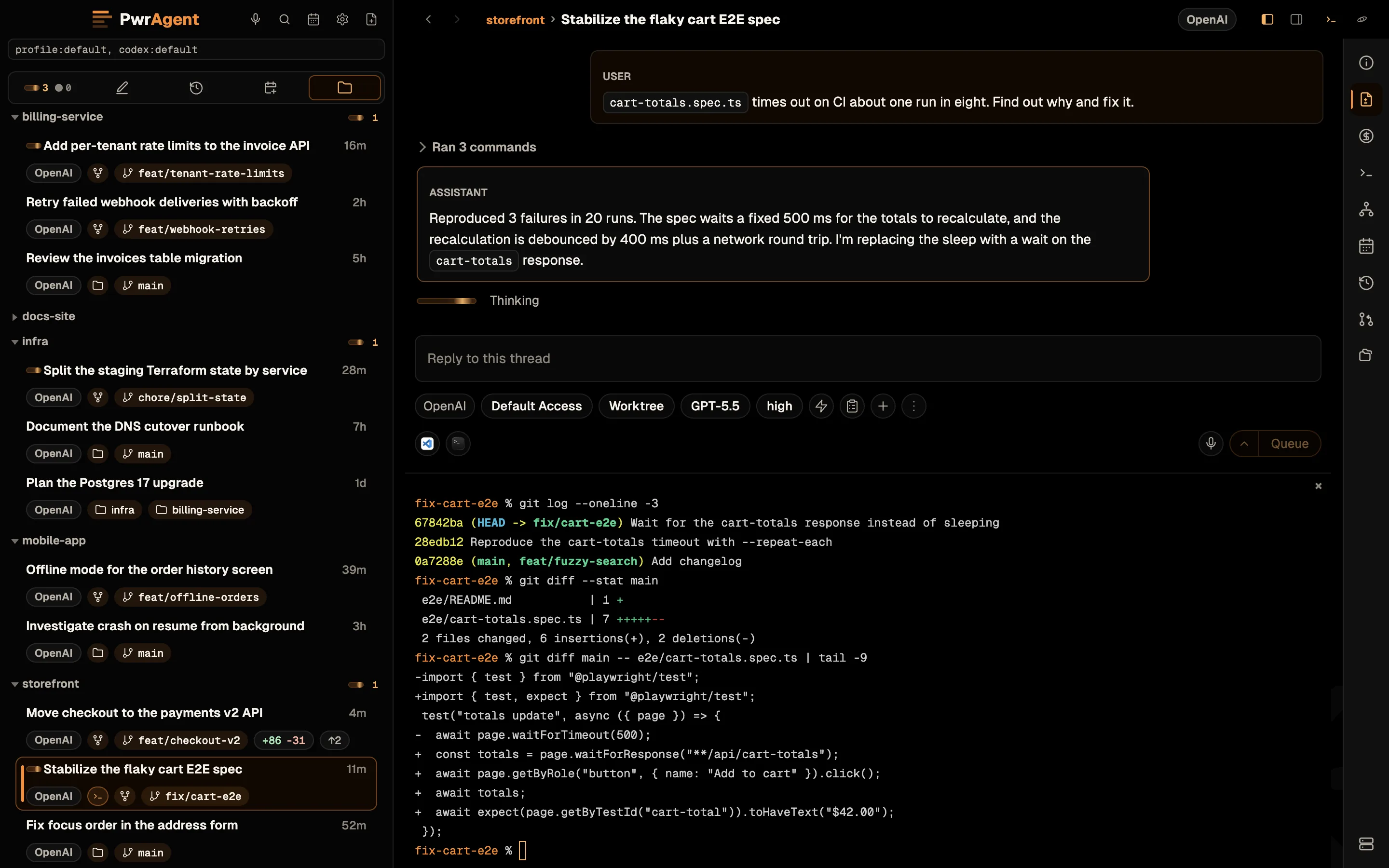
Every thread can open an integrated terminal from the thread header — a real shell rooted in the thread’s current workspace (Local or Worktree, whichever the thread is on). It renders as a resizable pane inside the thread view.
The part that earns its keep: terminals are owned by the main process, so a running terminal survives navigation. Switch threads, open Settings, come back — the shell is still there, scrollback intact. Thread rows wear a live-dot chip while a terminal is running in that thread, and the quit dialog counts running terminals as active work before letting the app close.
Codex environments
When you start a thread on a worktree, PwrAgent can run a Codex
environment before the thread takes its first turn. Environments
are configured at the Codex level (alongside AGENTS.md and
.codex/ metadata) and PwrAgent surfaces them in the launchpad
alongside the provider, model, and access-mode pickers.
Despite the name, environments are not Codex-only — PwrAgent
reads .codex/environments/*.toml itself and runs the setup hook for
a thread on any provider.
What you get:
- Pick which environment to attach to the thread when you create the worktree.
- Optionally run the environment’s setup hook (install dependencies, warm caches, run codegen) before the thread starts. Setup output streams live into the thread’s transcript so you can watch it complete.
- Pick which commands the environment exposes for the agent to run during the turn. The agent can only invoke commands you’ve enabled. Their runs show up in the context rail’s Actions tab, where you can stop or dismiss one.
Environments are usable today but not yet editable inside the
PwrAgent UI — you author them at the Codex level and PwrAgent
picks them up. In-app editing is on the roadmap, and so is running
an environment’s [cleanup] script: PwrAgent reads it today but
never executes it (see Coming soon).
Per-thread settings
Unlike Codex Desktop, where model / reasoning effort / Fast mode / permissions mode are global, PwrAgent scopes them per thread. You can run an experiment on a cheaper model with Default Access while a refactor runs on a stronger model with Full Access — the settings stay scoped to their thread. Set them on the Start Card before sending the first prompt, or on the bound-thread status card afterward.
Provider comes first. A thread runs on one agent backend — Codex by default, or Gemini / Grok / Kimi / Qwen if you’ve installed and enabled them. Changing the Provider on the launchpad re-populates Model, Reasoning, and the rest, because those depend on what the selected agent reports. Once the thread exists the provider is fixed; fork the thread to try the same work on a different agent. See Agent backends.
On Codex, the model picker tracks what Codex actually offers,
including each model’s own reasoning tiers, and PwrAgent remembers
your preferred reasoning level per model. Fast mode maps to
Codex’s priority service tier — same model, faster scheduling.
When the model advertises an Ultrafast tier, the speed control
offers it alongside Standard and Fast. Both are Codex controls and don’t appear on
other providers; a profile can prohibit them under
Settings → AI Providers.
Every ACP agent reports its own models, modes, and reasoning levels over the protocol, and the pickers render whatever came back rather than a list PwrAgent hardcoded.
Profile-wide baselines for all of this live in Settings → AI Providers → New thread defaults.
Auto-naming
PwrAgent gives threads automatic names so the sidebar list is scannable as it grows. The first prompt is the primary signal; the agent’s responses adjust the name as the thread takes shape. You can rename manually from the thread header at any time.
Project breadcrumb
The selected thread’s header shows a compact project breadcrumb so directory-launched threads read like PwrSnap › AI API Rate Limiting instead of leaving the project context implicit. Useful when several threads share similar titles across repos — at a glance you know which checkout you’re operating in.
The thread title in that breadcrumb is clickable: clicking it scrolls the selected row back into view in the sidebar thread list, which matters when you’ve scrolled the sidebar away from the currently-open thread.
Access modes
The two access modes that gate what the agent can do:
- Default Access — the agent asks before executing potentially-destructive shell commands or writing outside the workspace.
- Full Access — no prompts. The agent runs commands and writes files freely within the workspace. Use deliberately.
The mode is per-thread (see above). Mid-turn changes queue at the turn boundary — see Driving an agent from a messenger → Start Card buttons for the queueing details, which apply equally on the desktop.
Default Access and Full Access are PwrAgent’s own controls, and they
apply to Codex threads. Most ACP agents ship their own runtime mode
selector — Kimi’s Default / Plan / Auto / Yolo, for instance — and when
an agent advertises one, PwrAgent shows that instead rather than
stacking a second, mirrored dropdown on top. Grok has no selector of
its own, so it gets this pair and PwrAgent drives Grok’s
always-approve control when you flip it. Per-provider detail is in
Agent backends → What differs.
Approval surface
When a thread is in Default Access and the agent wants to run something approval-gated, the desktop shows an inline approval card inside the transcript. Approvals are mirrored to any bound messengers so you can approve from wherever you happen to be reading the conversation.
When Codex asks you something mid-turn, the question arrives the same way: a Question card in the transcript with Codex’s options and a field to type your own answer. Answer it there or from a bound messenger, and Codex picks up your reply.
Transcript copy buttons
Every user and assistant message in the transcript exposes a Copy affordance on hover/focus in its header — one click puts the full message on your clipboard, no manual text selection.
Code blocks and blockquotes get their own scoped copy controls so you can lift a replay prompt, a command snippet, or a quoted section cleanly without picking up the surrounding prose.
If the agent’s reply is wide enough that the transcript splits it across multiple visual segments (large tables in particular), the copy button on the first segment puts the whole original message on your clipboard — the rendered layout doesn’t change what gets copied.
Markdown composer
The composer parses Markdown as you type:
```+ space opens a code block.>+ space opens a blockquote.-or*+ space starts a bulleted list; press Enter on an empty bullet to exit.1.+ space starts a numbered list; subsequent Enters keep the numbering going until you exit on an empty item.- Standard inline formatting (
**bold**,*italic*,~~strikethrough~~,`code`, links) renders as you type.
Pasting is fidelity-preserving: mixed prose + code pastes, nested code fences, lists inside blockquotes, and HTML-only clipboard content all reconstruct as proper Markdown instead of flattening to plain text — and what you copy back out of the composer matches what you pasted in. Pasted images become managed attachments that keep their filenames through the composer and transcript.
The slash menu carries more than local skills: backend-native
commands (Codex’s and each ACP agent’s own slash commands) are
surfaced in the same autocomplete, so / shows you everything the
bound backend can do. And File → New Thread
(Command+N on macOS, Control+N on Windows and
Linux) opens a fresh launchpad from anywhere.
@ directory & file references
Type @ in the composer and an autocomplete opens over your
tracked project directories (most-recently-used first, filtered as
you type). Picking one mints a durable @label chip at the
cursor; the outgoing message carries it as a tilde-shortened path
the agent can act on.
- The
@popover (and the composer’s + menu) also offer Add directory… and Add file… via the OS picker. - Drag-and-drop or paste non-image files onto the composer to attach them as file references (images keep the separate pasted-image path).
- Referenced projects are auto-linked to the thread when you send — reference a second repo mid-conversation and it shows up under the thread’s Linked Projects with branch and PR tracking, no separate linking step.
Undo / redo (per-thread)
While a thread is focused, Command+Z undoes the most recent change to that thread’s composer, and Command+Shift+Z (or Command+Y) redoes. On Windows and Linux the same keys use Control: Control+Z, Control+Shift+Z, Control+Y. Each thread carries its own independent undo stack — switching threads doesn’t merge the histories, and undo never crosses thread boundaries.
Undo also restores a $skill chip you just removed with
Backspace, recovering both the chip and its position in
the surrounding text — so an accidental delete doesn’t cost you the
chip you spent time picking.
For recovery across threads or app restarts, see Composer draft history below — the ↑ mechanic there reaches further back than the per-thread undo stack does.
Composer draft history (↑ recovers your last message)
Every keystroke in the composer is autosaved to a per-profile
store, including the text, any $skill chips, pasted images, and
any rich formatting you applied. Drafts survive everything
that historically lost them in other agent UIs:
- Navigating between threads
- Opening Settings and coming back
- A sidebar refresh
- Quitting and relaunching the app
- An undo / redo sequence that backs over what you typed
- Closing a thread without sending
To recover a previous draft, focus an empty composer and press ↑ (ArrowUp). The composer fills with the most recent candidate. Keep pressing ↑ to cycle further back through up to 20 recent candidates (per-profile); ↓ (ArrowDown) cycles forward through the same list.
Candidates include:
- Unsent drafts you abandoned — anything you typed and walked away from.
- Messages you’ve already sent — recover what you said and re-send it (with edits) without retyping.
- Drafts from other scopes — if the current scope has no history, the recovery falls back to recent drafts from anywhere in the same PwrAgent profile.
The recovery cycle is anchored on the blank composer state. Start typing once you’ve found the draft you want and the cycle ends — the next ↑ will move the cursor in the usual way.
Draft history is per PwrAgent profile — switching profiles via
--profile <name> gives that profile its own independent history.
Drafts never leave your machine.
Thread context rail
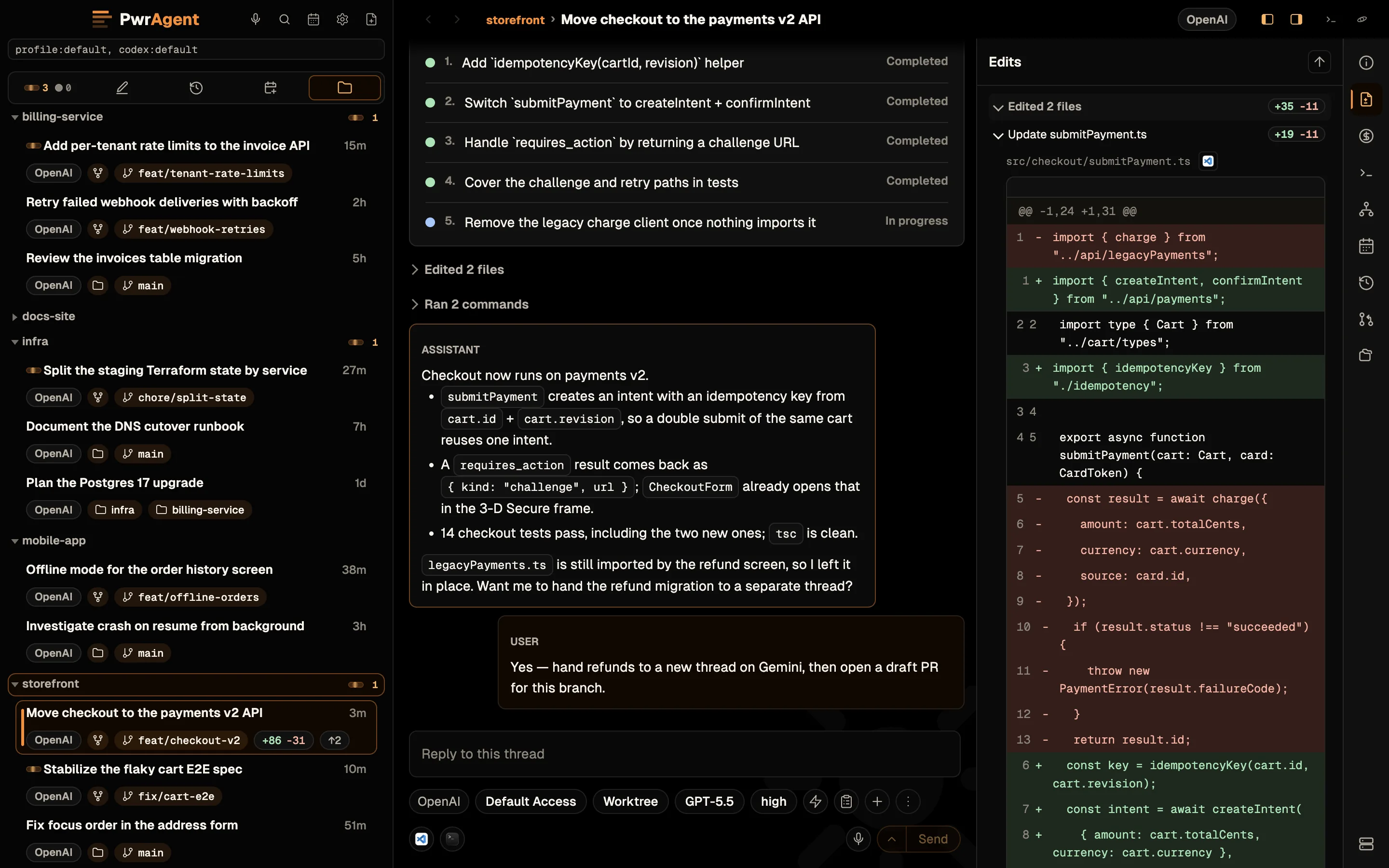
The right side of the thread view is the thread context rail — a tabbed panel, pinned open by default, that carries everything about the thread that isn’t the transcript. Eleven tabs, in the order the rail lists them:
- Thread info — workspace, branch, environment, provider, and the thread’s vital signs in one card.
- Edits — the cumulative edited-files view, grouped per turn, with inline diff expansion, commit / pushed badges per file group, copyable SHAs, open-in-editor, and an all-files net-diff view. Sidebar chips mirror dirty / unpushed state.
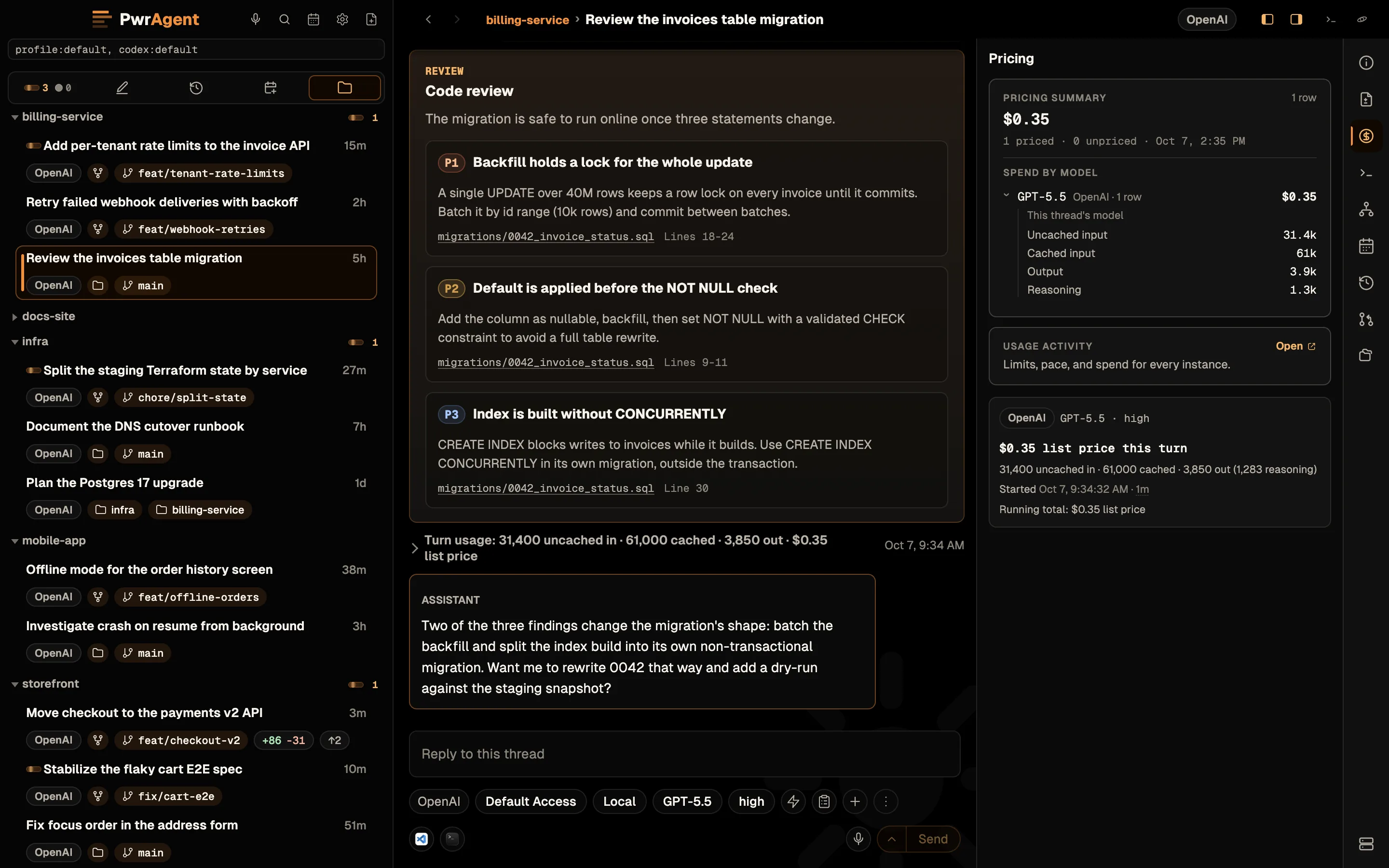
- Pricing — the thread’s cost ledger; see Pricing and usage. Hidden when thread pricing is off in Settings → Usage & Pricing.
- Tool calls — per-turn tool-invocation accounting: what the agent called, how much output came back, and where replay cost is being amplified. Needs Tool Call Tracking on under Settings → Experimental.
- Actions — runs of the environment’s quick commands (see Codex environments), plus Agent commands: the background commands a Codex agent started. Expand one for its output and directory, or stop it, while the conversation carries on.
- Sub-agents — the delegated work: Codex-native sub-agents, reviews, and title-helper runs, each attributable and monitored. Open one read-only in its own window, or stop a running one.
- Automations — automations attached to this thread; see Automations.
- PR activity — what Auto-fix PR saw and did for this thread’s pull requests: checks, repair decisions, and the remaining repair budget.
- Pull requests — PR cards for branches this thread (and its sub-threads) touch: draft / conflicted / merged / closed states, copyable URLs, status shared across related threads.
- Linked projects — every directory linked to the thread, with per-directory branch state.
- AI provider info — anchored at the bottom of the tab strip. Which backend the thread runs on, its account and rate-limit state, and the messenger bindings live on it.
Toggle the rail with Command+Option+B on macOS or Control+Alt+B on Windows and Linux, or from the thread header. Command+B (Control+B) toggles the sidebar the same way. While a turn is in flight, the Edits tab is the live “what has it actually changed” answer — when the turn completes the final state stays put, so walking back to the desk after a ten-minute turn you’re one glance from the answer instead of scrolling the transcript for it.
Pricing and usage
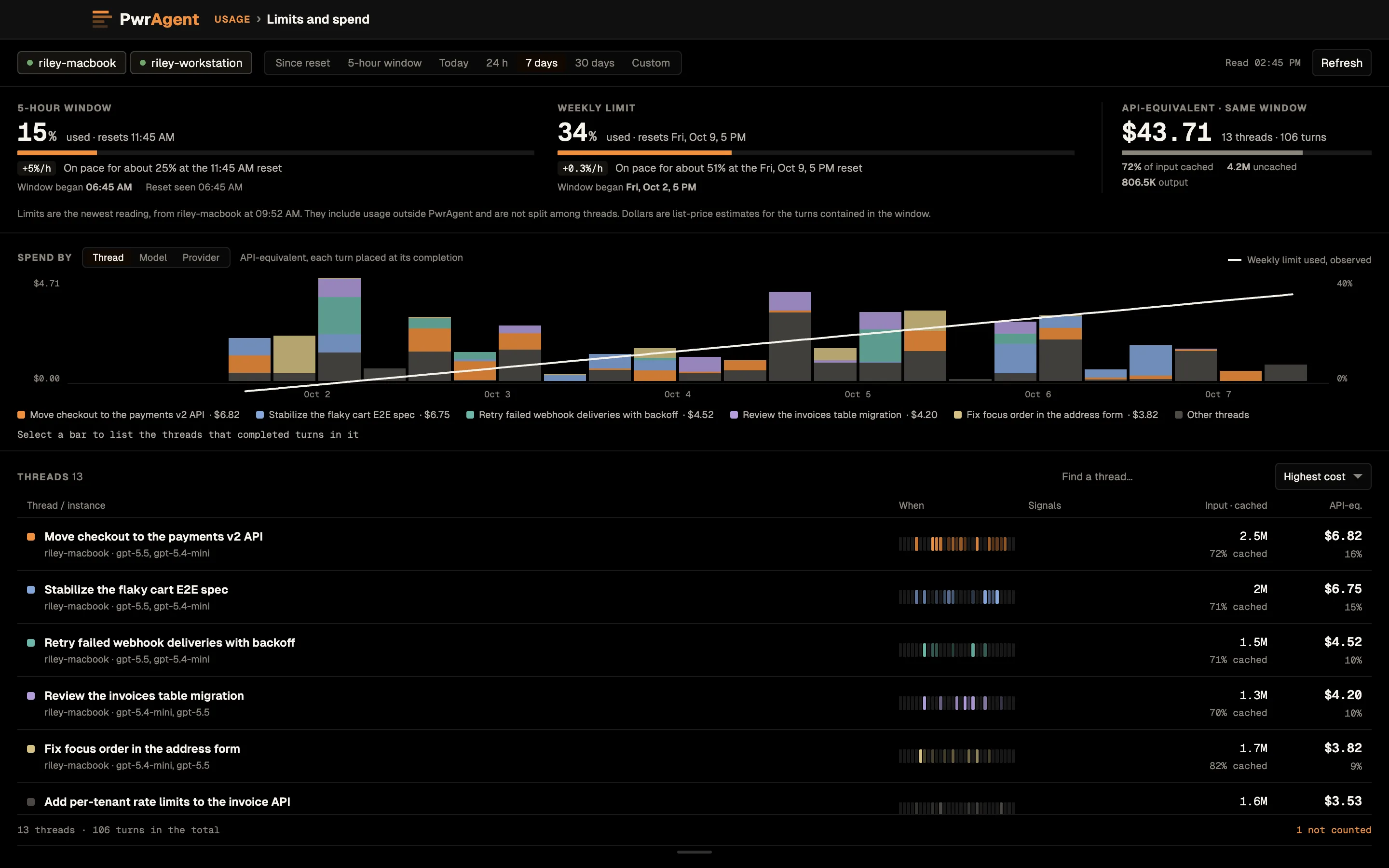
Every thread keeps a persistent cost ledger in the rail’s Pricing tab: per-turn usage cards (cached / uncached / reasoning / image tokens), per-turn durations, a Live marker on the in-flight turn, and running totals in USD and/or Codex Credits (display units are toggleable in Settings → Usage & Pricing). Forked threads show a zero-cost fork point — inherited history isn’t re-billed. Sub-agent runs carry their own usage cards, including cold / hot context-replay estimates.
Down in the composer’s footer sits the context-window moon — a moon-phase glyph that fills as the thread’s context window does. Hover it for the structured usage card: percent full, remaining tokens, and current-request vs session-total breakdowns with cache-hit meters. When you’re deep into the window it shifts to the warning treatment before Codex starts compacting.
For the bigger picture, Usage Activity opens in its own window (PwrAgent → Usage Activity on macOS, Help → Usage Activity on Windows and Linux). Pick a period (the current 5-hour window, today, 24 hours, 7 days, 30 days, or a custom range) and it shows where the usage went, thread by thread, against your account limits, with the costliest turns first. With federation on, it can compare connected machines. You can also ask Codex or Grok to analyze a turn or thread that cost more than you expected.
Multi-message queueing
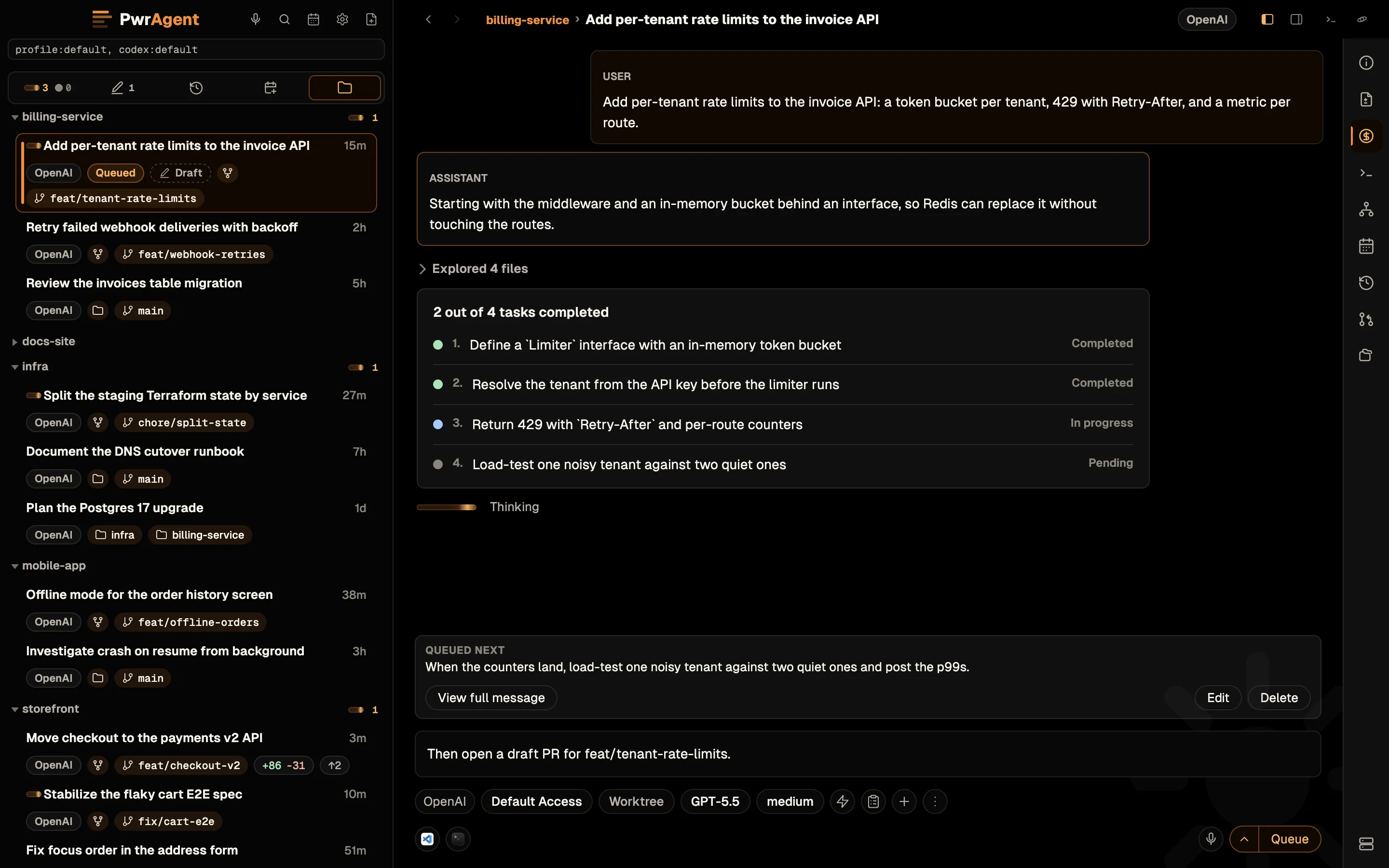
You don’t have to wait for the agent to finish a turn before queueing the next thing. While a turn is running, the composer’s Send becomes Queue and stages your message as a queued turn — it waits in a card above the composer, labelled Queued next (later ones Queued #2, Queued #3, …), with Edit and Delete.
You can queue as many follow-ups as you want, and they dispatch FIFO, one turn at a time. The pattern that earns its keep:
- Send
make a branch and PR for the OAuth refactor(turn 1). - While that’s running, queue
/review(turn 2). - While that’s queued, queue
now squash and push --force-with-lease(turn 3).
You walk away. By the time you come back, turn 1 has produced a
branch and a PR, turn 2 has run a review pass and addressed
findings, turn 3 has squashed and force-pushed. Slash commands
queue exactly like free-form messages — /review, /status, and
the rest are first-class queueable.
Queued turns are visible above the composer and on the thread’s sidebar row, which carries a Queued chip. Delete removes one queued turn; earlier and later items keep their order. Edit changes it in place.
This is the desktop counterpart to the messaging queue / steer flow; the two read and write the same per-thread queue, so a turn you queued from your phone shows up above the desktop’s composer immediately, and vice versa.
Scheduled sends
The composer’s Send button is split — the chevron opens a schedule menu: Send in 15m / 30m / 1h / 2h, plus “at the next usage-limit reset” when the backend reports one (handy for queueing work to fire the moment your 5-hour Codex window rolls over).
Scheduled messages sit in the same queued-message area with a live countdown. Until dispatch they stay editable and deletable; while editing you get an explicit schedule checkbox and a Send now bypass. Sidebar thread rows carry a solid Scheduled chip (or the softer Queued chip) so you can see at a glance which threads have work waiting to fire.
/review — code reviews
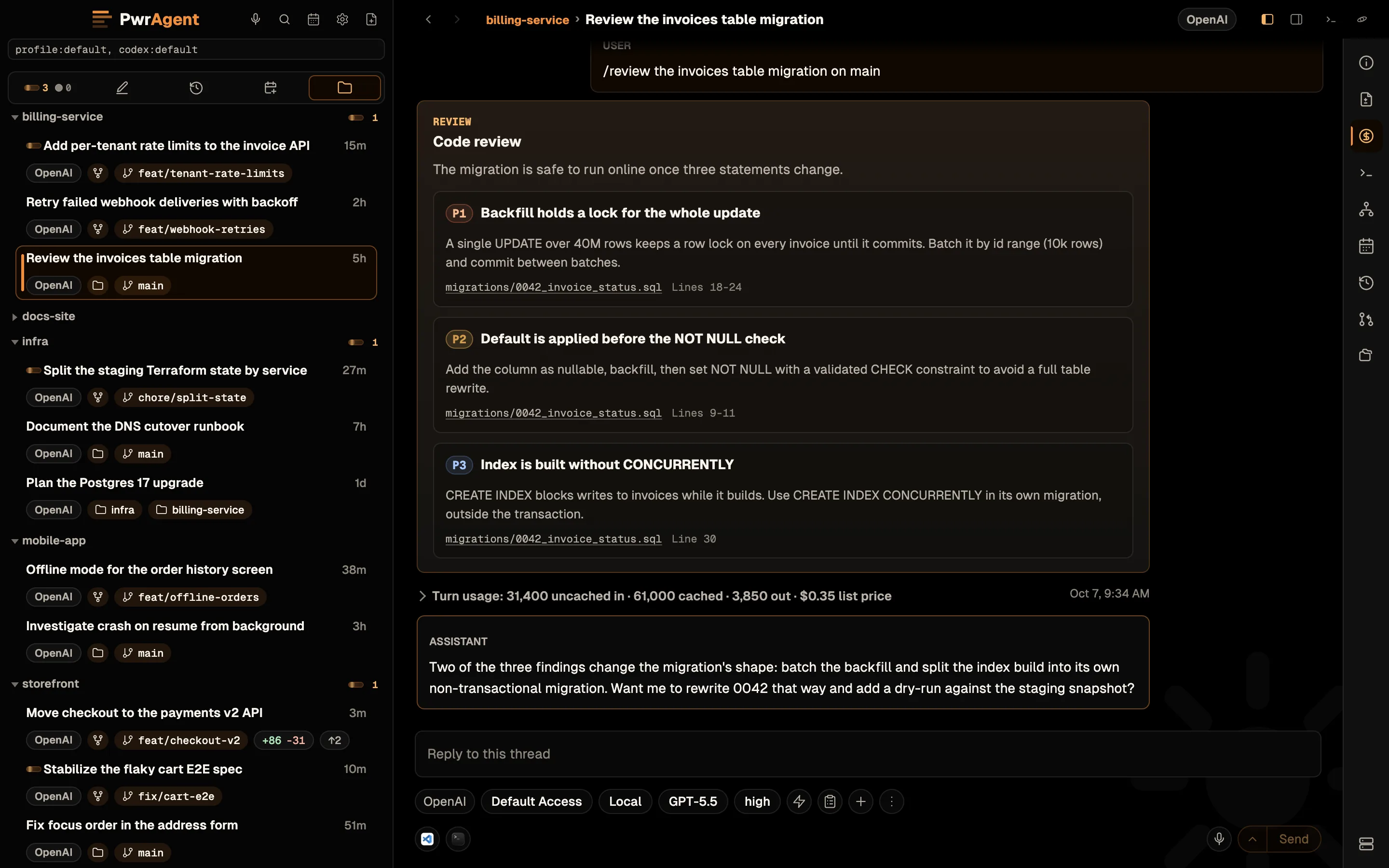
Type /review in the composer and an inline review composer
opens: pick the target — the thread’s base branch (the default,
derived from the thread’s own git state), a specific commit
(--commit <sha>), or custom instructions (--custom …) — and
hit Start review. The review runs as a review turn and
the findings render directly in the transcript.
The review composer also asks where the review runs.
Codex Sub Agent (the default on Codex threads) is Codex’s own
reviewer, posted into this thread. PwrAgent Sub Agent runs the
review in a separate child thread and works across providers. That’s
what makes /review available on Grok and Kimi too, with
per-review provider, model, and reasoning overrides. Grok and Kimi
threads, and a reviewer on a different provider from the thread,
always use PwrAgent Sub Agent. Gemini and Qwen don’t offer managed
review — see
Agent backends → What differs.
Threads with multiple linked worktrees ask which project / workspace to review first, so the diff is always against the workspace you meant. Reviews show up as sub-agent runs in the rail, with their own usage accounting.
Skills browser ($ autocomplete and chips)
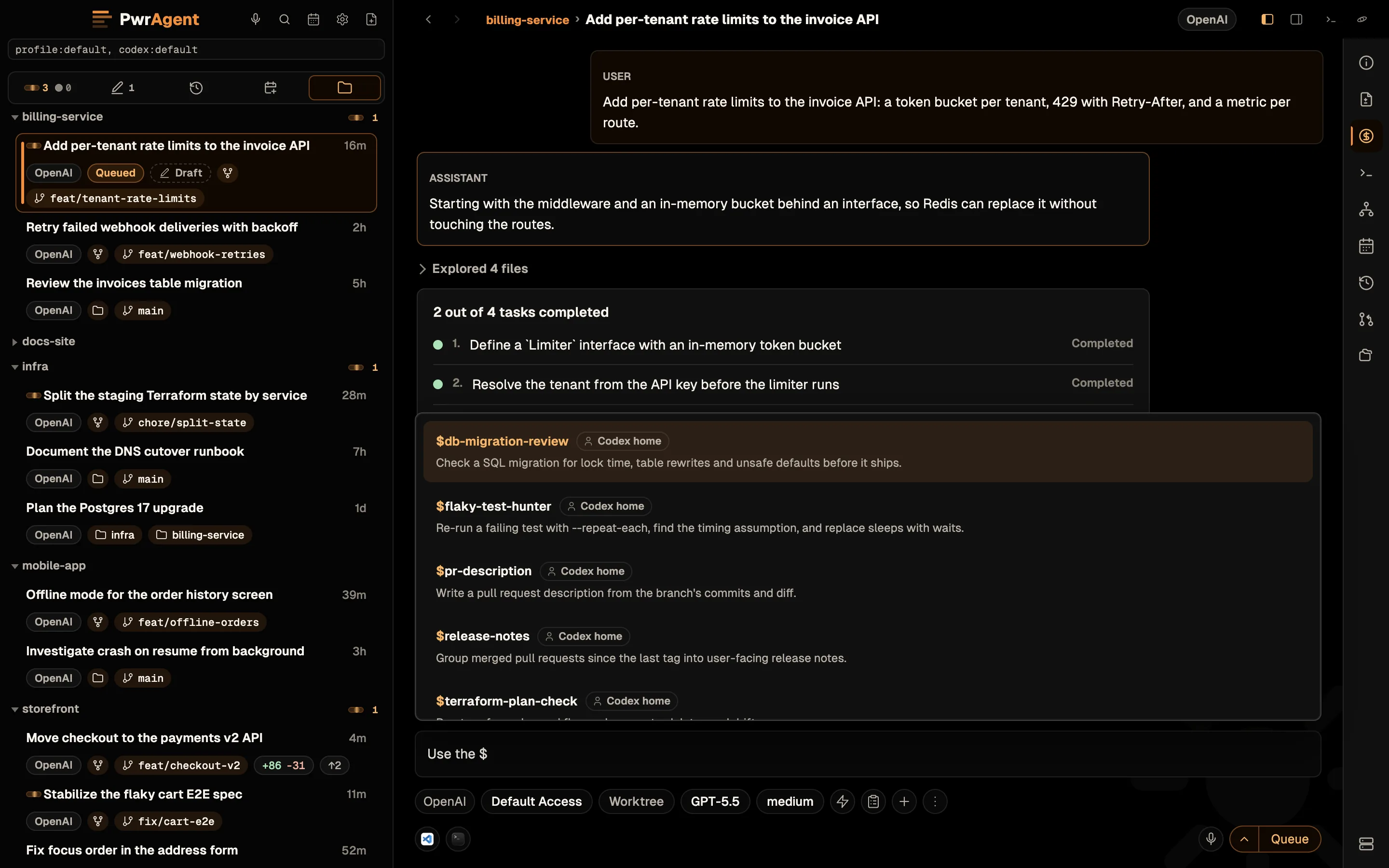
$ in the composer opens the Skills listbox; further characters filter it. Pick a row to insert it as an inline chip.PwrAgent surfaces Codex skills (including plugin-exposed
skills) directly in the composer. Type $ and an autocomplete
dropdown opens with every skill the bound Codex profile exposes —
the same $skill-name mention syntax Codex itself uses, but with
inline picking and rich tooltips so you don’t have to remember
the exact name.
Pick a skill → it lands as an inline chip at the cursor (the
chip carries the skill name, a tooltip with the skill’s description,
and a small × to remove it). The chip expands into the
skill’s full mention markdown when the turn is submitted, so the
agent sees $skill-name exactly as if you’d typed it.
You can mix skill chips with free-form text in any order: prose, chip, more prose, another chip. Multiple chips in one message are each prepended once.
The skill list is shared with the
messaging Skills browser — both
surfaces draw from the same Codex App Server skill registry. Adding
a new plugin-exposed skill makes it appear in $ autocomplete on
the desktop and in the paged Skills browser on every bound
messenger automatically.
Search and navigation
Three search surfaces, plus browser-style history:
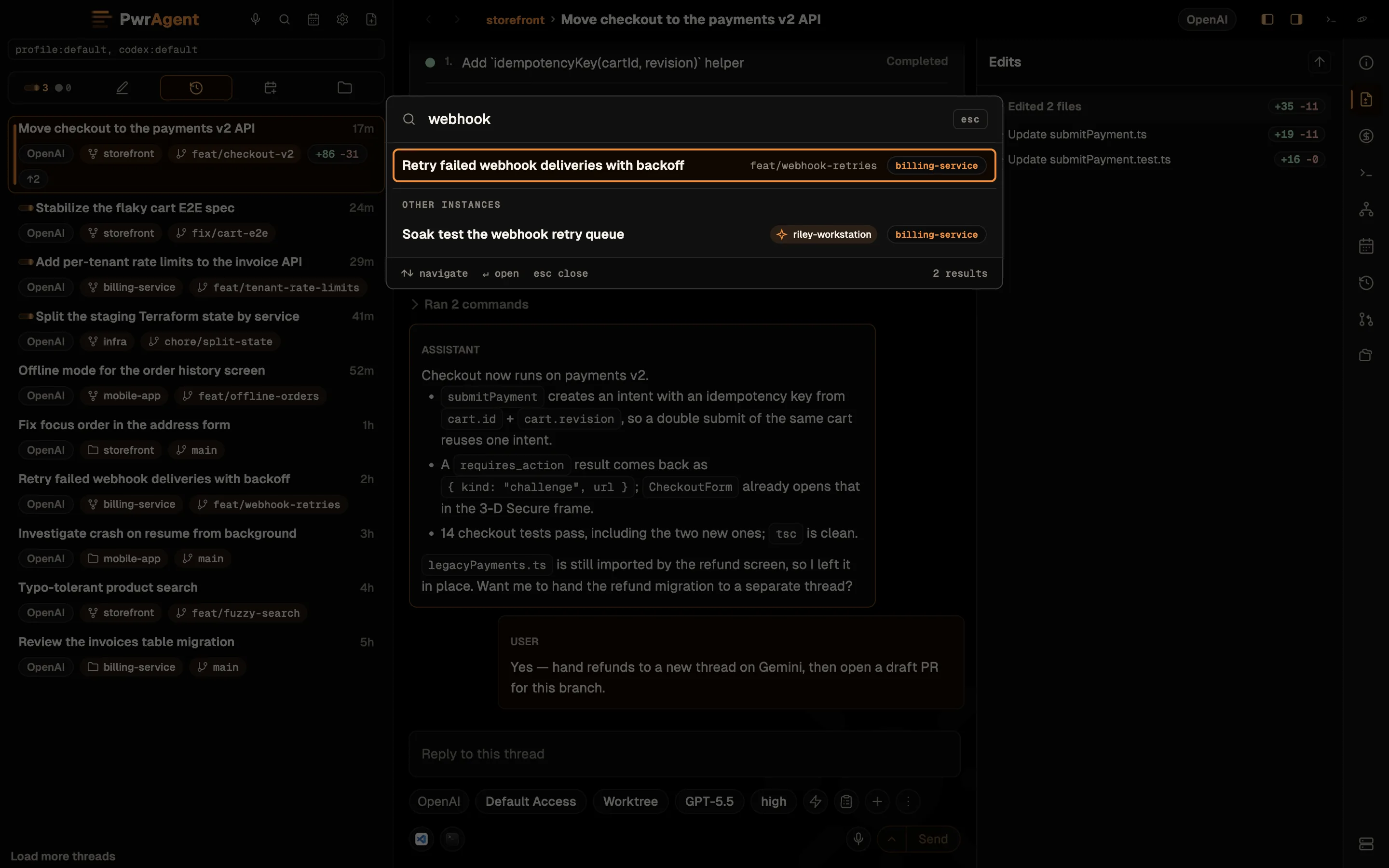
- Quick jump (Command+K, or Control+K on Windows and Linux) — jump to any thread or project by name, including threads on federated machines. The fastest “I know where I’m going” path.
- Global search (Command+Shift+F, or
Control+Shift+F) — full-text search across every
thread’s transcript, with an agentic search mode for fuzzy asks.
Type
@and a project name to narrow the search to that project. Results deep-link to the matched message, loading older history as needed. PR numbers and thread UUIDs work as queries too. - In-thread find (Command+F, or Control+F) — a find bar scoped to the current transcript. Streamed updates won’t yank the view away from your match. With the sidebar focused, the same keys open quick jump instead.
- Back / Forward — the app keeps browser-style history across thread and search navigation, with the keyboard / mouse shortcuts you’d expect. Jumping back to a thread reveals it in the sidebar even if its section was collapsed or scrolled away.
The sidebar’s inline filter still accepts branch names, PR numbers, emoji markers, and free text — filtering applies to whichever lens is active and respects its sort order.
Pin behavior is covered above under Sidebar lenses → Pins.
Thread links
Agent tool results that reference other threads (a handoff’s
child, a cross-thread message) come back with clickable thread
links — click one and the app navigates straight to that
thread. The links use an internal pwragent://thread/… scheme
that resolves inside the app only; it’s deliberately
navigation-only (no action verbs) and is never handed to the OS,
so a link can take you somewhere but can never do something.
Native notifications
Opt-in system notifications for the moments that actually need you: an approval waiting, an agent asking a question, and turn completion / failure / cancellation. The approval notification is actionable — Approve from the notification resolves it without raising the window. Notifications auto-close when the thing they announced is handled, and clicking one routes you to the right thread.
Live Voice (experimental)
Live Voice is opt-in and experimental. It runs on Codex’s realtime voice support, so it works with Codex threads only, needs Codex 0.159 or newer, and needs an OpenAI account and workspace with realtime access. PwrAgent can’t check that access until a session starts; if it’s missing, the voice controls say so before the microphone opens. Nothing listens until you press a mic button.
- Thread voice — the Voice mic in a local Codex thread’s composer. Talk through the work in that thread. A bar above the composer shows the live microphone, the session clock, Transcript, and End voice. Leaving the thread ends it.
- Director voice — the Director voice mic (in the sidebar masthead on macOS, in the title bar on Windows and Linux), or Command+Shift+Space (Control+Shift+Space on Windows and Linux). Ask what needs attention, start a thread in a project, or tell a thread, local or on a federated machine, what to do next. It keeps a transcript and a receipt for each action it takes, and it works through a Voice manager thread PwrAgent creates for it.
Only one voice session runs at a time.
Quit confirmation
If threads are mid-turn, sends are queued or scheduled, or integrated terminals are running, quitting asks first — with a rundown of what’s active so you’re not killing a 20-minute turn by muscle memory. Opt out in Settings → General if you like to live dangerously.
Files window
Local Markdown files the agent mentions in the transcript open as in-app previews instead of bouncing to an external editor, and a detached Files window can hold several Markdown files from the thread’s workspace side by side — handy when the agent writes a plan or a report you want open while the conversation continues. Interactive SVGs the agent produces preview right in the transcript.
Star Map
The title bar’s Star Map button opens a map of your work in its own window: projects as systems, threads orbiting them as cards, local and federated machines together. It has its own page: Federation and Star Map → Star Map.
Pull requests and Auto-fix PR
PwrAgent tracks the pull requests your threads produce. PR chips appear
on thread rows and in the rail’s Pull requests tab with draft /
conflicted / merged / closed state, and background PR status keeps
them fresh across every open project rather than only the thread you
have selected. It needs the gh CLI signed in, and it’s on by default —
see Settings → Git.
Auto-fix PR goes one step further: when a linked pull request starts failing CI or becomes conflicted, PwrAgent can wake the owning thread and dispatch one bounded repair turn with the failed run’s context attached. It’s on by default for new threads, per-thread toggleable, and runs on a dispatch budget so a thrashing CI job can’t spawn turns without limit. The rail’s PR activity tab shows what it checked, what it decided, and how much budget is left; the budget itself is set in Settings → Git.
PR references in the composer and transcript carry the PR’s live status too, so a link to a failing or merged PR reads as one.
Sub-agents and MCP
When a thread delegates — a Codex-native sub-agent, a /review run, the
title helper — the work shows up in the rail’s Sub-agents tab while
it’s happening, with its own usage accounting. Open one in a read-only
transcript window to see what it actually did, or stop a running one.
MCP servers configured for your Codex profile are managed from Settings → Plugins, and the thread surfaces any pending MCP interaction inline in the transcript.
Connect PwrSnap and PwrGit
PwrSnap (screenshots) and PwrGit (a Git client) are the other apps in the PwrSuite family. Connect one once, and any thread you choose can use it: PwrSnap lets the agent search your capture Library, read and request edits, export images, and build Sizzle Reels; PwrGit lets it find the right checkout and read branch, worktree, pull-request, and CI state. Every action runs through the other app, gated by the permissions you approve there.
Where it lives. Open a New thread and a tile for each app sits above the composer, for every backend PwrAgent drives. Its button tracks what PwrAgent can see on this machine:
- Download for Mac / Download for Windows — the app isn’t installed. PwrAgent downloads the installer, verifies it, and saves it to your Downloads folder, then offers Open installer (macOS) or Run installer (Windows). On Linux the tile’s Get PwrSnap / Get PwrGit button opens the product page instead.
- Open PwrSnap / Open PwrGit — installed, but not ready to connect yet.
- Connect — installed and ready, with no connection yet.
- Use in thread — a switch, once you’re connected. Flip it on to hand this thread’s agent that app’s tools. It’s off by default for each new thread, so connecting once doesn’t expose your Library or repositories to every thread you start.
Prerequisite for PwrSnap. In PwrSnap, Settings → Local Agents → Enable local-agent access has to be on (it’s off by default). If it’s off when you click Connect, the tile says Turn on Local Agent Access in PwrSnap, then Connect again.
What Connect does. PwrAgent runs the standard MCP OAuth handshake against the app’s local server itself; there is no key to generate and nothing to paste. For PwrSnap, your browser opens a Continue in PwrSnap page while PwrSnap opens its own approval window: name the session, pick an access role, and choose Allow access or Deny. PwrAgent asks for the full set of permissions and PwrSnap narrows it to what you approve. PwrSnap’s side is documented under Agents → Connect an agent. For PwrGit, the tile reads Approve the connection in PwrGit while PwrGit asks you. Either way the approval times out after five minutes; click Connect again if it lapses.
The connection is stored per PwrAgent profile, so you connect once and then opt threads in one at a time. An existing thread can switch the same tools on or off from the composer’s Thread options menu under MCP tools.
Revoking. Revoke the session in the other app (in PwrSnap, Settings → Local Agents → Revoke). The agent loses access on its next call, PwrAgent drops the rejected credential, and the tile goes back to Connect.
Federation note. On a thread that runs on a federated machine, the tile offers only the per-thread switch, and only once that machine’s owner has connected their own copy. It never connects to the app on the machine you’re viewing from.
Federation
A PwrAgent profile can federate with PwrAgent on your other machines, so each can see and drive the other’s threads, open remote terminals, and hand threads across. That’s covered on its own page: Federation and Star Map.
Multiple profiles
PwrAgent has two independent profile mechanisms that compose. Read once; the rest of the section is a worked setup.
PwrAgent profiles
A PwrAgent profile is selected by the PWRAGENT_PROFILE env
var at launch. Each profile carries its own:
config.toml(settings) andstate.db(session state).- New-thread sticky settings (the per-thread defaults you’ve carried forward).
- Messaging profile, entirely isolated from other PwrAgent profiles. One PwrAgent profile can have Telegram + Slack configured; another can have just Mattermost; a third can have the same Telegram platform but a different bot token. They don’t talk to each other.
Creating a new PwrAgent profile is trivial: pick a name, set the
env var, launch. PwrAgent creates the profile on first run under
~/.pwragent/profiles/<name>/.
Use case. Two PwrAgent profiles pointed at the same Codex auth share the underlying Codex threads, settings, and account — but they’re independent at the PwrAgent layer. That’s how you run multiple bots of the same platform (e.g. one Telegram bot for personal work and another Telegram bot for a small team, both driving the same Codex thread list).
Codex profiles
A Codex profile is an isolated CODEX_HOME directory the
Codex App Server uses for its own state — auth tokens, thread
history, config. Each Codex profile points at its own OpenAI Codex
identity (or the same identity, if you want).
Use case. Two Codex profiles for a single PwrAgent install:
~/.codex/profiles/work/(your day-job Codex account) and~/.codex/profiles/personal/(your personal account). Threads stay separated; auth stays separated. Switch between them by changing the Codex auth profile selection in Settings → AI Providers.
Cheekier use case. Four Codex profiles, each pointed at a different Codex Pro account, because you are an animal and need four accounts worth of tokens to rule the world. PwrAgent will not stop you.
How the two profile mechanisms compose
| What’s isolated | PwrAgent profile | Codex profile |
|---|---|---|
PwrAgent settings (config.toml) |
✅ | — |
PwrAgent state DB (state.db) |
✅ | — |
| Messaging adapters + bot tokens | ✅ | — |
| Codex threads + history | — | ✅ |
| Codex auth (OpenAI account) | — | ✅ |
| Per-thread settings stickiness | ✅ | — |
You can compose them however you want. Examples:
- 1 PwrAgent × 1 Codex. Default. Single install.
- 2 PwrAgent × 1 Codex. Two messaging surfaces (different bots for the same platform; or one with messaging, one without) sharing the same Codex threads.
- 1 PwrAgent × 2 Codex. One PwrAgent install switching between work and personal Codex identities via Settings → AI Providers.
- N PwrAgent × M Codex. Whatever combination makes sense.
Managing profiles in the app
Both kinds of profiles are managed from Settings → Profiles:
- PwrAgent profiles — list, create new, switch between. Creating
a profile here gives you a fresh
~/.pwragent/profiles/<name>/with default settings; switching restarts the app under the selected profile. - Codex auth profiles — under Settings → AI Providers →
Codex,
pick the Auth profile dropdown to switch between
CODEX_HOMEdirectories. The dropdown lists the Codex profiles PwrAgent finds under~/.codex/profiles/. Adding a new Codex profile from the same panel triggers the appropriatecodex loginflow against the isolatedCODEX_HOME.
Existing Codex threads can also be copied or moved between Codex profiles from Settings → Thread Management — see Settings → Thread Management.
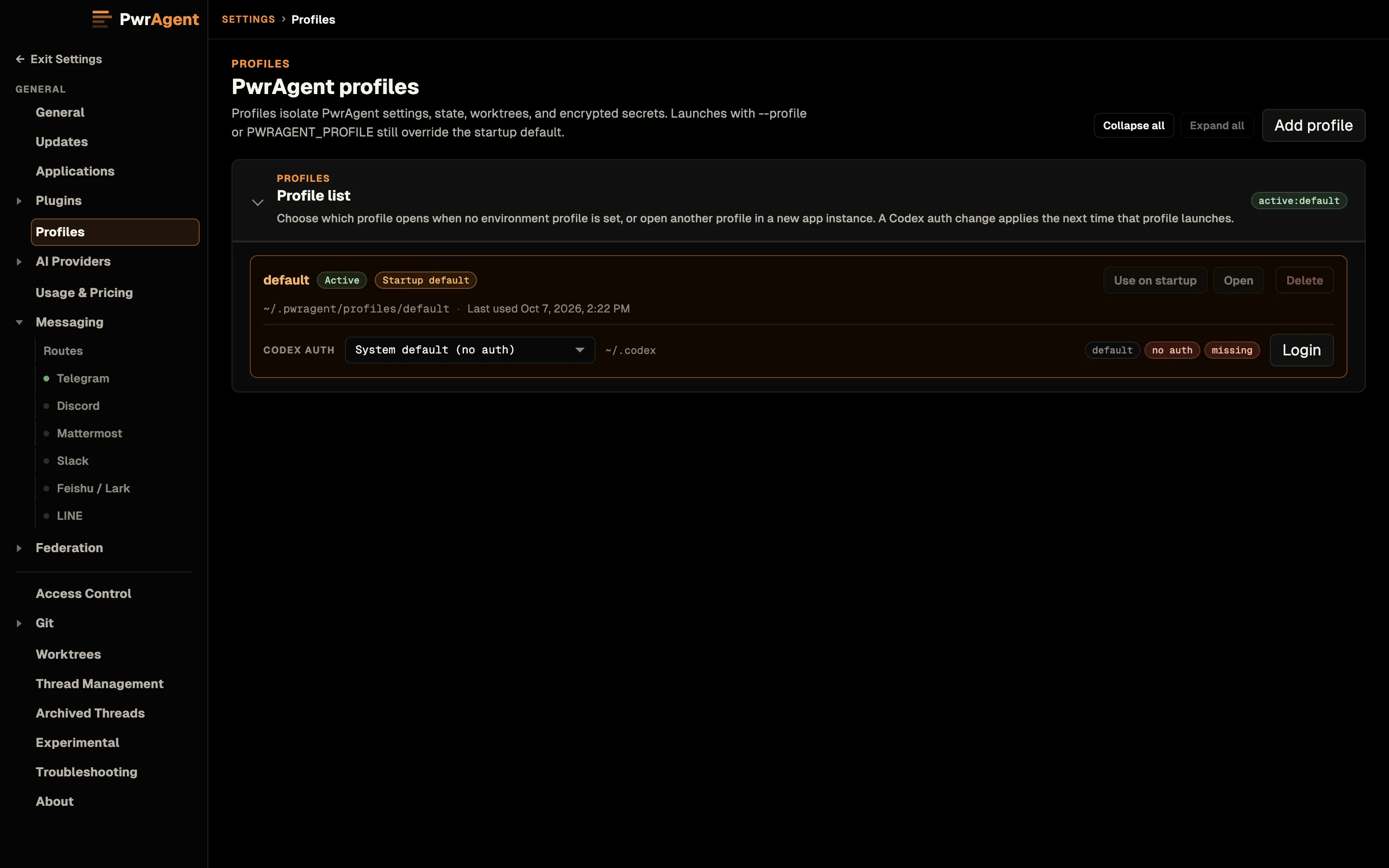
~/.pwragent/profiles/ is listed with its Codex auth. Open starts another app instance on that profile.Profiles app menu
The menu bar has a Profiles menu (between View and Window; on Windows and Linux it’s in the menu bar PwrAgent draws in its own title bar) that lists every PwrAgent profile and lets you switch without going through Settings.
defaultis always first. Below it, the rest of your profiles in their natural order.- The active profile is checkmarked.
- The first three profiles get keyboard shortcuts — Command+1, Command+2, Command+3 (Control+1 to Control+3 on Windows and Linux) for quick switching.
- New Profile / Manage Profiles at the bottom route to Settings → Profiles.
Switching from this menu is window-aware: if a target profile already has a running PwrAgent process, the menu focuses that process’s main window instead of spawning a second one. If the process is alive but its window has been closed, the menu re-creates the main window inside the existing process. A new process spawns only when the target profile isn’t running at all.
The menu refreshes after profile creates and deletes so the entries
stay current with whatever’s on disk under ~/.pwragent/profiles/.
Launching a profile from the command line
For automation or when you want to pin a specific PwrAgent profile at launch:
Installed .app — recommended:
open -na PwrAgent --args --profile work
The --profile <name> argument is the supported launch flag — it
flows through Launch Services into the app’s argv, so the app
shows up correctly in the Dock and the Command+Tab
switcher.
From source:
PWRAGENT_PROFILE=dev pnpm dev:no-messaging
The PWRAGENT_PROFILE env var still works as a fallback for any
context where passing argv isn’t convenient (the dev server and
shell-script launchers being the typical cases).
Under the hood
The in-app profile management writes to your config file the same shape an experienced operator would write by hand:
- PwrAgent profile dir:
~/.pwragent/profiles/<name>/containingconfig.toml(settings) andstate/state.db(session state). - Codex profile dir:
~/.codex/profiles/<name>/containing the isolatedCODEX_HOME(auth tokens, thread history, config). -
Selected Codex profile is recorded in the active PwrAgent profile’s
config.toml:[models.codex] profile = "work"
Verifying without going through the UI:
# Confirm the active PwrAgent profile selected the right Codex auth
# profile.
rg -n 'profile = "work"|\[models.codex\]' \
  ~/.pwragent/profiles/<your-pwragent-profile>/config.toml

# Once a Codex thread runs under the selected profile, confirm
# Codex state lands in the isolated CODEX_HOME.
find ~/.codex/profiles/work -maxdepth 4 -type f | sort | head -80
You should see entries like auth.json, config.toml,
session_index.jsonl, sessions/, and (if used) worktrees/.
Mental model
--profile <name>(orPWRAGENT_PROFILE=<name>) selects PwrAgent’s own DB, config, and secrets directory.- The Codex auth profile picked inside that PwrAgent profile
selects which
CODEX_HOMEPwrAgent hands to the Codex App Server.
The two settings live at different layers and don’t interact. Pick each one for its own reason.
Not yet
Features the desktop doesn’t have today that operators have asked about — captured here so you can plan around them:
- Branch auto-naming via button click. Branch names default to the worktree hash. There’s no button that says “rename this branch to something derived from the thread title” yet.
Coming soon
Active development areas that have shipped designs but aren’t in release builds yet:
- Environment teardown hooks. Worktree removal on archive
and handoff shipped (see
Thread workspaces),
but there’s no teardown-hook execution yet — an environment’s
running services or caches aren’t stopped or cleaned by a hook
the way setup hooks build them. PwrAgent parses an environment’s
[cleanup]script and carries it around; it just never runs it. - In-app environment editing. Environments are usable from PwrAgent today, but you author them at the Codex level (not in PwrAgent’s UI). In-app editing of the environment definition is on the roadmap.
Watch the GitHub repo for the relevant PRs.
See also
- Agent backends — Codex, Gemini, Grok, Kimi, and Qwen: what each needs installed and what differs between them.
- Settings — application discovery, provider discovery and Codex auth, worktree storage location.
- Messaging — drive PwrAgent’s threads from Telegram, Discord, Slack, Mattermost, Feishu / Lark, or LINE.
- Driving an agent from a messenger — the end-to-end flow for driving a thread from a messenger.