Slack
PwrAgent’s Slack adapter uses Socket Mode. PwrAgent dials out to Slack, so no public Request URL is needed. You create your own Slack app from PwrAgent’s manifest, straight from Settings. There is no shared PwrAgent-hosted Slack app.
What you need to get started
- A Slack workspace where you can install apps, or a workspace owner who can approve one for you.
- Three values from the app you create, each pasted into Settings:
- the Bot User OAuth Token (
xoxb-…) - an App-Level Token (
xapp-…) with theconnections:writescope - the app’s Signing Secret
- the Bot User OAuth Token (
You don’t need a public webhook URL, and you don’t configure a Request URL for Event Subscriptions or Interactivity. The manifest turns on Socket Mode, the events PwrAgent listens for, and interactivity for you.
Set up from Settings
Open Settings → Messaging → Slack. The page has four sections:
| Section | What it’s for |
|---|---|
| Connect | Numbered setup steps: name the agent, create the app, paste its tokens and secret, test, pair. |
| Access & responses | Who the bot answers, where, and how. See Authorization model. |
| Start talking | The Agent that answers your DMs. |
| Advanced | Workspace URL and slash commands. |
Connect
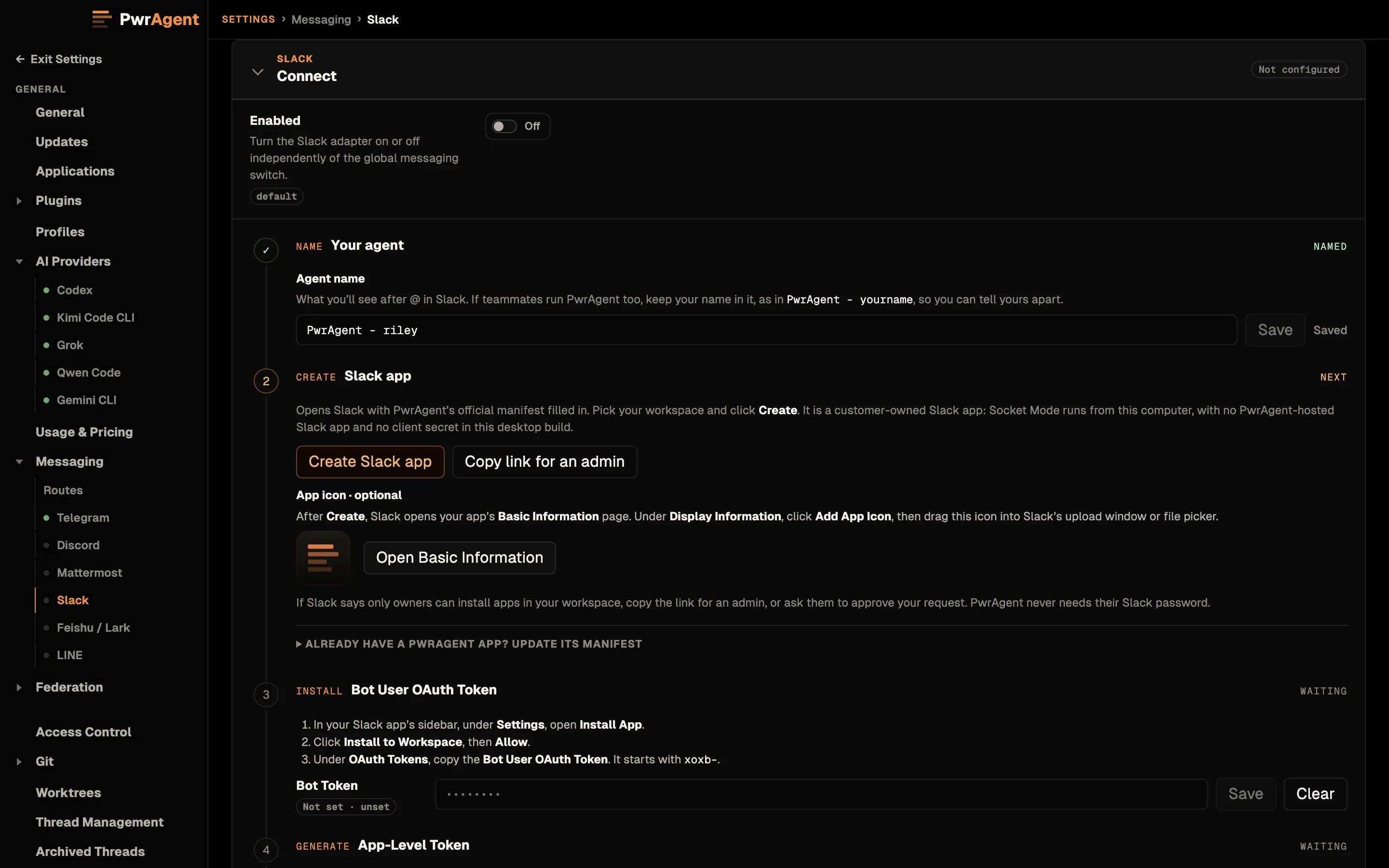
The Enabled toggle at the top of Connect turns the Slack adapter on or off. Below it, each step shows where it stands: the first unfinished step reads Next, the steps after it read Waiting, and finished steps say what’s done (Named, Saved, Connected, Paired).
-
Name your agent. The Agent name box starts on a suggestion,
PwrAgent - <your OS username>. The name is what Slack shows after @. If teammates run PwrAgent too, keep your own name in it so everyone can tell the bots apart. To take the suggestion, click Use this name or press Enter. To pick a different name, edit it and click away. Names can be up to 35 characters.A suggestion isn’t a choice: Create Slack app, Copy link for an admin, and Copy manifest stay disabled until a name is saved. The manifest uses the name for both the app name and the bot’s display name. PwrAgent stores it as
messaging.slack.app_namein the profile’sconfig.toml. -
Create the Slack app. Click Create Slack app. Slack opens in your browser with PwrAgent’s manifest filled in. Pick your workspace and click Create.
Optional: add the PwrAgent icon. A manifest can’t set an app icon, so this step shows the PwrAgent icon for you to drag into Slack. After Create, Slack leaves you on the app’s Basic Information page. Under Display Information, click Add App Icon, then drag the icon from Settings into Slack’s upload window or file picker. Open Basic Information takes you back to that page if you’ve left it. Until the App Token is saved, it opens your list of Slack apps instead. The bot works the same with or without the icon.
- Copy the Bot User OAuth Token. In your Slack app’s sidebar,
under Settings, open Install App. Click Install to
Workspace, then Allow. Under OAuth Tokens, copy the Bot
User OAuth Token, which starts with
xoxb-, and paste it into Bot Token. - Generate the App-Level Token. Open Basic Information and
find App-Level Tokens. Click Generate Token and Scopes and
name the token, e.g.
PwrAgent Socket Mode. Click Add Scope and chooseconnections:write. It’s the only scope this token needs. Click Generate, copy the token, which starts withxapp-, and paste it into App Token. - Copy the Signing Secret. On Basic Information, under App Credentials, click Show beside Signing Secret, copy it, and paste it into Signing Secret. PwrAgent signs the buttons it posts with it, so buttons already in Slack keep working if you regenerate the app token. Socket Mode itself doesn’t use it.
- Test the connection. Once the bot token, app token, and signing
secret are all saved, Settings runs the test once by itself. It
checks the bot token with Slack’s
auth.test, then opens a Socket Mode handshake. Replacing any of the three later runs it again. Test runs it on demand, and needs only the two tokens. - Pair your Slack account. With Enabled on:
- Click Generate. PwrAgent copies a pairing message.
- Click Open in Slack to open a direct message with your agent, in the Slack desktop app if you have it, otherwise in your browser. Or, in Slack, find the agent under Apps in the sidebar and switch to its Messages tab. A new app opens on its Home tab, so the Messages tab is easy to miss.
- Paste the message and send it.
- Approve the request that appears in Settings.
Open in Slack works once the App Token is saved.
Token and secret boxes save when you click or tab out of them, or press Enter, and then show Saved. There’s no Save click to forget. Discard throws away what you typed without saving it.
Each box also rejects a different Slack credential and names what you pasted. Paste the app token into Bot Token, for example, and the box says That is an App-Level Token (xapp-). The Bot User OAuth Token starts with xoxb-. What you pasted stays in the box so you can fix it.
Socket Mode is the only inbound path, so Settings has no inbound-mode control. If an older config still asks for the Events API, Connect shows a notice and PwrAgent uses Socket Mode anyway.
If only workspace owners can install apps
Some workspaces let only owners install apps. If Slack says so, click Copy link for an admin in the Create step and send the link to a workspace owner, or ask them to approve your install request. PwrAgent never needs their Slack password.
Updating an existing Slack app
PwrAgent’s manifest changes as the integration gains features. To bring an app you created earlier up to date, open Already have a PwrAgent app? Update its manifest under the Create step.
- Set Agent name to your app’s current name first. The copied manifest carries that name, and pasting it renames the app.
- Click Copy manifest, then Open Slack Apps.
- In Slack, choose your existing PwrAgent app and open App Manifest.
- Select all, paste the copied manifest, and save changes.
Start talking
Once you’re paired, a DM that isn’t attached to a thread gets only the command list. Create Slack Agent gives it something to answer with. It starts a Codex Agent thread, sends it a short hello so the thread is saved, and makes it the default Agent for Slack. From then on, a Slack message with no attached thread goes to that Agent.
To use an Agent you already have, pick it from Or use an existing Agent… and click Use this Agent. Once a default is set, the section names it and offers Open thread and Change. Choosing another Agent replaces the Slack default rather than adding a second one.
Setting up from the onboarding wizard
The first-run wizard’s Slack card follows the same order in a shorter form. The Agent name box sits directly above Create Slack app, and Create stays disabled until a name is saved, just as in Settings. The optional icon comes next, then a short checklist and three boxes: Bot token, App-level token, and Signing secret. Each box says where Slack shows its value, saves when you leave it, and rejects a different Slack credential. The step is ready once the two tokens are in.
What the manifest sets up
The manifest is what Slack shows when you click Create Slack app, and what a workspace owner reviews before approving it. It turns on Socket Mode, interactivity for buttons, the app’s Home and Messages tabs, and these bot scopes:
chat:write: send and update messages.app_mentions:read: see @mentions of the bot.channels:history,groups:history,im:history,mpim:history: read messages in public channels, private channels, DMs, and group DMs. These also let binding chips show#channel/root messageinstead of a generic#channel/Threadlabel.channels:read,groups:read,im:read,mpim:read: channel names for chips and Activity entries.files:read,files:write: inbound and outbound attachments.users:read: show people’s profile names instead of theirU…IDs.assistant:write: Slack’s agent view.commands: slash commands. PwrAgent registers them only if you turn them on under Advanced.
The bot subscribes to message events in all four conversation types
(message.channels, message.groups, message.im, message.mpim),
plus app_mention and events about the app itself, such as being
uninstalled.
Presence. Slack doesn’t treat a Socket Mode connection as online
presence, so the manifest sets always_online: true to show the green
availability dot. That’s a static Slack app setting, not live
connection state:
the dot stays green even when PwrAgent is not running. Slack
doesn’t let a bot set its own presence with
users.setPresence.
Pairing
Pairing is the last Connect step (step 7 above). For the captured walkthrough of the pairing flow (generate → send code → approve), and the troubleshooting Activity screen that shows blocked inbound messages, see Messaging → Pairing. It’s the same flow on every supported platform; the screenshots there happen to be Telegram.
On Slack, a pairing request shows where the code came from: the DM or
channel, and the Workspace ID. Approve it with Approve user,
Approve channel, or Approve workspace. A DM has no channel to
approve, and Approve workspace appears only when the request
carries a valid workspace ID. Once you’re an authorized user,
posting a pairing code in a channel is the recommended way to add
that channel to the authorized list without hunting for a C… ID.
Authorization model
Slack access is per-surface, and fresh configs default locked-down: enabling the adapter authorizes nobody and opens no channels. The gates, in the order Access & responses presents them:
| Gate | What it controls |
|---|---|
| DM access | Who may DM the bot 1:1. Authorized users is the safe default. The workspace and channel gates below don’t apply to DMs. |
| Group DM access | Whether the bot participates in multi-person DMs. Closed by default. When opened to authorized users, the bot replies in a group DM only when @mentioned. |
| Workspace access default | Whether channel messages must come from an Authorized Workspace (T… IDs). Mainly restricts Slack Connect / shared-channel traffic. |
| Channel access default | Whether messages must come from an Authorized Channel (C…/G…/D… IDs). Require listed channels is the safe default; each authorized channel row can override the response mode for just that channel. |
| Channel user access | Which senders inside an authorized channel the bot responds to. Authorized users by default. |
| Channel response default | How the bot responds once a channel message passes the gates (e.g. reply only when @mentioned). |
Group-DM detection is identity-based, not name-based: a channel renamed to look like a group DM doesn’t slip through a different gate.
Slack’s API calls a workspace a team, and its ID a team ID. Settings
says workspace, but the config.toml keys keep their older names:
Workspace access default is team_authorization_mode, and
Authorized Workspaces is authorized_workspaces.
Settings reference
Connect
| Setting | What it does |
|---|---|
| Enabled | Turns the Slack adapter on or off, separately from the global messaging switch. Pairing needs it on. |
| Agent name | The app and bot name Slack shows after @, up to 35 characters. Stored as messaging.slack.app_name. |
| Bot Token | xoxb-…, from Install App → OAuth Tokens. Stored in the system keychain. |
| App Token | xapp-… with connections:write, from Basic Information → App-Level Tokens. Required for Socket Mode. Stored in the system keychain. |
| Signing Secret | From Basic Information → App Credentials. Signs the buttons PwrAgent posts, so they keep working after you regenerate the app token. Stored in the system keychain. |
Access & responses
The gates under Authorization model above, each with its list: DM access, Group DM access, Workspace access default (+ Authorized Workspaces), Channel access default (+ Authorized Channels), Channel user access, and Channel response default. Also here:
| Setting | What it does |
|---|---|
| Authorized User IDs | U… (or enterprise W…) IDs that count as authorized users. Pairing or activity-log discovery populates this. |
| Live Working Updates card | Shows Working Updates in one Slack task card per turn when Slack’s stream APIs are available; otherwise uses text updates. |
| Streaming responses | Off by default. Sends partial replies as message edits. See Streaming responses. |
Start talking
The default Agent for Slack. See Start talking.
Advanced
| Setting | Default | What it does | When to change |
|---|---|---|---|
| Workspace URL | (blank) | Used for links back to Slack. | Set to your workspace’s URL (e.g. https://example.slack.com). |
| Register slash commands | Off | Registers Slack slash commands for the app. | Leave off unless your Slack app is configured for PwrAgent slash commands; @PwrAgent resume works regardless. |
| Slash command prefix | pwragent_ |
Prepended to each command name, e.g. /pwragent_help. |
Only matters with slash commands on. |
Working Updates levels and the inbound image profile apply to every platform. Click Edit general at the top of the Slack page to reach them. See Working Updates and Image upload profile.
Slack-specific notes
- One Slack app per desktop bot identity. If twenty people each run their own PwrAgent, the safest deployment is twenty Slack apps, each with its own agent name. Sharing one app token / bot token across many desktop instances means every instance connects as the same bot and may double-handle events. There is no current sharding story for that case.
- DM edits and channel edits are more permissive than Telegram, but
chat.postMessagehas its own special rate limit. Don’t treat Slack as “free edits.” - Slash commands are currently reserved. PwrAgent registers
Slack slash commands only when you flip the explicit toggle; the
recommended invocation path is the
@PwrAgent resumetext mention (with your agent’s name in place ofPwrAgent), which works on every Slack workspace without per-app configuration.