LINE
PwrAgent’s LINE adapter is webhook-only. LINE does not offer an outbound-socket option, so operators have to expose PwrAgent’s local listener through a public HTTPS URL.
Read Webhooks — a security note first. A public HTTP listener is a meaningfully larger attack surface than an outbound socket, even behind Cloudflare Tunnel or Tailscale Funnel. LINE is the only adapter in PwrAgent that forces this trade-off — if your usage fits on Telegram, Discord, Slack, or Feishu/Lark, those are safer defaults.
What you need to get started
- A LINE Messaging API channel in the LINE Developers console.
- The channel secret and channel access token from that channel.
- A public HTTPS URL that forwards to a local port on the
PwrAgent host — Cloudflare Tunnel, Tailscale Funnel, or
ngrokfor development.
Step by step
- Create the LINE channel. In the LINE Developers console, create or pick a Messaging API channel.
- Copy the channel secret. This is the minimum credential PwrAgent needs to verify webhook signatures.
- Set up the tunnel. See “Choosing a tunnel” below. The default local port is 47822.
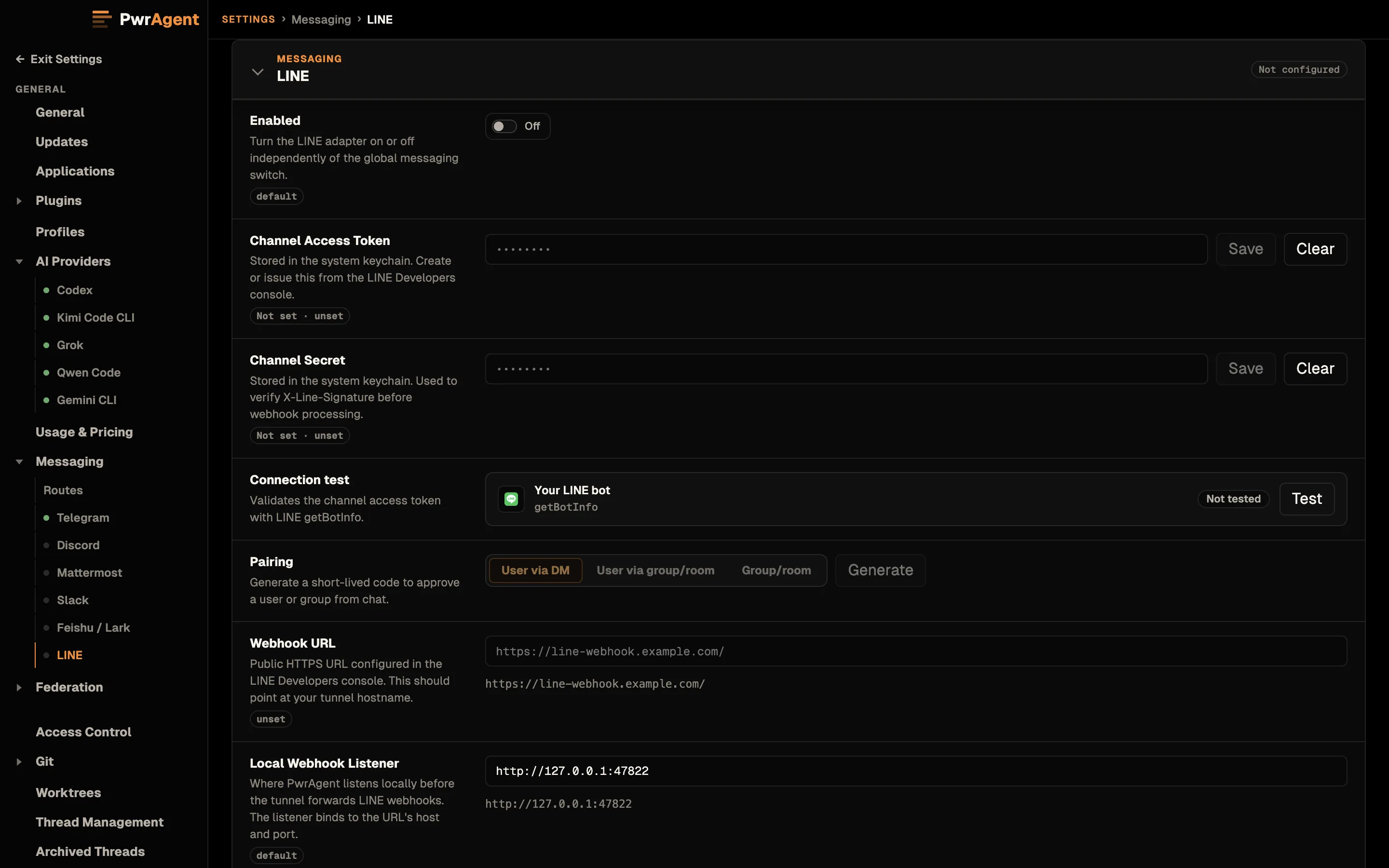
- Open Settings → Messaging → LINE in PwrAgent.
- Paste the channel secret. It saves when you click or tab out of the field, or press Enter. PwrAgent can start the webhook listener with only the channel secret so LINE’s webhook verification request can pass before a channel access token is configured.
- Set the Local Webhook Listener URL. Default is
http://127.0.0.1:47822. If you embed a port in the URL, PwrAgent binds that port on the URL’s host; otherwise the default 47822. - Set the Webhook URL to the tunnel hostname — for
example
https://line-webhook.example.com/. PwrAgent uses this value when constructing self-references in events. - Configure the Webhook URL in the LINE Developers console to match — the public HTTPS URL that tunnels to your local listener. LINE will verify the webhook by sending a test event; PwrAgent’s listener responds 200 if the channel secret signature matches.
- Enable LINE with the toggle at the top of the panel.
- Click Test. PwrAgent calls
getBotInfoand stores the bot user ID for group-mention filtering. - DM the bot with the user allowlist empty; Activity logs the sender’s LINE user ID. Copy it into the authorized list.
LINE user IDs start with U followed by 32 lowercase hex characters.
Group IDs start with C…; room IDs start with R….
Choosing a tunnel
Same options as Mattermost — see that page for the full Cloudflare Tunnel + Zero Trust and Tailscale Funnel walkthroughs. The only difference is the local port (LINE defaults to 47822 vs. Mattermost’s 47821) so the two adapters can run concurrently on the same host.
PwrAgent verifies every inbound LINE webhook by checking
X-Line-Signature against an HMAC-SHA256 of the raw request body
keyed by the channel secret. Requests that don’t verify are rejected
before JSON parsing.
Pairing
For the captured walkthrough of the pairing flow (generate → send code → approve), and the troubleshooting Activity screen that shows blocked inbound messages, see Messaging → Pairing. Same flow on every supported platform; the screenshots there happen to be Telegram.
Settings reference
Required (above the Test button)
| Setting | What it does |
|---|---|
| Enabled | Top-of-panel toggle. When off, the adapter doesn’t start. |
| Channel Secret | Used to verify X-Line-Signature on every webhook request. Stored in the system keychain. Required for the adapter to start. |
| Local Webhook Listener | Local URL the adapter binds. Default http://127.0.0.1:47822. The port embedded in this URL is the bind port. |
| Webhook URL | The public HTTPS URL configured on LINE’s side. PwrAgent stores this for diagnostics; the actual webhook URL LINE dials is whatever you set in the LINE Developers console. |
| Authorized User IDs | Comma-separated LINE user IDs (U…). |
Optional (below the Test button)
| Setting | Default | What it does | When to change |
|---|---|---|---|
| Channel Access Token | (blank) | Required for outbound messages and attachment downloads. PwrAgent can start the webhook listener without it (so LINE’s verification can pass before a token exists), but the bot won’t reply or download attachments until you fill it in. | Set it as soon as LINE lets you issue one. Stored in the system keychain. |
| Bot User ID | (blank) | The bot’s own LINE user ID, used for group mention filtering. The Test button populates this from getBotInfo. |
Re-run Test after bot identity changes. |
| Authorized Groups | (empty) | Allowlist of group IDs (C…). Required for any group conversation. |
|
| Authorized Rooms | (empty) | Allowlist of multi-person chat room IDs (R…). |
|
| Streaming Responses (Advanced) | Off | Reserved. LINE does not support bot message edits, so streaming has no effect on LINE — final assistant messages are posted as regular LINE messages regardless. | Leave off. |
| Working Updates | Show Some | How much of the agent’s in-progress work (tool activity + narration) is bridged to the conversation. | See Working Updates; per-binding override on the status card. |
| Image Upload Profile | medium | Quality used for inbound images. | Per bandwidth / fidelity tradeoff. |
LINE-specific notes
- LINE does not support bot message edits. The streaming responses feature is therefore a no-op on LINE; only the final assistant message is posted. This is also why streaming-on bindings don’t degrade gracefully on LINE — there’s nothing to degrade.
- Webhook verification can pass with only the channel secret configured. The channel access token is only needed for outbound sends and attachment downloads. This split lets you configure the webhook URL on the LINE console side first, verify the round-trip, and add the access token once LINE lets you issue one.
- Operating LINE safely requires the same diligence as any other webhook platform. Tunnel, HMAC verification (PwrAgent does this via the channel secret), monitoring on the listener. See Webhooks — a security note.
See also
- Webhooks — a security note — read this before exposing the listener publicly.
- Driving an agent from a messenger
- Streaming responses — note that the toggle is a no-op on LINE.