Pairing
PwrAgent’s pairing flow populates the user-allowlist (and the shared-space allowlist) for every supported messaging platform without you needing to find a numeric platform ID anywhere. Same mechanic across Telegram, Discord, Slack, Mattermost, Feishu / Lark, and LINE — the screenshots below are Telegram for illustration but the flow is platform-agnostic.
For the conceptual two-phase model and the per-platform list of space types you can pair (DM vs supergroup vs server vs channel vs room), see Driving an agent from a messenger → Pairing.
The three-step flow
1. Generate the pairing token
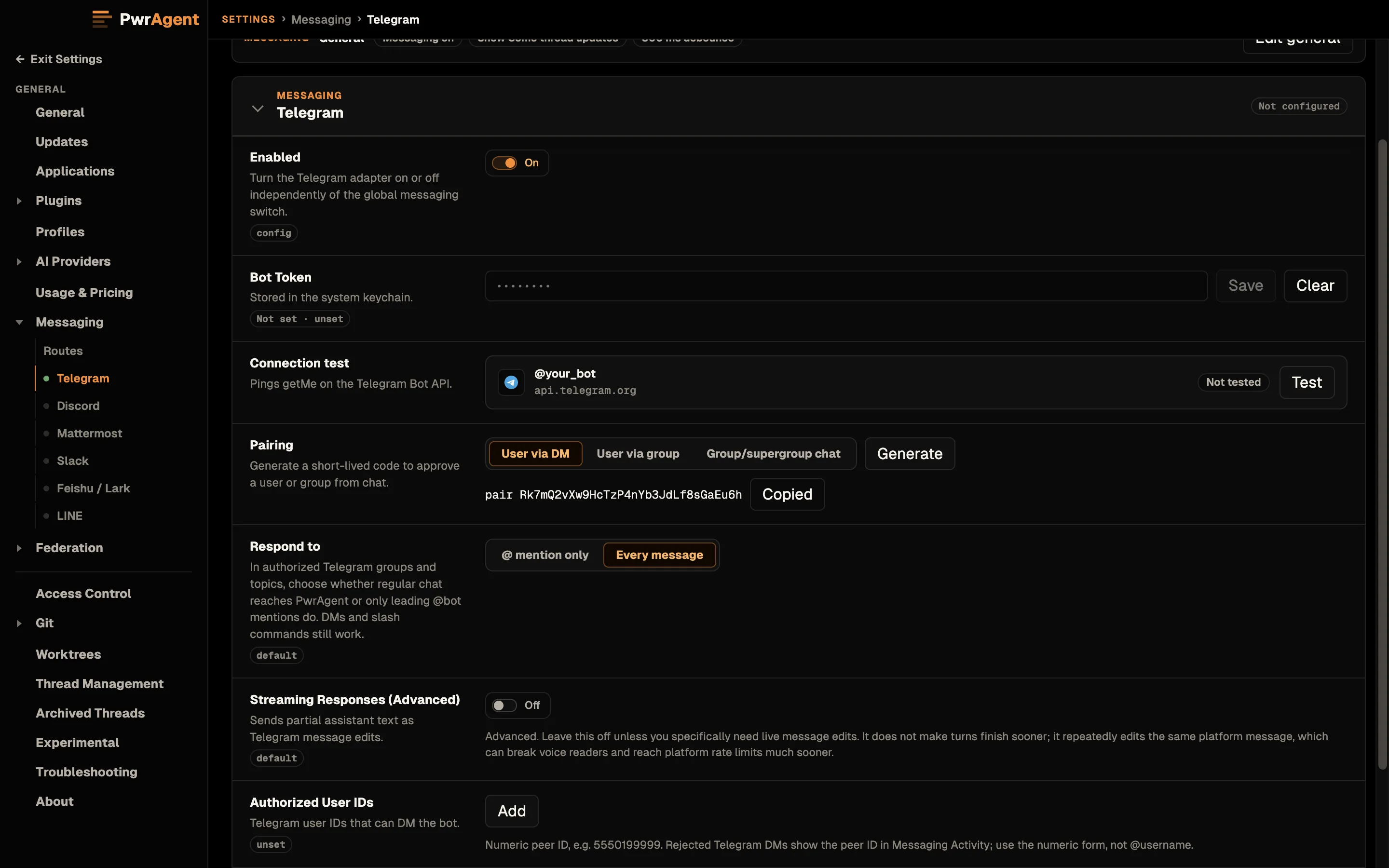
In Settings → Messaging → <platform>, click the Generate button on the Pairing field. PwrAgent shows a short one-time code that expires after a few minutes.
2. Send the code to the bot
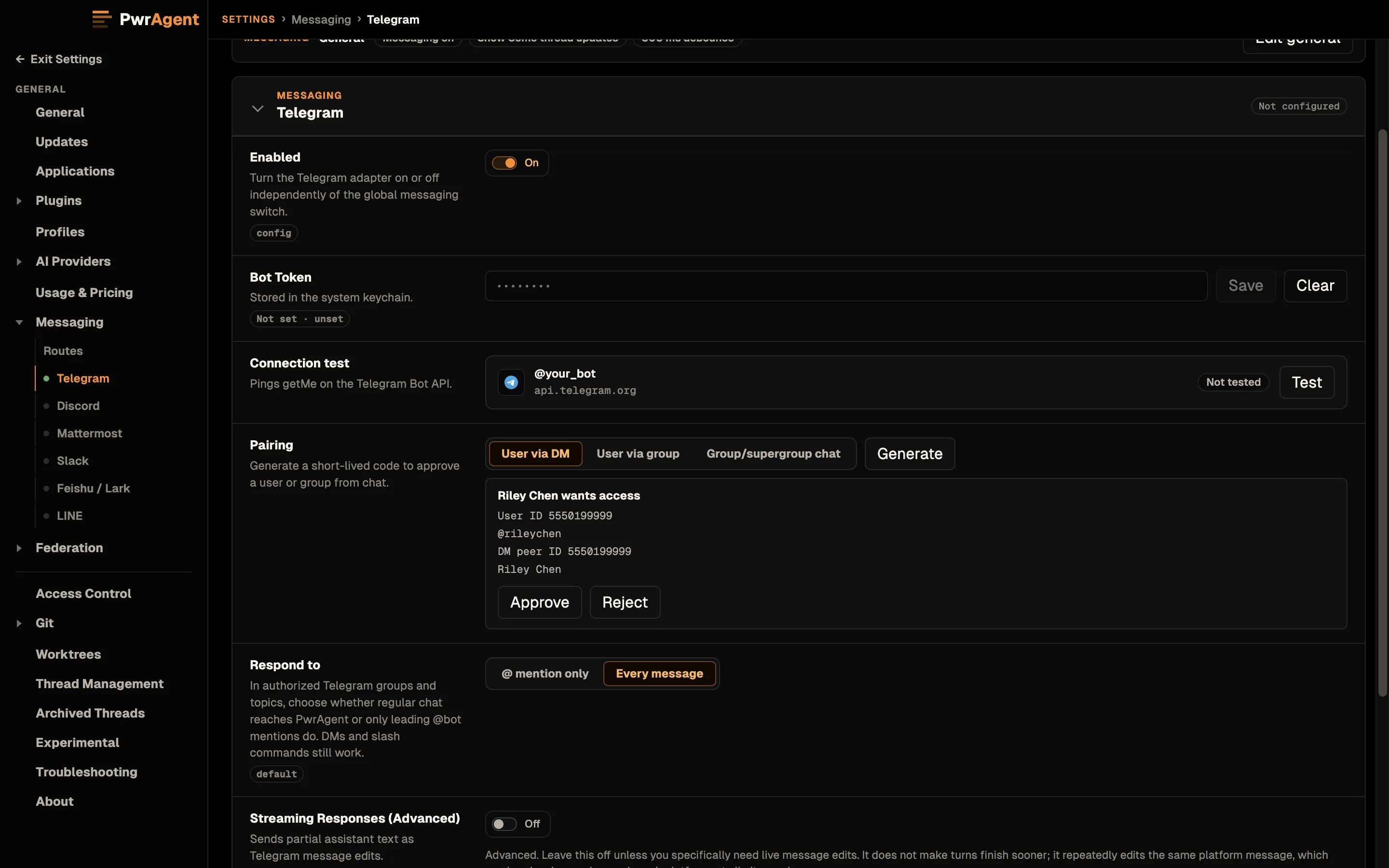
From the account you want to authorize, send the code to the bot — in a DM where direct messages exist, or from inside the space you want to pair when the platform doesn’t have DMs. PwrAgent observes the bot receiving the code; the actor’s resolved name and chat appear in the Pairing row, and the row prompts you to Approve.
3. Approve
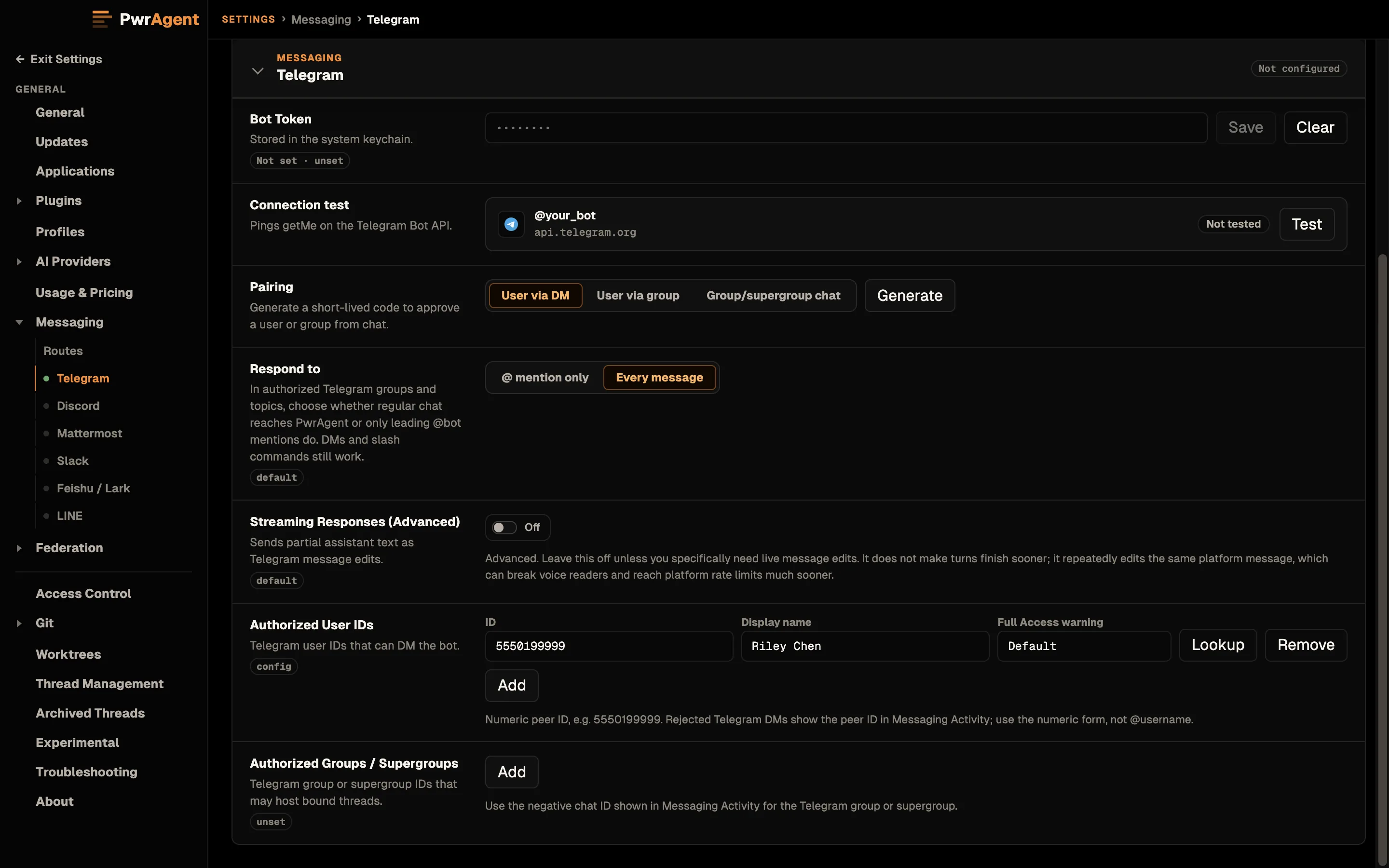
Click Approve in the Settings panel. PwrAgent writes the user’s stable platform ID to the Authorized User IDs list below, with the resolved display name beside it for your benefit. The approval prompt clears.
Phase 2: pair a shared space
Once you’re an authorized user, the same flow authorizes a Slack workspace, Discord server, Telegram supergroup, Mattermost team, Feishu group chat, or LINE group / room — generate a token, post it in the space you want to allowlist, approve on the desktop. The user who pairs a space has to already be on the user allowlist; that’s the two-keyed authorization model in action.
Troubleshooting: “I sent the code but nothing happened”
When the bot receives a message from someone who isn’t yet on the user allowlist, the message is denied silently — the bot doesn’t reply (that would leak its existence to the unauthorized sender). The denial is logged to Settings → Messaging → Activity under the Attention section so you can see what’s stuck and copy the peer / actor / channel ID into the allowlist directly if the pairing flow doesn’t work.
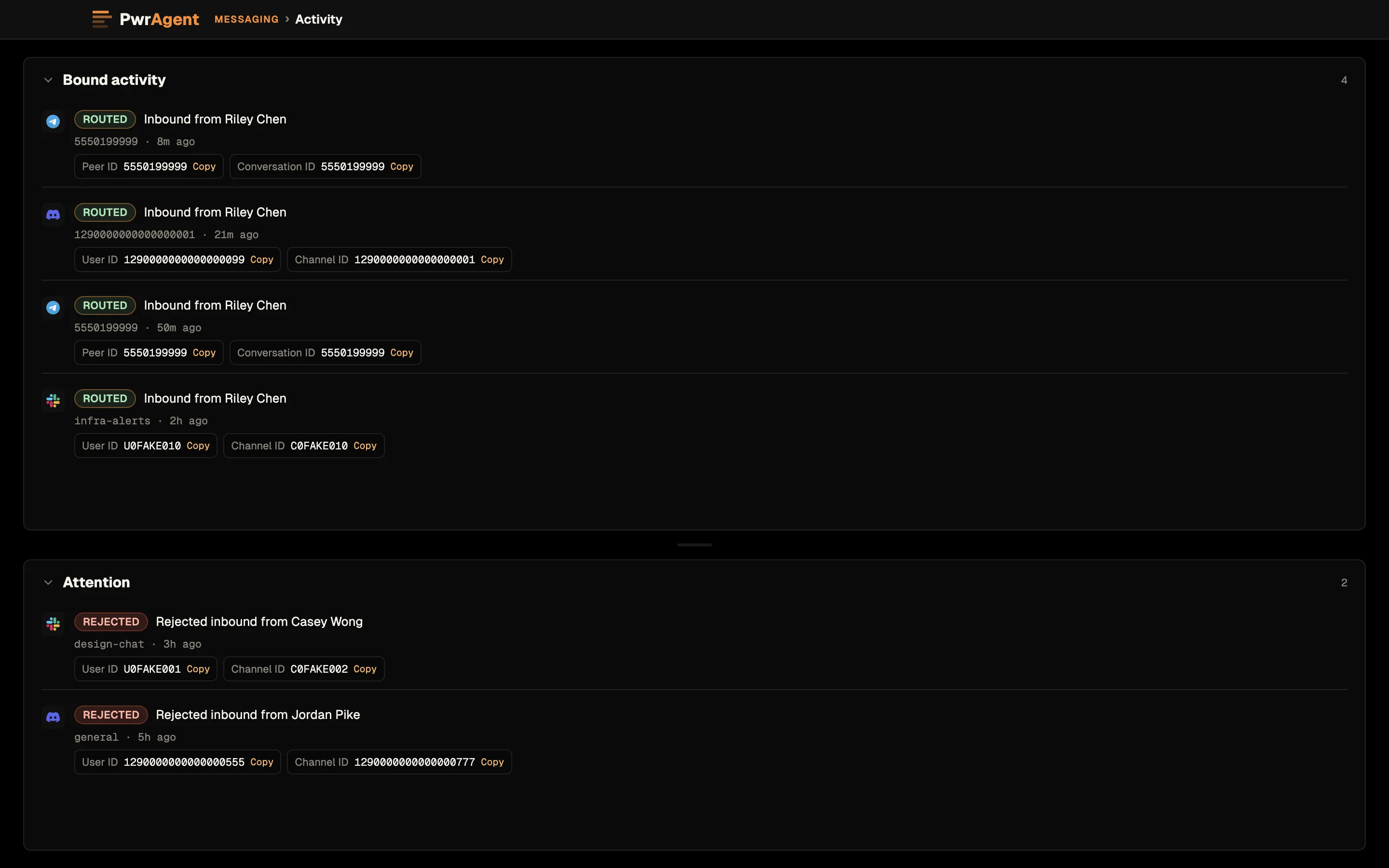
What this surface gives you for each rejected message:
- The platform’s stable peer / actor ID — the field PwrAgent matches against the allowlist. Copy → paste into Authorized User IDs and the next inbound from that account is admitted.
- The conversation / channel / supergroup / topic ID — for shared spaces, the second key in the two-keyed authorization model. Copy into the per-platform space allowlist.
- The resolved display name — for sanity-checking that the ID belongs to the person you think it does.
Common reasons a pairing code doesn’t observe:
- The bot isn’t actually receiving messages on that platform yet. Check Settings → Messaging → <platform> → Connection test. If Test fails, fix the credentials before retrying pairing.
- The platform requires the bot to be in a shared space first.
On Discord, the bot has to be installed in a server with the
applications.commandsscope before it can DM. On Slack, the bot needs to be in the workspace, and the code goes to the app’s Messages tab. A new app opens on its Home tab; Open in Slack in the pairing step opens the Messages tab for you. On Telegram, just/start-ing the bot from your account is enough. - The pairing token expired. Codes are short-lived; if too much time passed between Generate and the message reaching the bot, click Generate again and resend.
- You sent the code from a different platform user than the one you wanted to authorize. PwrAgent allowlists the user who sent the code — make sure that’s the right account.
- The platform mangled the code. Some clients autocorrect or insert spaces. Send the code as a plain text message; for Telegram this is the default but on iOS clients with autocaps you may need to disable autocorrect for the DM.
See also
- Driving an agent from a messenger → Who can talk to the bot — the closed-by-default model and the two-keyed authorization contract pairing populates.
- Per-provider setup pages — the rest of each platform’s setup (Connection test, scopes, allowlists) lives with the provider-specific page.
- Discovery-mode fallback — if you’d rather skip pairing and copy peer IDs from the Activity screen by hand, that path works on every provider too.