Discord
PwrAgent’s Discord adapter uses the Gateway WebSocket — PwrAgent dials out to Discord and receives messages and component interactions over that long-lived connection. No public callback URL is needed.
What you need to get started
- A bot token from the Discord Developer Portal.
- The application ID (also visible in the Developer Portal — needed
for the bot to recognize its own
@mentiontext). - The bot installed in your server / DM target with the
applications.commandsscope and the Message Content Intent enabled.
You do not need to know your own Discord user ID up front. The pairing flow or discovery-mode logging will surface it after the bot is online.
Step by step
- Create the application. Go to the
Discord Developer Portal,
click New Application, name it (e.g.
PwrAgent). - Create the bot. In the Bot tab, click Add Bot. Enable
the Message Content Intent — without it, the adapter cannot
read message text and
@mention-style invocation does not work. - Copy the bot token. Also from the Bot tab. Treat it like a password.
- Copy the Application ID. It’s on the General Information tab.
- Install the bot. In OAuth2 → URL Generator, select the
botandapplications.commandsscopes. Pick the bot permissions you want (at minimum: Send Messages, Read Message History, Embed Links, Use Slash Commands). Open the generated URL and authorize the bot into your server, or into a personal DM context. - Open Settings → Messaging → Discord in PwrAgent.
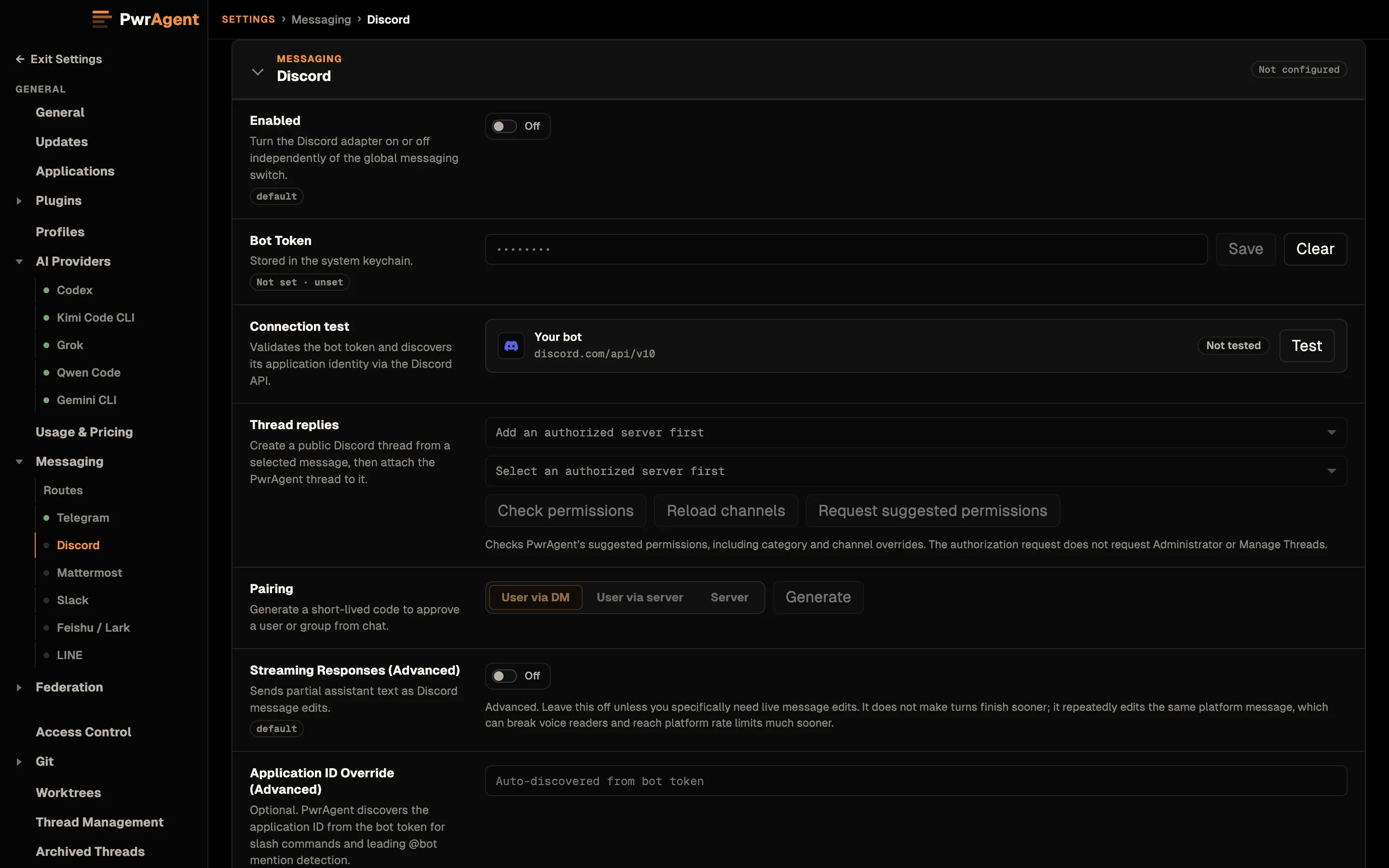
- Paste the bot token and the Application ID. Each saves when you click or tab out of its field.
- Click Test. PwrAgent calls Discord’s
/users/@meendpoint to verify the token. - Enable Discord with the toggle at the top of the panel.
- Generate a pairing token and DM it to the bot, or send the bot any message and copy your user ID out of Settings → Messaging → Activity (the unauthorized-message path).
- Try
/resume. Send/resumefrom the DM or any allowlisted channel; the bot replies with the thread picker.
Pairing
For the captured walkthrough of the pairing flow (generate → send code → approve), and the troubleshooting Activity screen that shows blocked inbound messages, see Messaging → Pairing. Same flow on every supported platform; the screenshots there happen to be Telegram.
Settings reference
Required (above the Test button)
| Setting | What it does |
|---|---|
| Enabled | Top-of-panel toggle. When off, the adapter doesn’t start. |
| Bot Token | From the Discord Developer Portal Bot tab. Stored in the system keychain. |
| Application ID | From the General Information tab. Needed for slash-command reconciliation and @mention parsing. |
| Authorized User IDs | Comma-separated list of Discord user IDs (numeric snowflakes). The pairing flow or activity-log discovery populates this. |
Optional (below the Test button)
| Setting | Default | What it does | When to change |
|---|---|---|---|
| Streaming Responses (Advanced) | Off | Bot edits its reply message in place as the response streams in. | Leave off unless you have a specific reason. See Streaming responses. |
| Working Updates | Show Some | How much of the agent’s in-progress work (tool activity + narration) is bridged to the conversation. | See Working Updates; per-binding override on the status card. |
| Image Upload Profile | medium | Quality used when forwarding inbound images to the model. | low/high/actual per your bandwidth / fidelity tradeoff. |
Discord-specific notes
- Privileged Message Content Intent must be on in the Developer Portal. Without it, the bot sees empty message bodies and the adapter silently fails to parse mentions and free-form text.
- Mention parsing matches on the application ID. If Application ID
is not configured,
@PwrAgent resumewon’t work — slash commands still will. - Slash command reconciliation runs on adapter startup. PwrAgent reads existing commands, then creates / patches / deletes only the commands whose definitions differ. It does not bulk-overwrite every startup.
- Status cards degrade to ordinary messages on Discord. The Discord adapter does not currently pin or edit status cards; expect repeated status posts rather than an in-place update. (Telegram and Mattermost handle this.)
- Edit rate is permissive compared to Telegram — Discord returned an edit bucket of 5 requests / 1 second in our probes, with no 429s through 60 edits/minute on a single message — but edits still count as REST requests and can hit route or global buckets under load.