Settings
Non-messaging settings for the PwrAgent desktop app. Messaging configuration lives under each provider page — see Messaging → Providers.
Everything below is reachable from Settings in the desktop app. The left-nav panes, in the order the app lists them:
| Pane | What lives there |
|---|---|
| General | Appearance, Attention lens, quit confirmation, notifications, pasted-image budget, PDF analysis. |
| Updates | Which release channel PwrAgent follows, and checking for updates. |
| Applications | Editor and terminal discovery. |
| Plugins | The MCP Gateway for PwrAgent-managed connections, plus the selected Codex profile’s MCP servers. |
| Profiles | PwrAgent profile management; see Desktop → Multiple profiles. |
| AI Providers | Every agent backend on one screen — new-thread and helper model defaults, Codex discovery and auth, plus Gemini / Grok / Kimi / Qwen. |
| Usage & Pricing | Thread cost display, monitor-job suggestions, and spend / tool-output alerts. |
| Messaging | Per-provider config; see Messaging → Setting up providers. |
| Access Control | Role-based access for messaging actors and destinations. |
| Git | git, gh, and glab discovery, background PR status, PR automation. |
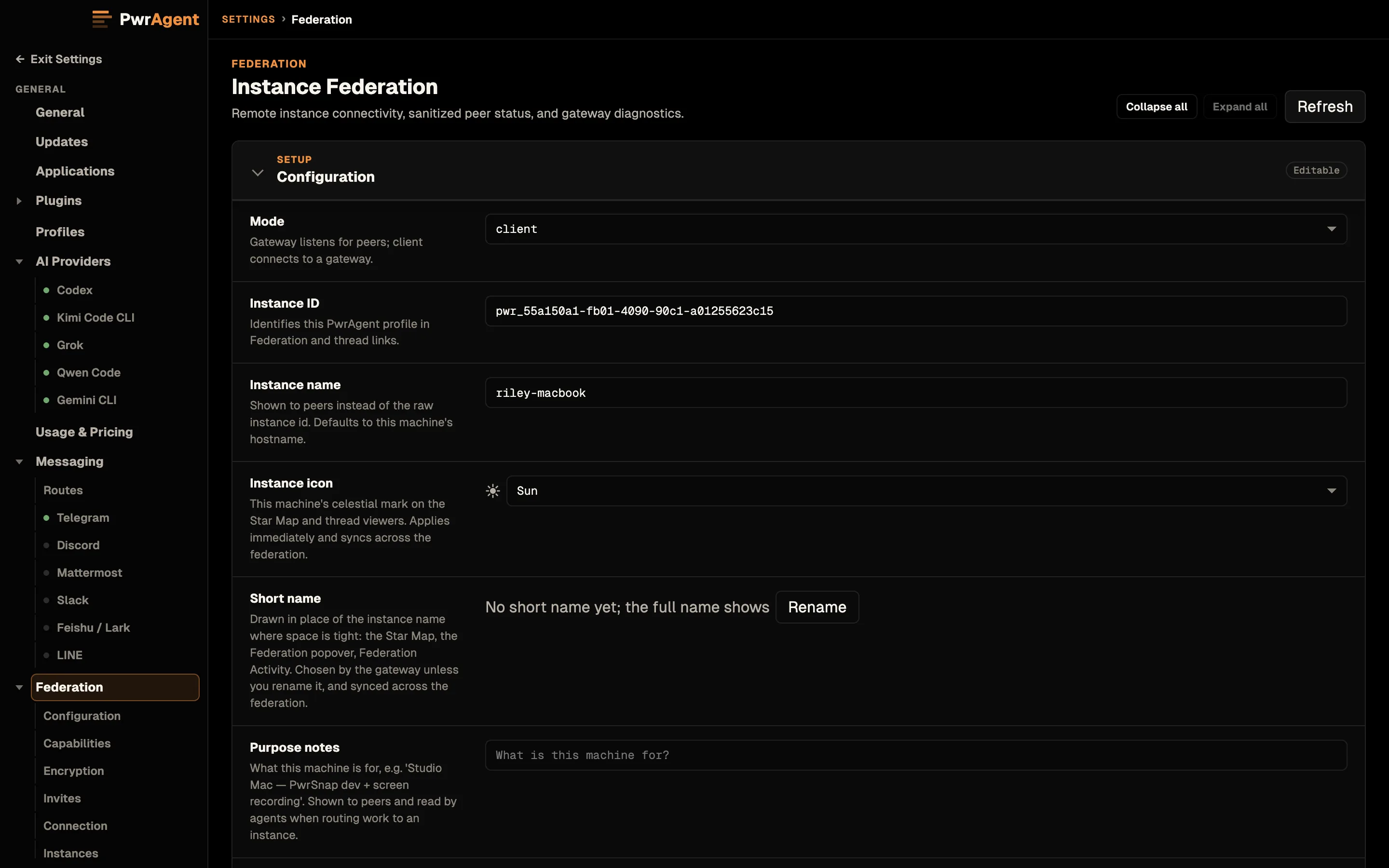
| Federation | Connecting this profile to PwrAgent on your other machines. |
| Worktrees | Where managed worktrees get stored. |
| Thread Management | Copy or move Codex threads between Codex profiles. |
| Archived Threads | Automatic archiving, and restoring threads you archived. |
| Experimental | Opt-in features that are still in flux. |
| Troubleshooting | Developer Mode, DevTools, protocol capture, CPU and heap monitoring. |
| About | Build info, the in-app changelog, and license attribution. |
There is no separate “Models” pane. Codex discovery, Codex auth profiles, and the ACP agents all live under AI Providers.
General
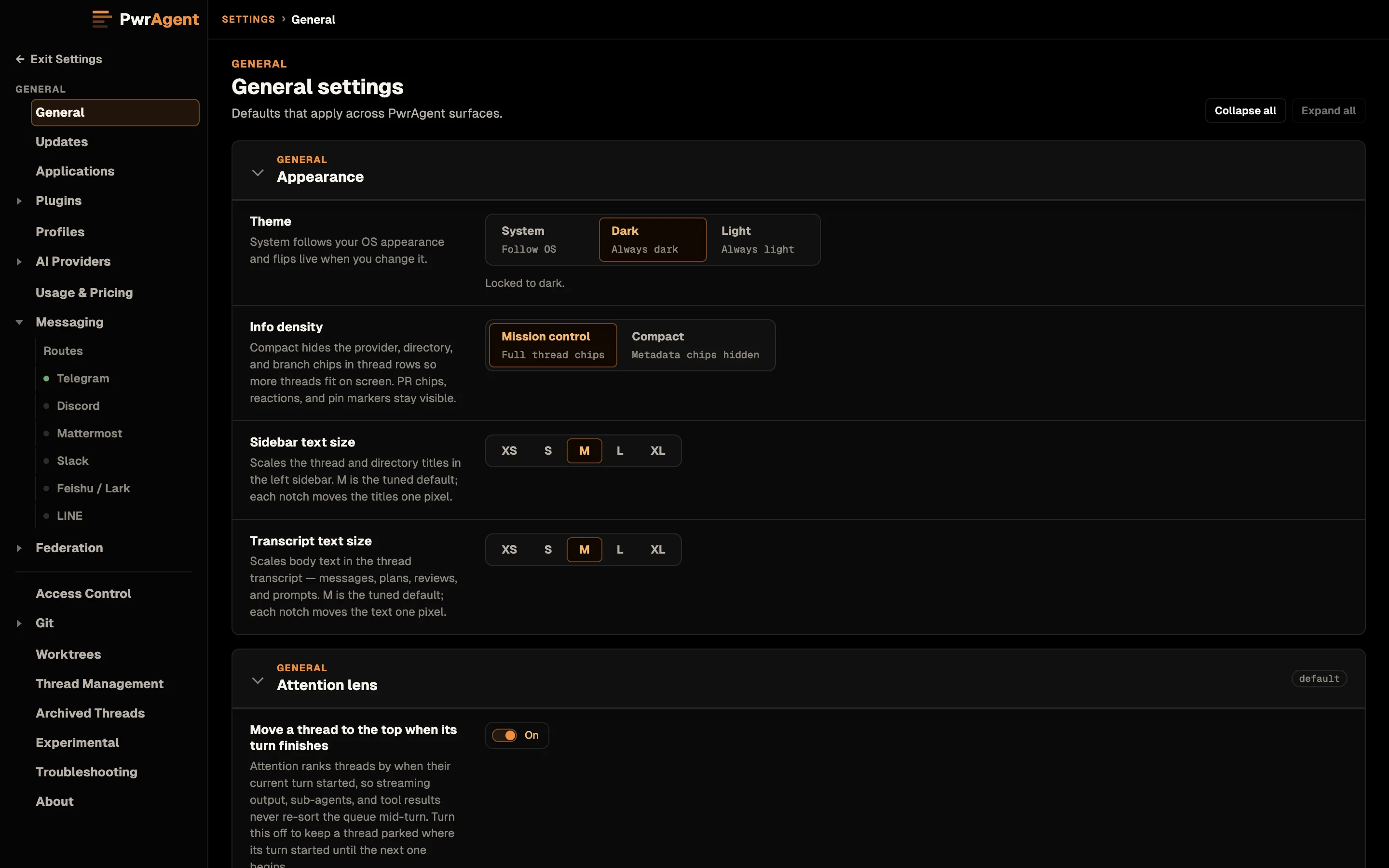
Desktop-wide defaults that don’t fit anywhere more specific:
- Appearance — theme (dark / light / system), density (mission-control / compact), and separate text-size controls for the sidebar and the transcript. The theme / density pair is the same one the onboarding wizard sets, changeable any time.
- Attention lens — whether a thread is promoted into the Attention lens when its turn ends.
- Quit confirmation — the app asks before quitting while threads are mid-turn, sends are queued or scheduled, or integrated terminals are running. Opt out here.
- Notifications — the opt-in for native attention notifications.
- Pasted images — patch budget (below).
- PDF analysis — whether PwrAgent may read a bounded preview of a PDF you attach locally before handing it to the agent.
- Messaging acknowledgment — the acknowledgement state behind the onboarding wizard’s messaging step.
Update controls have their own pane now — see Updates. Developer Mode moved to Troubleshooting.
Pasted images — patch budget
When you paste a large image into the composer (a screenshot, a diagram, a photo from your clipboard), PwrAgent resizes it before forwarding to the model so it costs a predictable amount of context. Images are converted into model-token-friendly 32×32 pixel patches; this setting caps the patch count before per-model multipliers apply.
Pick the budget based on the typical fidelity you need. Most screenshots read fine at the default; bump it up when the model needs to read small text (UI labels, code snippets in screenshots, tiny CLI output). Drop it down if you regularly paste enormous images and want to keep the per-turn token cost low.
| Option | What it means |
|---|---|
1024 patches |
Caps square images at about 1024 32px patches before model-specific multipliers. |
1536 patches (default) |
Limits large pasted images to roughly 1536 image patches. Sensible balance for typical screenshots. |
4096 patches |
Allows roughly a 2048×2048 square image before model-specific multipliers. |
Actual size |
Preserves pasted image dimensions before upload. |
The same patch budget affects messaging-side image attachments similarly. See Driving an agent from a messenger → Image upload profile for the messaging-side knob.
Updates
Settings → Updates decides which published build PwrAgent follows and when it installs one. (Before 1.1 these controls sat under General.)
Release channel
Follow this build lays out every published release slot as a
two-by-two grid. The rows are the train: Stable, the
smoke-checked line, or Beta, which builds off main. The
columns are the track: Latest, or Prerelease, which is
newer within its train and may not install. Each tile shows the
version you’d get and links its release notes, so you can read what
a slot holds before you pick it. The tile for the build you’re
running carries an Installed chip.
| Train | Latest | Prerelease |
|---|---|---|
| Stable | Smoke-checked. The default for everyone. | Release candidates for the stable line. |
| Beta | Beta builds off main. | Newest alpha off main. May not install. |
Stay on Stable / Latest unless you want to test what’s coming.
Until you pick a tile, PwrAgent follows the slot your installed build came from, and the pane says so: “Following the build you installed. Pick a slot to pin it.” A stable download follows Stable / Latest, a release candidate follows Stable / Prerelease, a beta follows Beta / Latest, and an alpha follows Beta / Prerelease. Picking a tile pins that slot until you pick another.
Checking for updates
On macOS and Windows, PwrAgent checks when it starts and about once an hour after that, and downloads an update in the background. Check for Update checks right away. Once a build has downloaded, Restart to Update installs it.
PwrAgent never moves you to an older build on its own, such as when you switch from Beta back to Stable. Pick the slot, then press Check for Update. When the older build has downloaded, the button reads Restart to Switch.
Linux doesn’t update in-app. Install the newer package over the old one (the install command from Linux Install always fetches the newest Stable release); see Linux Install → Upgrade.
Application discovery
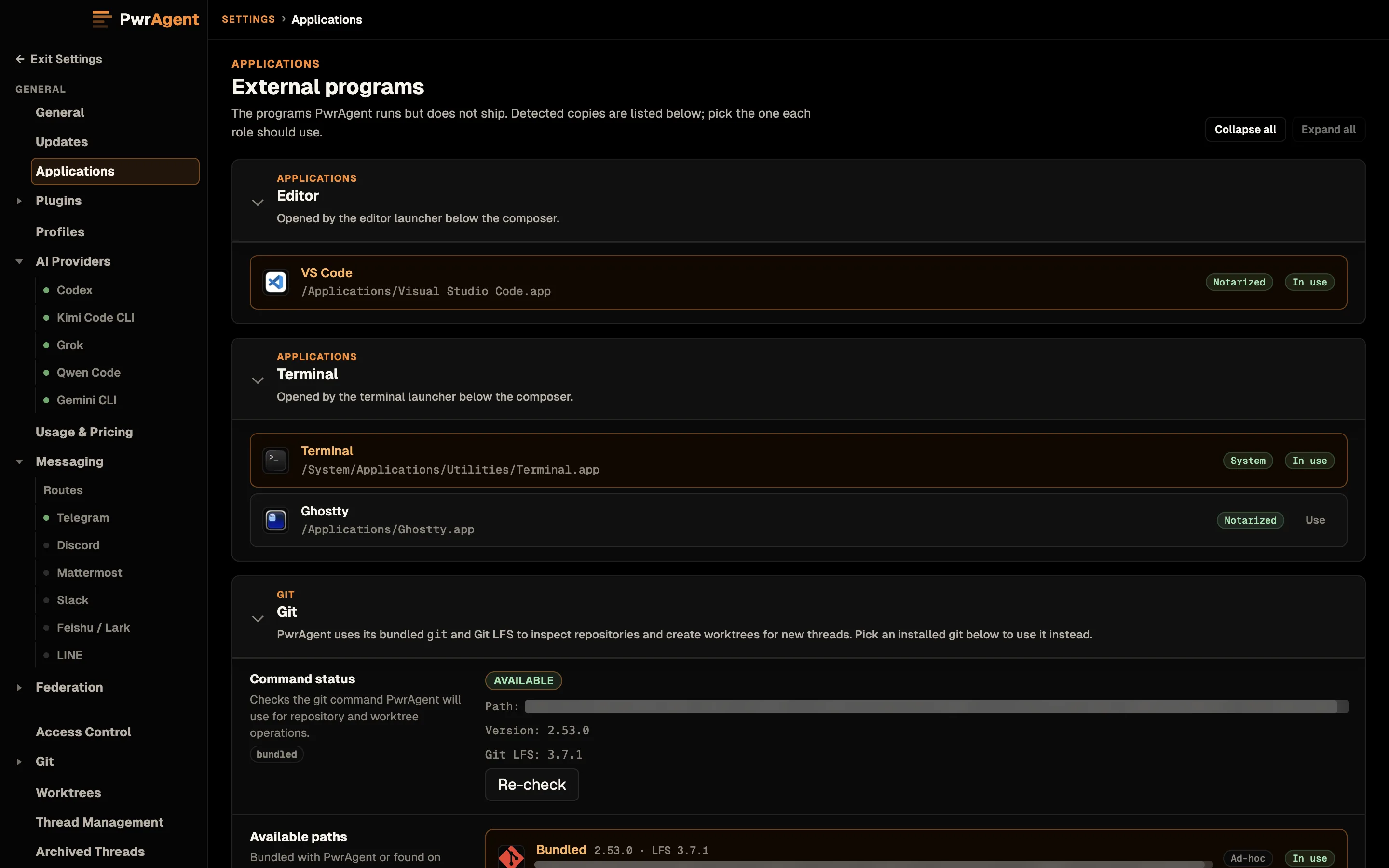
PwrAgent shells out to command-line tools you’ve already installed. Settings → Applications covers the two it opens on your behalf:
| Tool | Used for |
|---|---|
| Editor | Opening the workspace and individual file:line jumps in your IDE / editor. macOS discovery covers VS Code, Cursor, Zed, Sublime, JetBrains’ IntelliJ IDEA (and the rest of the IntelliJ family — PyCharm, WebStorm, GoLand, RubyMine, …), Vim, Emacs. Linux discovery covers the same editors where their Linux builds register a launcher (code, cursor, zed, subl, the JetBrains shell scripts, vim, emacs, etc.). |
| Terminal | Opening the thread’s workspace in a terminal window. macOS picks from Terminal.app, iTerm2, Ghostty, Warp, kitty, Alacritty, WezTerm, Hyper, and a few more. Linux discovers gnome-terminal, konsole, xterm, etc. |
git and gh moved. They’re on the Git pane now,
alongside the pull-request settings that depend on them.
If the auto-discovery picks the wrong binary or doesn’t find one, override the path here. Paths are per-tool; an explicit value beats the auto-discovered one.
Agent-backend discovery is its own thing — see AI Providers below.
Plugins
Settings → Plugins holds your MCP connections, in two groups: the ones PwrAgent manages, and the ones Codex manages.
MCP Gateway
PwrAgent-managed connections are remote MCP servers you add and authorize once, then hand to the threads you choose, Codex and ACP threads alike. PwrAgent keeps the OAuth credentials encrypted in this profile, refreshes them centrally, and gives each selected thread a local proxy instead of copying tokens into the agent process.
- Add a remote MCP server takes a name and the server’s URL. Add and authorize runs the browser sign-in; Reauthorize replaces the credentials later.
- Managed MCP gateway (on by default) is the master switch. Off means no thread can reach a managed connection, whatever it had selected. The credentials stay stored, so turning the gateway back on restores every selection.
An agent can propose a connection, but all it can create is an inert record. A thread can’t use it until a person completes the sign-in here.
When a connection gains new tools, threads that already selected it can discover and call them without restarting, where the backend supports it. PwrAgent checks the current permissions and approvals on every call. A thread’s own selection is in the composer’s Thread options menu under MCP tools.
Codex-managed servers
These are the MCP servers configured inside the selected Codex profile. Codex holds their credentials, so PwrAgent reports them but can’t offer them to an ACP thread. The pane shows which Codex profile it’s reading and one row per configured server.
Per server: Sign in replaces expired OAuth credentials, and Remove deletes only that server’s configuration from the selected Codex profile. The pane-level Reload config button re-reads the installed MCP configuration and exposes it to loaded Codex threads on their next turn — the fix for “I added a server and the agent can’t see it.”
If you change the selected Codex profile, restart PwrAgent before managing MCP servers for the new one; the pane says so rather than writing to the wrong profile.
Profiles
PwrAgent has two profile mechanisms — PwrAgent profiles (this
panel) for desktop-app state and Codex auth profiles (under
AI Providers → Codex) for
isolating Codex CODEX_HOME directories. Both compose; see
Desktop → Multiple profiles for
the full conceptual model.
The Profiles panel lets you list, create, switch between, and delete PwrAgent profiles. Each row shows the on-disk profile dir, the Codex auth profile bound to it, and which one’s active / configured to launch by default.
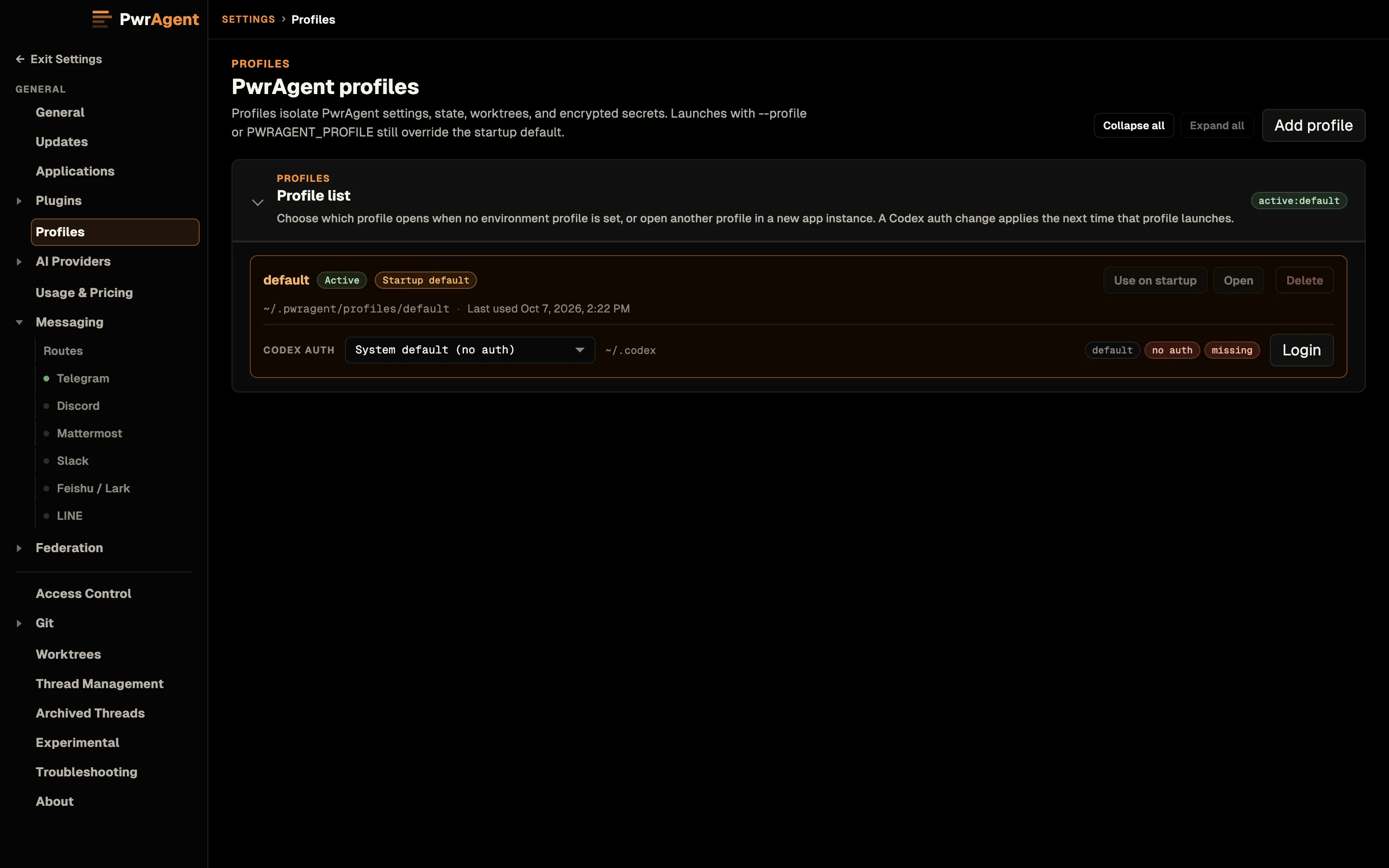
~/.pwragent/profiles/<name>/ directory; Use on startup makes a profile the one PwrAgent opens by default.Launches via --profile <name> (or PWRAGENT_PROFILE=<name>)
still override the startup default — see
Desktop → Launching a profile from the command line
for the CLI launch flag.
Archived threads
Threads you archive disappear from the sidebar but stick around on disk — Settings → Archived Threads is where you go to restore them, and where PwrAgent’s automatic archiving is set.
Automatic archiving
Automatically archive threads is on by default. Pinned threads, Agent threads, active chats, and other protected work are always kept. Pick one of two rules:
- Keep a number per project (default) — keep the newest Eligible threads per project (20 by default) in each project, plus every protected thread, and archive the rest.
- Archive after inactivity — archive eligible threads that have been untouched for Days untouched (7 by default). Viewing or restoring a thread counts as activity.
A sweep runs about once an hour; Last sweep shows what it did and when the next one is due, and changing the policy applies right away. Turn the switch off and sweeps do nothing.
Archived threads are never deleted unless you ask. Permanently delete expired archives is off by default; turning it on deletes archived conversations, and their recovery snapshots, after Keep archives for days, measured from archival. Restored and protected threads don’t expire. Deletion can’t be undone, and for ACP providers it removes PwrAgent’s copy only; the provider may keep its own history.
Restoring threads
Threads are grouped by project folder. Within each project, archived rows sort by most-recently-archived first, showing up to 20 threads per project to keep the list scannable, and the filter searches by title, thread ID, branch, or project. Each row carries the thread’s title, the branch it last lived on, the date it was archived, and a Restore button that puts the thread back in the active list, in place (back to whichever workspace — Local or Worktree — it was in when it was archived).
The grouping is resilient to older corrupted managed-worktree rows
— paths like ~/.codex/worktrees/<id>/PwrSnap collapse back under
the PwrSnap project header instead of fragmenting one section per
worktree id.
The list is scoped to the active PwrAgent profile. Switching profiles (Settings → Profiles, or the Profiles app menu) shows only that profile’s archived threads.
Large profiles also get an occasional Optimize storage offer at startup (at most once a day, for profiles using 100 MiB or more). It clears old tool and output inspection history for archived threads and compacts the database; threads, settings, drafts, and usage totals are kept. Choose Optimize or Not now.
Thread Management
Settings → Thread Management moves Codex threads between Codex auth profiles — the escape hatch for “I started this in the wrong profile” or for splitting a shared profile into work / personal.
Pick the source Codex profile, select threads, and Copy or Move them into the target profile. Transfers are validated by replaying the thread’s history into the target before anything is removed from the source, and archived threads are safeguarded along the way. After a move, the thread shows up in the target profile’s list the next time you’re running under it.
Worktrees
PwrAgent stores managed worktrees outside of your repo so they
don’t clutter your working checkout. The default storage location
is ~/.pwragent/worktrees/.
You can change the location in Settings → Worktrees → Worktree
storage location. Pick a path on the same filesystem as your
repos — git worktree requires that, and putting the storage on a
different volume will produce surprising errors at handoff.
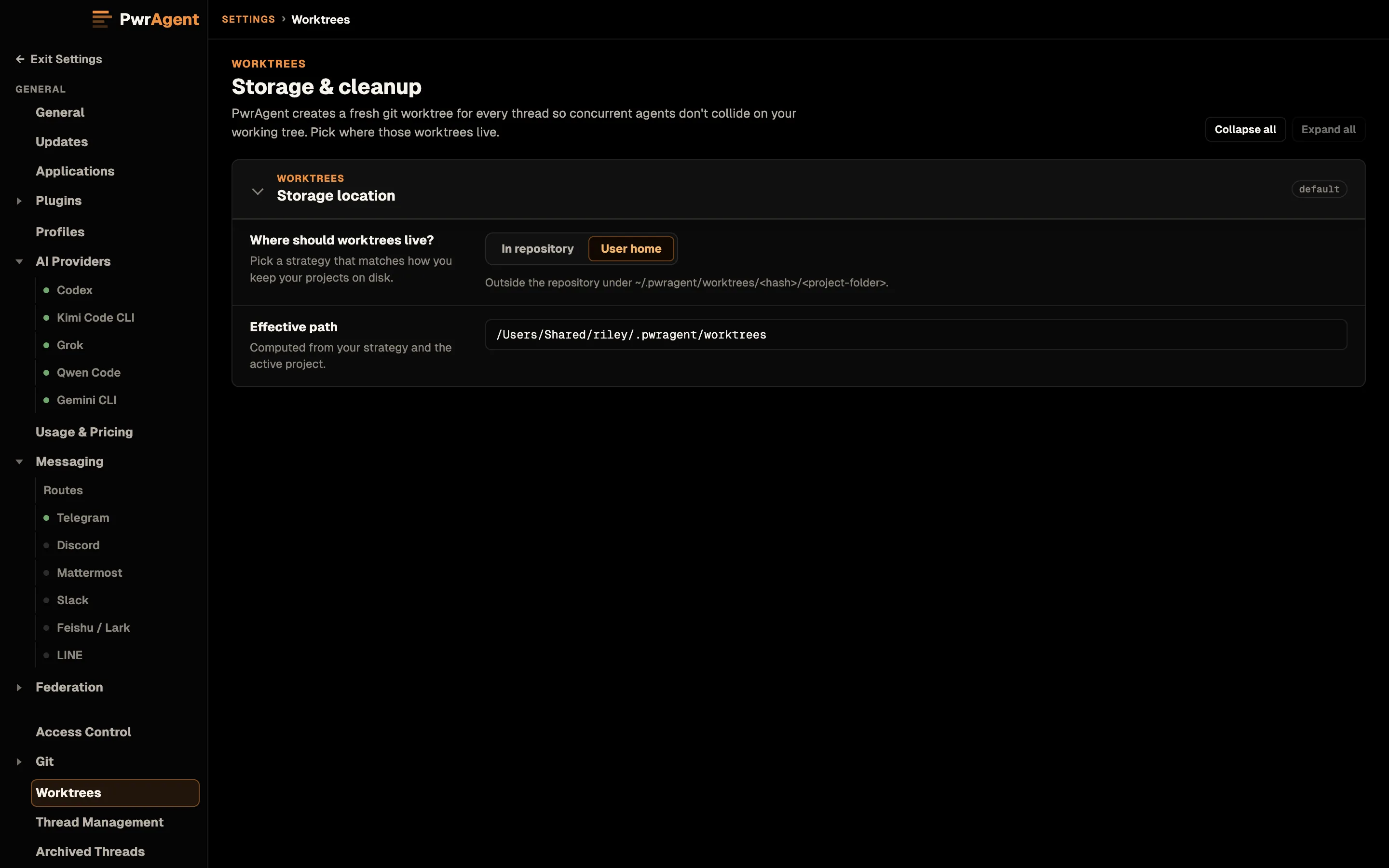
~/.pwragent/worktrees/; Effective path shows where that resolves.When PwrAgent creates a worktree for a thread, it lands at
<worktree-storage>/<hash>/<project-folder-name> where <hash> is
a short timestamp-derived directory. You’ll see the full path on
the thread’s status card.
AI Providers
Settings → AI Providers is the one screen for every coding agent PwrAgent can drive. Codex is the default and sits at the top; below it, one section each for the Agent Client Protocol (ACP) agents — Gemini CLI, Grok, Kimi Code CLI, and Qwen Code. See Agent backends for what each one is, what it needs installed, and what differs between them.
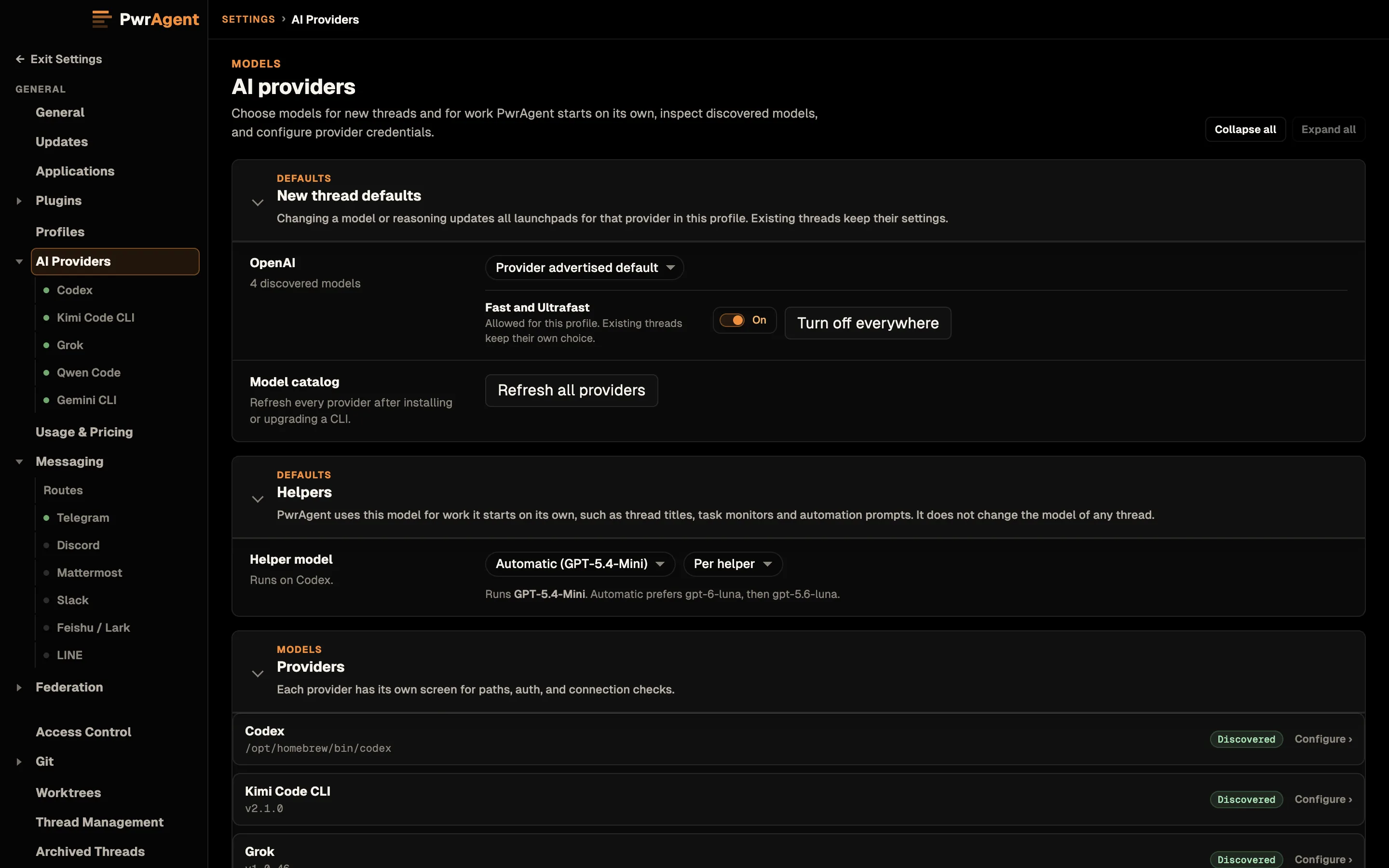
The pane opens with two defaults cards, then the provider list; each provider has its own screen under AI Providers in the settings nav.
New thread defaults
Per-provider baselines — default model, reasoning effort, access mode, and service tier — applied to new threads and launchpads. They never override a choice already saved on an existing thread. There’s also a thread-migration tool here for moving existing threads onto a different model in bulk.
Allow Codex Fast and Ultrafast (on by default) decides whether this profile may use Codex’s faster service tiers at all. Turning it off asks first, then sets every existing Codex thread and future launchpads to Standard speed; Turn off everywhere does the same while leaving the tiers allowed.
Helpers
PwrAgent runs some model work on its own: thread titles, task monitors, Token Miser summaries, usage analysis, and automation prompts. Helper model and its reasoning setting choose the model for all of it, on Codex. It never changes the model of any thread.
Codex
PwrAgent is a client of Codex App Server — it doesn’t ship its own copy. The desktop discovers Codex from any of:
- Codex Desktop (the official Codex desktop app, if you have it installed — found even if you renamed the ChatGPT.app bundle).
- Homebrew-installed Codex CLI (
brew install --cask codexor equivalent — found even when the launching shell has a sparsePATH). - Other Codex CLI install paths PwrAgent knows to check.
On launch, PwrAgent scans those sources, picks the newest working version it finds, and uses that as the Codex App Server backing your threads. The section shows the Codex path (blank means auto discovery), Available paths with the discovered candidates and their versions, the Auth profile picker, and a Connection test.
PwrAgent build (off by default) switches new threads to
PwrAgent’s own Codex build instead: PwrAgent downloads, verifies, and
installs it from pwrdrvr/codex, with progress shown while it
downloads. Token Miser needs it, so the switch stays
on while Token Miser is on.
Keeping Codex up to date
Because PwrAgent uses the newest working install it finds, it inherits whatever updates you apply to the underlying Codex installation. That means:
- If you never run Codex Desktop (and don’t update via the CLI path), your PwrAgent stays pinned at whatever Codex App Server version was current when you last updated either source.
- The most reliable way to keep PwrAgent current is to run Codex Desktop periodically and let it self-update.
- If you do all your dev in PwrAgent and never open Codex Desktop,
update the Codex CLI instead —
brew upgrade --cask codexon Homebrew, or whatever your install path’s update mechanism is.
Either source on its own is fine. You don’t need to keep both current; PwrAgent picks whichever is newest at launch.
Authentication
PwrAgent does not ship its own Codex authentication flow. It piggybacks on whatever Codex auth state your underlying install has.
If you need to log out and back in, or your tokens have expired and PwrAgent shows you signed out:
- Open Codex Desktop.
- Sign in / re-authenticate there.
- Restart PwrAgent (or wait for it to pick up the refreshed credentials).
There’s no equivalent flow in PwrAgent’s UI — by design, since duplicating the auth state would mean it could diverge from Codex Desktop’s truth.
The same principle applies to every ACP agent: you sign in to the CLI
itself (/login in Kimi, /auth in Qwen, a browser round-trip for
Gemini and Grok), and PwrAgent inherits it.
Testing the connection
The Connection test calls the discovered Codex App Server’s health endpoint and reports the version, the authenticated account (if any), and any error from the App Server itself. If it fails:
- Confirm Codex Desktop or the Codex CLI is actually installed at one of the paths PwrAgent scans.
- Confirm you’re authenticated — open Codex Desktop and check.
- Confirm the App Server binary is executable on your account (rare,
but Gatekeeper /
xattr -d com.apple.quarantinecan come into play on freshly-downloaded binaries).
The ACP agents
ACP agents are third-party executables that speak a coding-agent protocol. They are not raw model providers and they do not replace the built-in Codex backend. Grok Build is the one PwrAgent ships: every installer carries a pinned copy (see Agent backends → Grok Build). The others you install yourself (see Agent backends → What each one needs installed), sign in to, then come back and click Refresh.
Each provider gets its own section, headed by its name and a status chip:
| Chip | Means |
|---|---|
| Discovered | Found and usable. |
| Discovered - setup required | Found, but the agent still wants you to authenticate. |
| Not installed | Nothing found on this machine. |
| Detected · unavailable | A matching binary exists but failed the protocol probe. |
| Detected · check timed out | The probe timed out — retryable, hit Re-probe. |
| Discovery failed / Unavailable | Discovery errored; the section shows the reason. |
| Disabled | You turned the provider off. |
The controls that matter day-to-day:
- Enabled — “Show this agent in the model picker and launch threads with it.” A disabled provider is never launched, which matters because probing an agent can kick off its own browser sign-in flow. Disabled providers are also hidden from the Provider picker.
- Detected paths — every binary PwrAgent found:
PATHmatches, well-known install directories, and any manual path you added, each with a version chip. The one in use is marked; click Use to pin a different one. Grok also lists the copy bundled in the app, and marks each row as a PwrAgent build or an xAI build. - Manual path — point a provider at an install discovery can’t see. A manual path wins over everything else.
- Refresh re-runs discovery; Re-probe forces a fresh capability check instead of reusing the cache. Capability metadata is cached, so opening Settings doesn’t launch every agent just to re-ask what it supports.
- PwrAgent build (Grok only, off by default) — PwrAgent
downloads, verifies, and installs newer Grok Build releases from
pwrdrvr/grok-build, and new threads use the newest verified one. On macOS and Windows a build has to carry a valid platform signature; a manual path still wins. While it’s on, Build track picks Latest (promoted builds only) or Prerelease (the newest build, promoted or not). With it off, Grok threads run the copy bundled in the installer unless you’ve installed xAI’s own.
Kimi has one extra wrinkle: if you ever installed the retired Python
kimi-cli, PwrAgent flags the Provider collision, excludes those
binaries from model discovery, and offers a copyable install command for
the current Kimi Code.
The access-mode boundary is intentionally narrow: PwrAgent can mediate the ACP filesystem and terminal requests that pass through the client protocol, but it cannot sandbox what a third-party agent process does internally outside those requests. Install only agents whose source and behavior you trust.
Enabled providers show up in the Provider picker on the desktop launchpad and in messaging’s new-thread flow (see Driving an agent from a messenger → New Thread starter).
Operator-facing wrinkles worth knowing:
- Mode mapping is per-agent. Codex exposes the Default Access and
Full Access modes you set on the Start Card. Most ACP agents ship
their own runtime mode selector and PwrAgent defers to it entirely
rather than stacking a second, mirrored dropdown on top. Grok has no
selector of its own, so it gets PwrAgent’s pair — and PwrAgent drives
Grok’s
always-approvecontrol for you when you flip it. - Environments work across backends.
.codex/environmentssetup hooks and command gating run for ACP threads the same as Codex threads — pick an environment on the launchpad and the setup hook fires before the first turn regardless of which agent you picked. - What each agent can do varies. Steering a turn mid-flight and
PwrAgent-managed
/revieware not universal. The per-provider table is at Agent backends → What differs.
Contributor-facing implementation details live in the app repository at
docs/acp-registry-backends.md.
Usage & Pricing
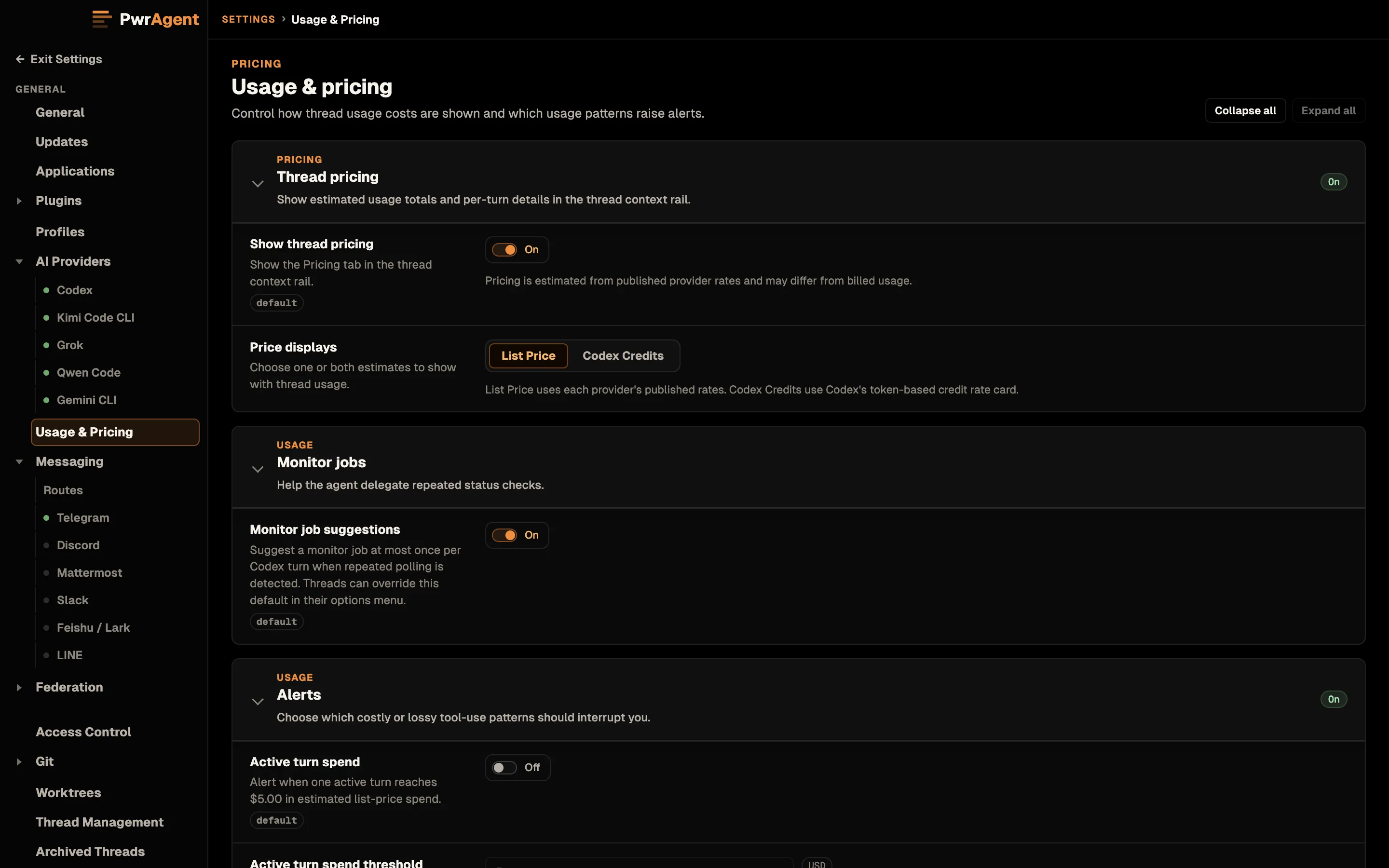
Settings → Usage & Pricing controls how thread costs are shown and which usage patterns interrupt you. This is where thread pricing lives now — it graduated out of Experimental.
- Show thread pricing (on by default) — the Pricing tab in the thread context rail. Turn it off and the tab disappears.
- Price displays — a segmented control with two independent choices: List Price (each provider’s published rates) and Codex Credits (Codex’s token-based credit rate card). Pick one, both, or neither. Pricing is estimated and may differ from what you’re actually billed.
- Monitor job suggestions (on by default) — when an agent keeps polling the same thing, including polling hidden inside Codex Code Mode, PwrAgent suggests a monitor job instead, at most once per Codex turn. Threads can override this in the composer’s Thread options menu.
- Alerts — which costly or lossy patterns should interrupt you:
- Active turn spend — off by default, threshold $5.
- Total thread spend — on by default, threshold $25.
- Tool-output patterns — output-cap hits, repeated large outputs, and repeated queued checks. All three off by default; collection runs either way, the toggles only control alerting.
Tool-call tracking (the rail’s Tool calls tab and the incident explorer) is a separate Experimental toggle — see below.
Access Control
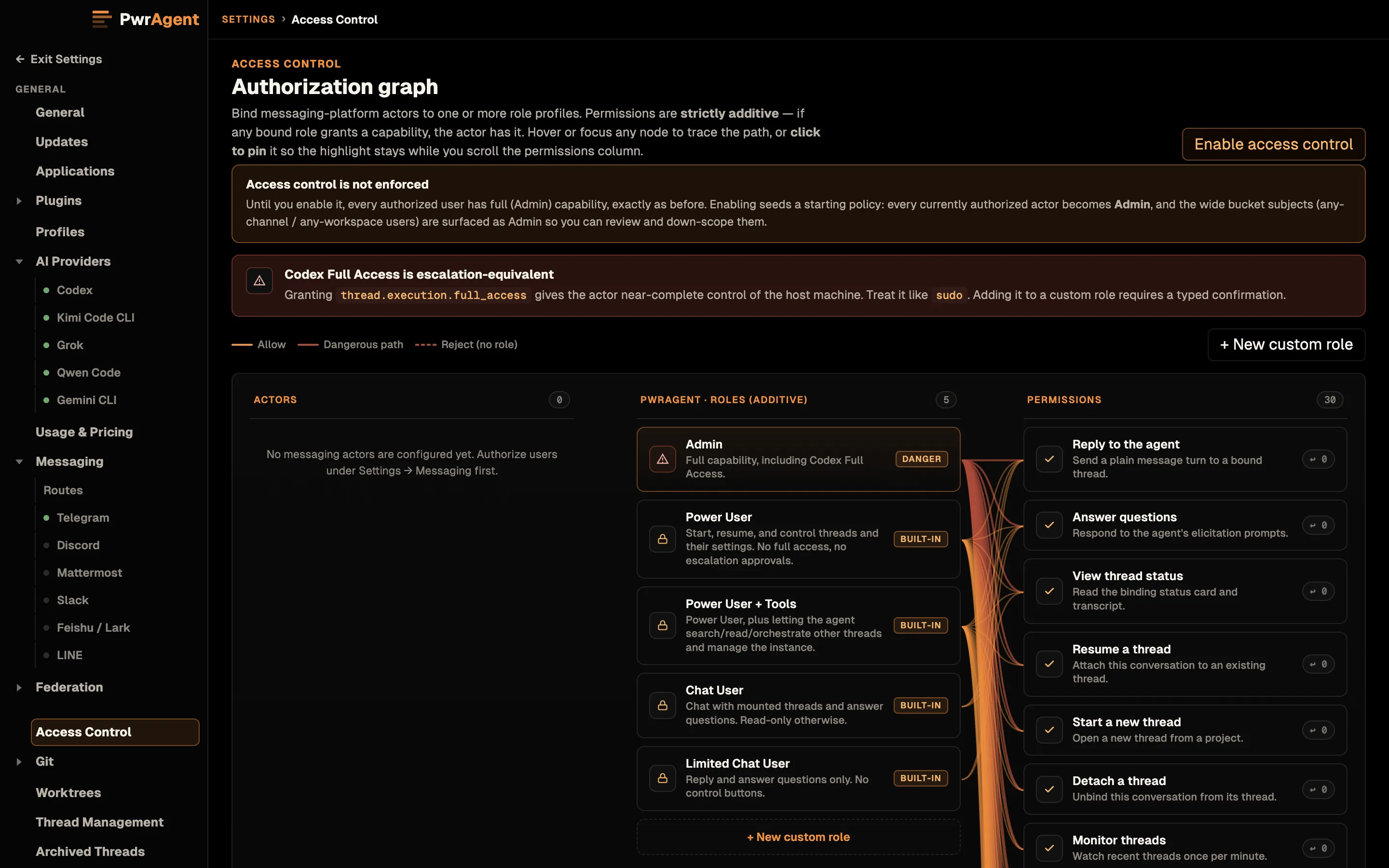
Settings → Access Control is role-based access control for messaging: which actors may invoke which capabilities against which destinations. The pane renders an Authorization graph over the capability catalog so you can see the permissions rather than infer them, and every decision is auditable.
It is fail-closed on invalid policy — a policy the app can’t parse denies rather than defaults open. Existing setups keep working unchanged until you define a policy; this is opt-in, not a migration that locks you out.
Git
Settings → Git owns the two CLI tools PwrAgent shells out to for repository work, plus everything pull-request-shaped:
- Git — the
gitbinary. Repository inspection, worktree creation, branch metadata. - GitHub CLI (gh) — GitHub-specific actions. Also the prerequisite for everything below.
- GitLab CLI (glab) — merge-request status for GitLab repositories.
- Background pull request status (on by default) — keeps PR
status fresh across every open project instead of only the thread
you have selected. The project you’re viewing refreshes about every
minute; other open projects refresh less often; PRs with no activity
for a day stop being checked until you open their thread again.
Merged and closed PRs are skipped. Requires
ghto be signed in. - Pull request automation — Allow Auto-fix PR lets PwrAgent schedule one bounded repair turn for a linked pull request that fails CI or becomes conflicted. It’s gated behind background PR status being on. A second switch sets whether new threads and launchpads start with Auto-fix PR enabled (they do, by default); existing threads keep their saved choice. Dispatch runs on a budget so a thrashing CI job can’t spawn unbounded turns: Automatic repair capacity is how many repairs can be banked for this profile, Automatic repair refill rate how many come back each minute, and Pause Auto-fix PR when the budget is empty stops repairs until you acknowledge it. Each thread’s rail shows the decisions in its PR activity tab.
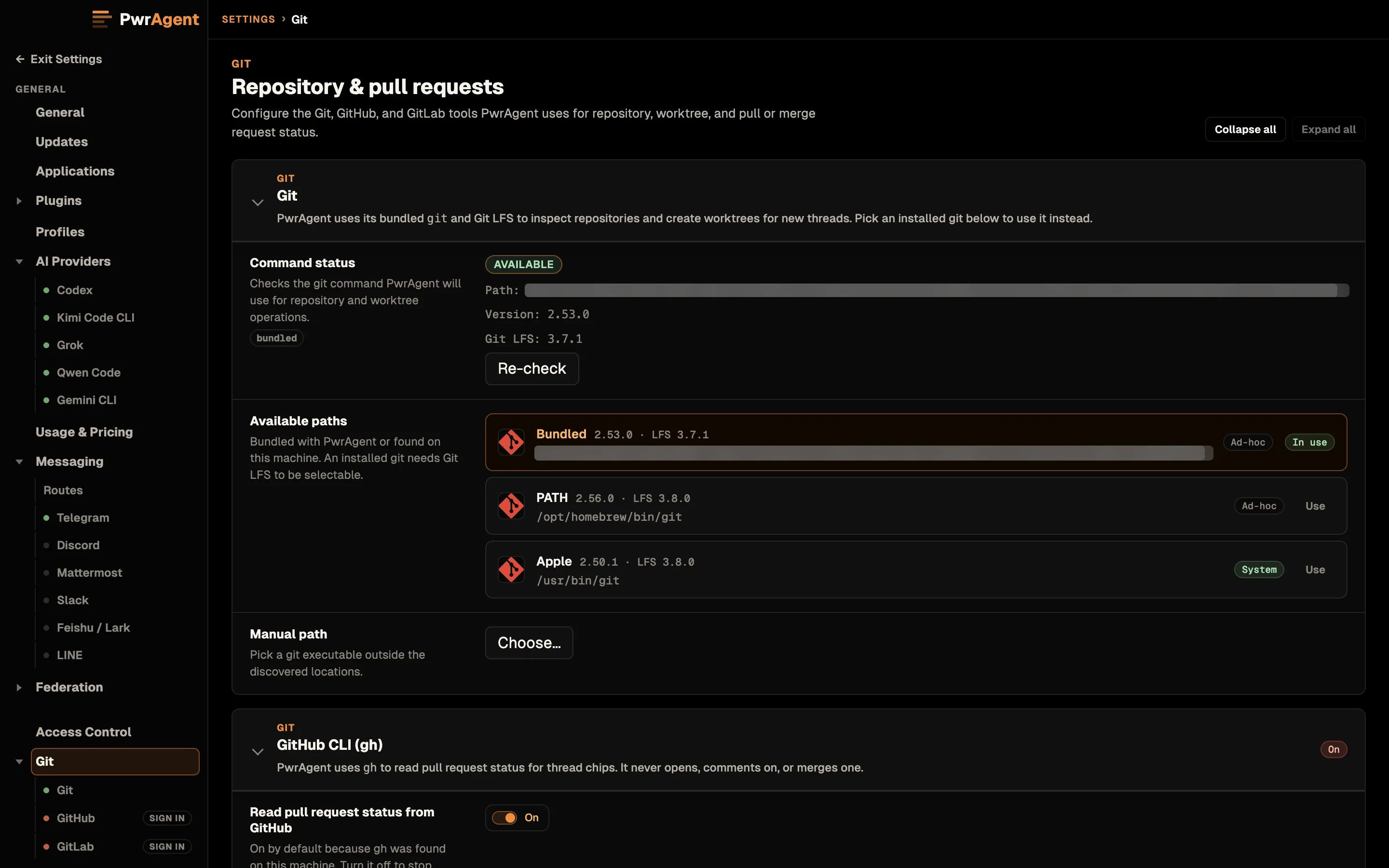
gh and glab supply pull and merge request status.Federation
Settings → Federation connects this PwrAgent profile to PwrAgent on your other machines so they can see and drive each other’s work, over an end-to-end encrypted channel. The pane’s sections, in order: Configuration (mode and this machine’s name), Capabilities (what peers may do here: remote shells, incoming files, file pull), Encryption, Invites, Connection, Instances, Activity, Tailscale, and Cloudflare Access.
Federation is off until you configure it. The walkthrough, the capability defaults, and what you can do once machines are connected are on Federation and Star Map.
Experimental
Features that may change shape or be removed without notice. Most are off by default; the two exceptions are marked. The panel currently hosts:
- Codex Tool Discovery (on by default) — Load PwrAgent tools on demand lets Codex search for PwrAgent’s tools and load their instructions when needed, instead of carrying the full catalog in every turn’s starting context. Other providers are unchanged.
- Token Miser — keeps accidental walls of Codex tool output out of the parent thread while preserving the exact result for targeted retrieval. Make Token Miser available downloads and activates PwrAgent’s verified Codex build. Once it’s available, Enable on threads by default (on) decides whether threads inherit it or opt in one at a time from the composer menu. Further switches cover Focused summaries, Review hidden polling loops, and Capture diagnostic samples. Token Miser needs PwrAgent’s Codex build (see Codex). If it can’t run, the original output passes through unchanged.
- Tool Call Tracking — shows the rail’s Tool calls tab: tool-call volume, command instances, output, and replay-risk history. Collection stays on either way, and safety notices stay active while the tab is hidden.
- Markdown Math Rendering (on by default) — LaTeX math in the transcript, typeset with KaTeX.
- Codex Skill Questions — lets Codex skills pause an ordinary turn to ask you a structured question, when the installed Codex build supports it.
PwrAgent-managed code review isn’t a toggle here any more. You pick where each review runs in the review composer — see Desktop → /review.
And a Soon to be discontinued group for features being phased out:
- Diff Condensation — xAI-judged elision of oversized diff payloads.
- Live Transcript Event Filtering — filters unrelated live events so background threads don’t churn the open transcript.
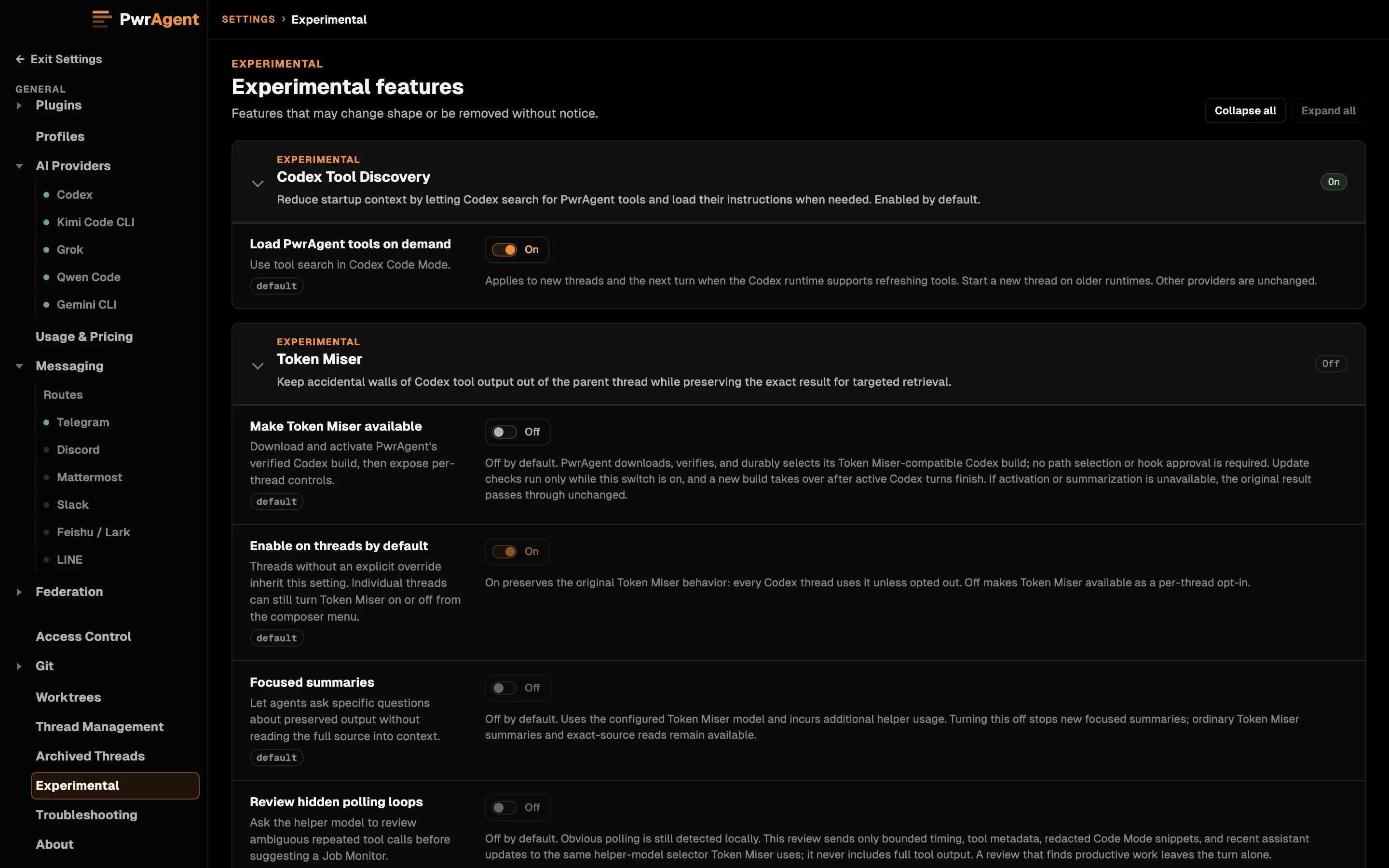
Features cycle through this panel before promotion — thread pricing graduated to its own Usage & Pricing pane this way.
Troubleshooting
Settings → Troubleshooting is the diagnostics drawer:
- Chrome DevTools — Developer Mode exposes the Reload, Force Reload, and Developer Tools menu shortcuts. Process IDs gives you copyable IDs for attaching a debugger or profiler.
- Codex protocol capture — record the App Server protocol traffic behind a thread, for filing a bug with something reproducible attached.
- CPU and heap monitoring — hot-CPU profiling with a configurable
start delay and trigger mode, plus bounded heap snapshots. Works in
packaged builds and writes
.cpuprofileartifacts. Capturing a heap snapshot on demand needs Developer Mode on.
See also
- Agent backends — what Codex, Gemini, Grok, Kimi, and Qwen each need installed, and what differs between them.
- Federation and Star Map — connecting machines, remote threads and terminals, and sending a thread to another machine.
- Desktop — the app’s overall feature set, workspaces (Local vs. Worktree), per-thread provider / model / fast / reasoning / permissions, multi-profile model.
- Messaging — messenger-specific Settings panels live under each provider setup page.