Automations
Automations run agent tasks without you sending the prompt — on a schedule, or in response to a message arriving on a paired messenger. Each automation owns a task prompt, a trigger, and a delivery destination; every run is recorded with its result.
Open the Automations screen from the masthead button next to Search and Settings. Each thread’s context rail also carries an Automations tab showing the automations attached to that thread.
Automations are on by default in every build. If you’re operating
a machine that should never run them (a shared demo box, a CI
host), launch with --disable-automations or set
PWRAGENT_DISABLE_AUTOMATIONS=1.
Anatomy of an automation
Every automation has:
- A task prompt — what the agent should do when the trigger fires. Markdown, same as any thread prompt.
- A trigger — a schedule or an inbound message rule (below).
- A destination — where results go: back into an Agent context, or delivered to a messaging conversation. The destination picker shows friendly conversation titles, not raw platform IDs.
- Run history — every run with its outcome, including runs that were skipped (throttled, coalesced, or deduplicated), so an automation that didn’t fire tells you why instead of leaving silence.
Scheduled automations
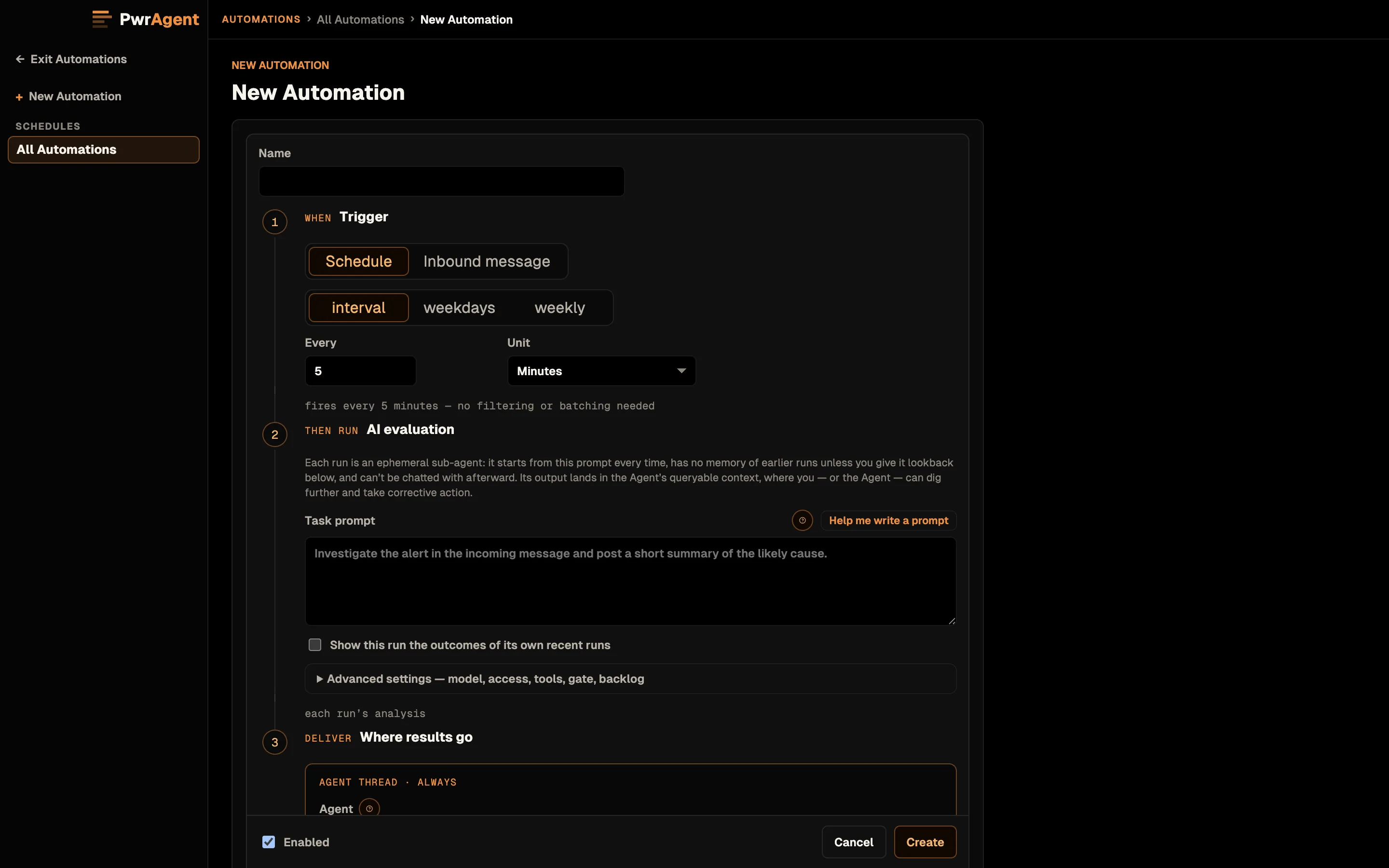
Schedules come in three shapes:
- Interval — every N minutes/hours.
- Weekday — specific days at a time.
- Weekly — once a week.
Runs reconcile at startup — if the app was closed when a run was due, PwrAgent works out what should happen rather than silently skipping or replaying a backlog. You can also fire any automation manually from its row when you want the result now.
Message-triggered automations
An automation can fire when a message arrives on Slack or Telegram:
- Pick the provider and conversation the trigger watches (pairing a conversation for automation use rides the same code-based pairing flow as everything else — see Messaging → Pairing).
- Filter by sender and/or text match, with a live preview in the editor showing which recent messages would have matched — you see the rule working before you save it.
- Choose where results go: reply to the source conversation, or keep the run’s output in the Agent context only.
Message triggers are built for unattended operation:
- Coalescing and idempotency — a burst of matching messages doesn’t stampede into a burst of runs, and re-delivered platform events don’t double-fire.
- Hourly run caps — per-automation and restart-safe. Throttled runs appear in run history as visibly skipped, not silently dropped.
- Loop protection — an automation that replies into the conversation it watches can’t ratchet itself into a feedback loop.
- Crash-safe delivery markers — a run that completed but crashed before recording delivery won’t double-deliver on restart.
Agents can see automations
Agent threads have inspection tools for the automations attached to them — an agent can read its automation’s definition, recent runs, and captured artifacts. That means you can ask a thread “why did last night’s run skip?” and the agent can look at the actual run history instead of guessing.
To make a thread an Agent thread, turn on Agent thread in the composer’s Thread options menu, on a new thread’s launchpad or on an existing Codex thread. Agent threads are never archived automatically.
Downgrade safety
Automation definitions are versioned with the app. If a profile carries an automation row written by a newer build than the one you’re running, the older build skips it without touching it and reports the skip at startup — it won’t corrupt or delete configuration it doesn’t understand. Early-boot failures surface a native error dialog with direct access to the log file rather than a silent hang.
See also
- Desktop — the thread context rail, where each thread’s Automations tab lives.
- Driving an agent from a messenger — the interactive messaging story automations build on.
- Rate limits and budgets — delivery to messaging respects the same per-platform budgets.