Mattermost
PwrAgent’s Mattermost adapter delivers messages over Mattermost’s WebSocket, but button clicks come back through an HTTP callback the adapter has to host. That makes Mattermost an HTTP-callback platform. Before you start, read Webhooks — a security note — the short version: a public HTTP listener is more attack surface than an outbound socket, even behind a tunnel. If you have a choice of platform, prefer one of the non-webhook ones (Telegram, Discord, Slack, Feishu/Lark).
What you need to get started
- A bot account in your Mattermost server with an access token.
- A public HTTPS URL that forwards to a local port on the PwrAgent host — Cloudflare Tunnel, Tailscale Funnel, or a comparable setup.
- The bot invited into the channels where you want it addressable.
Without explicit channel membership, Mattermost does not deliver
postedevents to the bot.
Step by step
- Create the bot account. In Mattermost: System Console →
Integrations → Bot Accounts → Add Bot Account. Display name can
be
PwrAgent. Permissions the bot needs: post in target channels, read posts, upload/download files, edit its own posts, update channel headers. Grantmanage_slash_commandsif you want PwrAgent to register native slash commands (recommended for ease of discovery; without it,@pwragent helptext-mention still works). - Copy the bot access token.
- Add the bot to the channels you want it to operate in.
- Set up the tunnel. Pick one of the options below. The choice matters less than the operational diligence — see the next section.
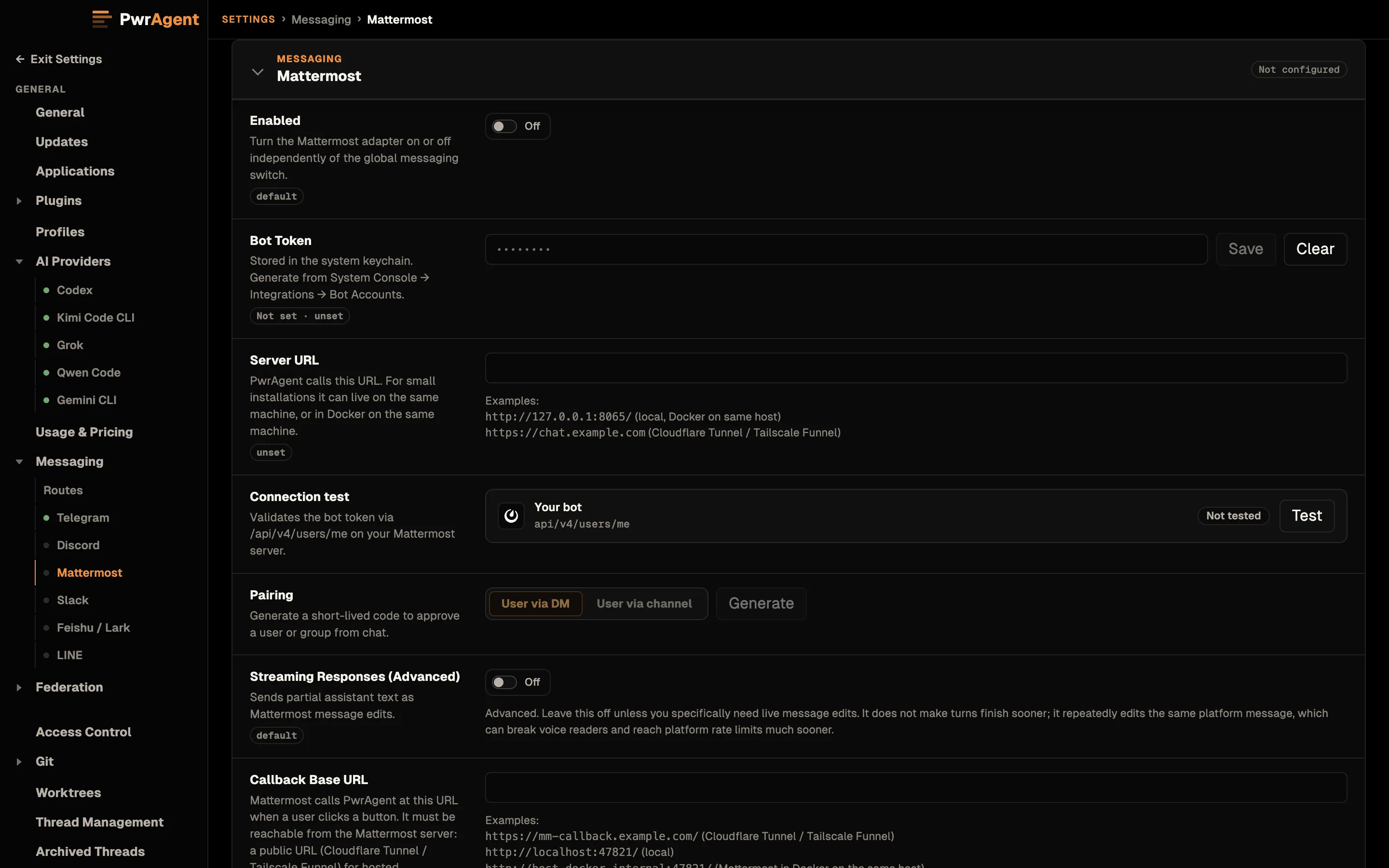
- Open Settings → Messaging → Mattermost in PwrAgent.
- Paste the bot token, the server URL, and the public callback base URL (the tunnel hostname). Each field saves when you click or tab out of it.
- Click Test. PwrAgent calls
/api/v4/users/mewith the token to verify both the token and the server URL. - Enable Mattermost with the toggle at the top of the panel.
- Send the bot a DM (“You there?”). With the user allowlist empty, PwrAgent discards the message as unauthorized but logs the sender’s Mattermost user ID in Settings → Messaging → Activity. Copy the ID into the authorized list.
- Send
@pwragent resumeor/pwragent_resume(if slash commands are registered) from an authorized DM or channel.
Choosing a tunnel
Pick one. Both options work — the trade-offs differ. PwrAgent
binds the callback listener to 127.0.0.1 only; the tunnel is
what makes it reachable from Mattermost.
Option A — Cloudflare Tunnel + Zero Trust (recommended)
Cloudflare Tunnel runs a cloudflared daemon on the PwrAgent host
that dials out to Cloudflare’s edge. Cloudflare publishes a
hostname that proxies to 127.0.0.1:<port> on your host. No inbound
port is opened on your network.
Steps:
- Create a tunnel on
dash.cloudflare.com→ Zero Trust → Networks → Tunnels. - Run
cloudflared tunnel run <tunnel-id>on the PwrAgent host — typically as a launchd or systemd service. - Route the public hostname (e.g.
https://pwragent.example.com) tohttp://localhost:47821. The local port comes from the callback base URL you set in PwrAgent — embed a port in the URL (e.g.http://localhost:8000/) to use something other than the default 47821.
Recommended hardening on top of PwrAgent’s HMAC verification:
- IP allowlist. Restrict the public hostname to Mattermost’s outbound IP range. Self-hosted Mattermost: the operator’s egress IPs. Mattermost Cloud: their published egress ranges.
- Cloudflare Access policy. Add an Access policy on the route
so only the allowlisted IPs reach
cloudflared.
Option B — Tailscale Funnel
Tailscale Funnel publishes a https://<host>.tail<id>.ts.net URL
that forwards to a localhost port on your tailnet device. Free for
personal use up to a quota.
Steps:
- Install Tailscale on the PwrAgent host. Sign in.
- Enable Funnel:
tailscale funnel 47821forwards the tailnethttps://<host>.tail<id>.ts.net/URL tolocalhost:47821. - Set the callback base URL in PwrAgent to the Funnel URL.
Funnel does not provide an IP allowlist. Rely on PwrAgent’s HMAC verification and consider rotating the HMAC secret if you suspect leakage.
Option C — ngrok (development only)
ngrok http 47821 for a disposable URL. Free tier rotates the URL on
restart. Not for production — no IP allowlist, publicly
enumerable URL.
Pin the HMAC secret
PwrAgent verifies every inbound button click with an HMAC over
(intentId, actionId, issuedAt). By default, the adapter mints a
random HMAC secret each time the process starts. That means every
button rendered in a previous session silently fails verification on
the next start.
To make buttons survive restarts:
openssl rand -hex 32
Set PWRAGENT_MESSAGING_MATTERMOST_CALLBACK_HMAC_SECRET to that value
in the environment, or store it in the Settings UI. The HMAC pin is
strongly recommended for any production deployment.
Pairing
For the captured walkthrough of the pairing flow (generate → send code → approve), and the troubleshooting Activity screen that shows blocked inbound messages, see Messaging → Pairing. Same flow on every supported platform; the screenshots there happen to be Telegram.
Settings reference
Required (above the Test button)
| Setting | What it does |
|---|---|
| Enabled | Top-of-panel toggle. When off, the adapter doesn’t start. |
| Bot Token | From the Bot Accounts page. Stored in the system keychain. |
| Server URL | Base URL of your Mattermost server (https://chat.example.com). |
| Callback Base URL | Public HTTPS URL the tunnel exposes — what Mattermost dials. The local listener binds to the port embedded in this URL (http://localhost:47821/ → 47821), otherwise the default 47821. The URL is the single source of truth — there is no separate port field. |
| Authorized User IDs | Comma-separated Mattermost user IDs (UUIDs). Find them via /api/v4/users/username/<name> or Settings → Profile → Account Settings → Display → Username plus the API lookup. |
Optional (below the Test button)
| Setting | Default | What it does | When to change |
|---|---|---|---|
| Callback HMAC Secret | random per-start | Stable secret for button-payload verification. | Set it. Generated via openssl rand -hex 32. Without a pinned value, buttons fail silently after every restart. |
| Register Slash Commands | Off | Reconcile native /pwragent_* slash commands on adapter startup. |
Turn on for nicer slash-menu autocomplete. Requires manage_slash_commands on the bot. Threads-from-slash work cleanly on Mattermost 11.0+; v10.x reverts to channel-level reply (see “Mattermost-specific notes”). |
| Slash Command Prefix | pwragent_ | Prefix for registered slash commands. | Empty string registers bare triggers and accepts collisions with built-in commands like /status, /away, /leave. Allowed chars: [A-Za-z0-9_./-]. |
| Streaming Responses (Advanced) | Off | Bot edits its reply message in place as text streams in. | Leave off. See Streaming responses. |
| Working Updates | Show Some | How much of the agent’s in-progress work (tool activity + narration) is bridged to the conversation. | See Working Updates; per-binding override on the status card. |
| Image Upload Profile | medium | Quality used for inbound images. | Per bandwidth / fidelity tradeoff. |
Mattermost-specific notes
- Threads from slash commands on v10.x reply at channel level.
Mattermost server versions before 11.0 omit
root_idfrom the slash-command webhook body, so a slash-command reply lands in the parent channel even when invoked inside a thread. PwrAgent works around this on the first delivery by routing through Mattermost’sresponse_urlendpoint, which preserves thread context server-side; subsequent renders use the recoveredroot_id. On v11.0+, the workaround is unnecessary. @pwragenttext mentions always work in threads. Slash commands are not recommended as the primary thread invocation on Mattermost; text mentions go through the WebSocketpostedevent with full thread context. If you operate v10.x, prefer the mention path inside threads.- Rate limits are server-configured. Don’t assume a public SaaS
limit; check your Mattermost server’s
RateLimitSettings.
See also
- Webhooks — a security note — read this before shipping the tunnel.
- Driving an agent from a messenger
- Streaming responses