What PwrAgent is
These pages describe PwrAgent 1.1.6 and later on the Stable channel. The version you are running is in Settings → About and Settings → Updates.
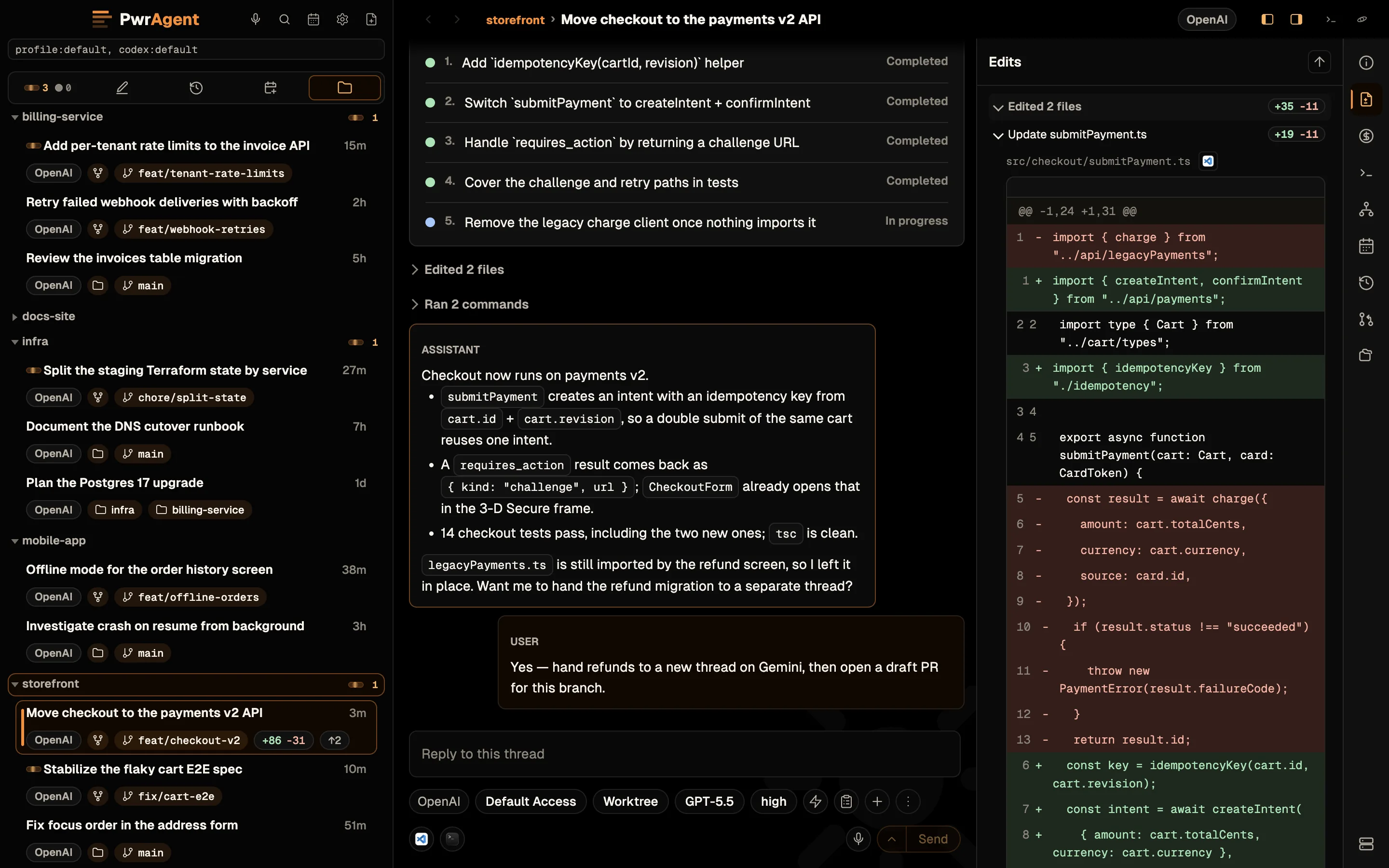
PwrAgent is a desktop for running coding agents on machines you own: many threads across many repos, each in your checkout or in its own Git worktree, with review and pull-request tracking, integrated terminals, isolated profiles, and federation across your machines. It is in the same family as Codex Desktop: you spawn an agent thread, point it at a directory, watch the agent work, approve commands, and ship the result. If you already know Codex Desktop, you know the shape: threads, transcripts, per-thread model and access-mode pickers, permission prompts when the agent wants to do something destructive.
Codex is the default backend, but it isn’t the only one. PwrAgent also drives Gemini CLI, Grok Build, Kimi Code, and Qwen Code over the Agent Client Protocol — you sign in to the CLI, PwrAgent runs it. Grok Build ships inside the installer; the others you install yourself. You pick the provider per thread, so a Codex thread and a Grok thread sit side by side in the same sidebar. See Agent backends.
On Codex, the two apps share thread state by default. Open Codex Desktop and your PwrAgent threads are there; open PwrAgent and your Codex Desktop threads are there. They read and write the same on-disk session DB, so you can start a thread in one and pick it up in the other without thinking about it.
When you don’t want that — work code in one window, side-project code in another, a sandbox for trying things in a third — you create isolated profiles:
- A PwrAgent profile (via
--profile work) carries its own config, session state, messaging credentials, and Codex pairing. - A Codex profile (a Codex-side concept) carries its own authentication and per-Codex defaults.
- You can bind a PwrAgent profile to a specific Codex profile, then launch as many copies of PwrAgent simultaneously as you want — one per profile — each isolated from the others. Work in one Dock icon, personal in another, side projects in a third. Threads, authentication, and messaging credentials never cross the boundary.
See Desktop → Multiple profiles for the worked setup.
Messaging
Messaging is how you reach the desktop from your phone. Pair a bot once on Telegram, Discord, Slack, Mattermost, Feishu / Lark, or LINE, and you can resume an existing thread or start a new one from your phone — review the last reply, send the next prompt, approve a Default-Access command — without opening the laptop.
It’s built for the cases where the laptop isn’t an option: a phone on cellular, a hotel WiFi connection that drops every two minutes, an iPad you’re using on the couch. The messaging path runs as a thin transport on top of your platform of choice; the agent itself stays on your laptop, so resilience to network blips is mostly the chat platform’s problem (which they’re already good at solving).
See Messaging for the per-platform setup walkthroughs and the end-to-end Driving an agent from a messenger guide.
How well does it actually work?
The author uses PwrAgent as their primary coding environment. Hundreds of PRs in this repository and others were created or reviewed through it — substantial features, refactors across package boundaries, bug investigations that span days. The messaging surface gets daily use from a phone for triage, approval, and “what did you end up doing while I was away” check-ins on long-running threads.
That doesn’t make it the right tool for everybody, but it does mean the rough edges that would have stopped a serious user have already been filed off. The honest list of what’s still missing today and what’s on the roadmap lives at Desktop → Not yet and Desktop → Coming soon.
What PwrAgent is going to be
The shape above is the starting point, not the destination. There are plans on the roadmap (branch auto-naming, environment teardown hooks, in-app environment editing, more messaging providers), but the more interesting question is what you want to build on top of this.
If you’ve ever wished a coding agent worked some specific way that no existing tool gets right — that’s the kind of thing this codebase is set up to absorb. Cleanly layered packages with hard dependency boundaries, a forward-compatible local data layer that doesn’t fight you on schema changes, and a per-platform messaging contract small enough that adding a seventh provider is a few-day task rather than a few-month one.
We’d genuinely like to see what you bring. Patches, issue threads, forks that go in a different direction — all of it. Start with the GitHub repo for the codebase, the architecture notes, and the contributor’s path.
Get started
Download the installer for your machine. Each link always fetches the newest Stable release:
| Machine | Download |
|---|---|
| Mac, Intel or Apple silicon (universal) | PwrAgent.dmg |
| Mac, Apple silicon only (smaller download) | PwrAgent-arm64.dmg |
| Windows, x64 | PwrAgent.Setup.exe |
Linux, Intel / AMD (x86_64) |
x64 .deb · x64 .rpm · x64 .pacman · x64 .tar.gz |
Linux, ARM64 (aarch64) |
arm64 .deb · arm64 .rpm · arm64 .pacman · arm64 .tar.gz |
On a Mac with Homebrew, brew install --cask pwrdrvr/tap/pwragent
installs the same app. On Linux, Linux Install has the
one-line command for Debian / Ubuntu, Fedora / openSUSE, and Arch.
Every release also publishes a checksum manifest per platform:
PwrAgent-macos-SHA256SUMS, PwrAgent-windows-SHA256SUMS, and
SHA256SUMS for the Linux files. Those, older versions, and the
release notes are on the
GitHub Releases page.
- Install. macOS, Windows, and Linux each have a page covering which download to pick, verifying it, and upgrading. On macOS it’s the usual drag into Applications. The build is Developer ID-signed and Apple-notarized, so first launch is a single Gatekeeper prompt.
- Set up a coding agent. Codex is the default and the first-run wizard walks you through installing it. Grok Build ships inside PwrAgent, so it only needs you to sign in. See Agent backends for the others.
- (Optional) Pair a messenger from Settings → Messaging. See the Messaging section for the per-platform walkthroughs.
Browse the docs
- Desktop — sidebar lenses, thread workspaces (Local and Worktree), sub-threads and forks, the thread context rail, environments, per-thread settings, multiple profiles, and what’s still on the roadmap.
- Federation and Star Map — connect PwrAgent on several machines, drive remote threads and terminals, send a thread to another machine, and see all of it on the Star Map.
- Agent backends — Codex, Gemini, Grok, Kimi, and Qwen: choosing one, what each needs installed, and what differs between them.
- Automations — scheduled and message-triggered agent runs with run history and messaging delivery.
- Messaging — drive agent threads from Telegram, Discord, Slack, Mattermost, Feishu / Lark, or LINE. End-to-end usage guide, per-platform setup, rate limits, the streaming- responses tradeoff, and the webhook security note.
- Settings — the update channel, provider discovery and Codex auth, application discovery, profiles, worktree storage, the MCP Gateway, Git and pull-request automation, the experimental flags.
License
PwrAgent is MIT-licensed, created by PwrDrvr LLC. See the LICENSE and THIRD_PARTY_LICENSES files in the repo.