Federation and Star Map
A PwrAgent profile can federate with PwrAgent on your other machines, a laptop and a workstation for instance, so that each one can see and drive the other’s threads. Every machine keeps running its own agents against its own checkouts; federation lets you reach them from whichever window is in front of you. The Star Map is the view built for that: every project and thread, local and remote, on one map.
Federation is off until you set it up.
Setting it up
Everything lives in Settings → Federation, one section per step:
- Configuration — the Mode:
gatewaylistens for peers,clientconnects to a gateway,dualdoes both, anddisabledturns federation off. This is also where you name the machine. The gateway gives each connected machine a short name, so long host names stay readable on cards and chips. - Capabilities — what enrolled peers may do on this machine (below).
- Encryption — the end-to-end encrypted transport between instances.
- Invites — Generate invite on the gateway, then Import invite on the machine joining it.
- Connection — the runtime state: role, listener, public URL, and gateway endpoints.
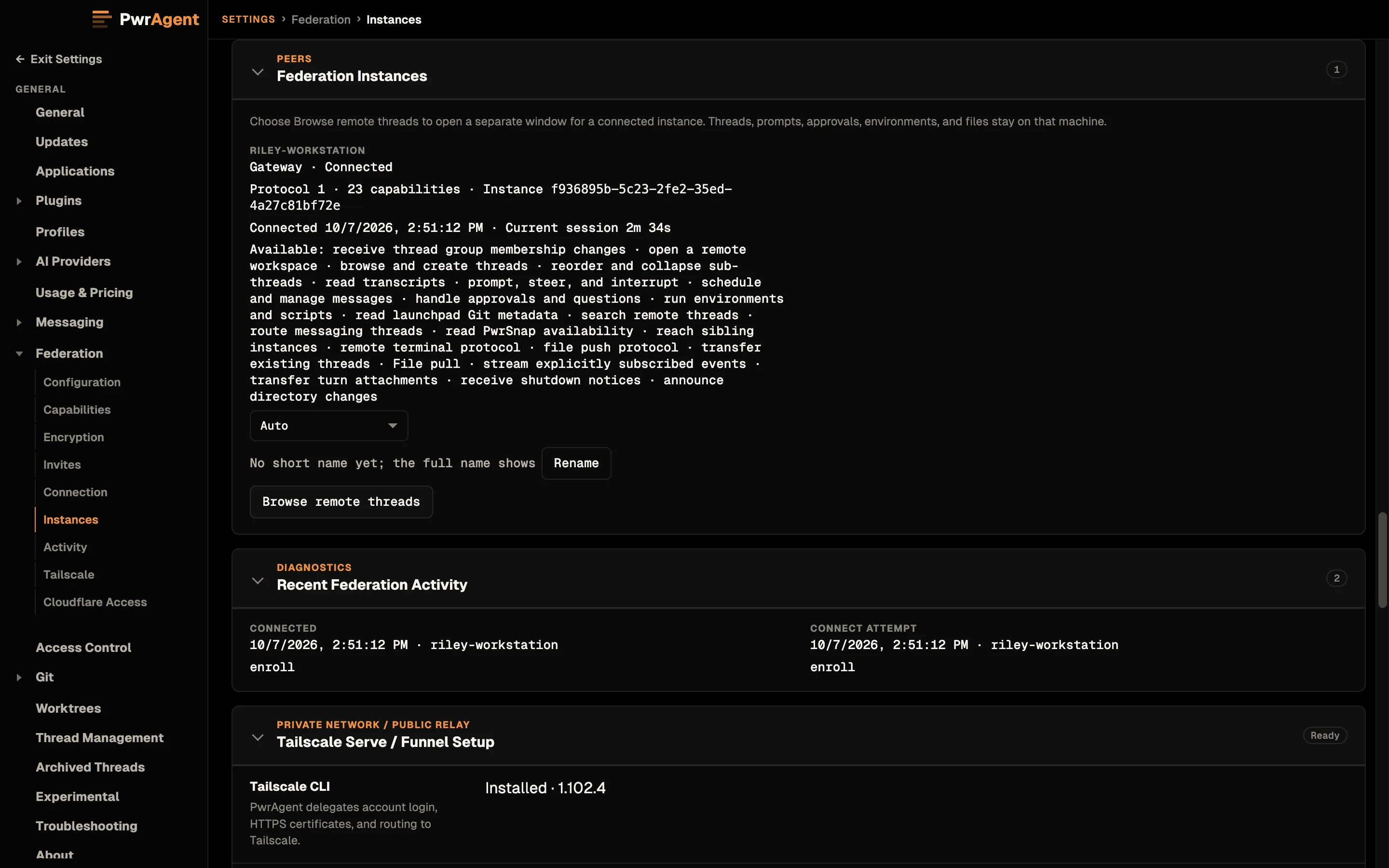
- Instances — the enrolled peers.
- Activity — recent federation events, for diagnosing a connection.
- Tailscale and Cloudflare Access — guided setup for reaching a gateway over a tailnet or through Cloudflare.
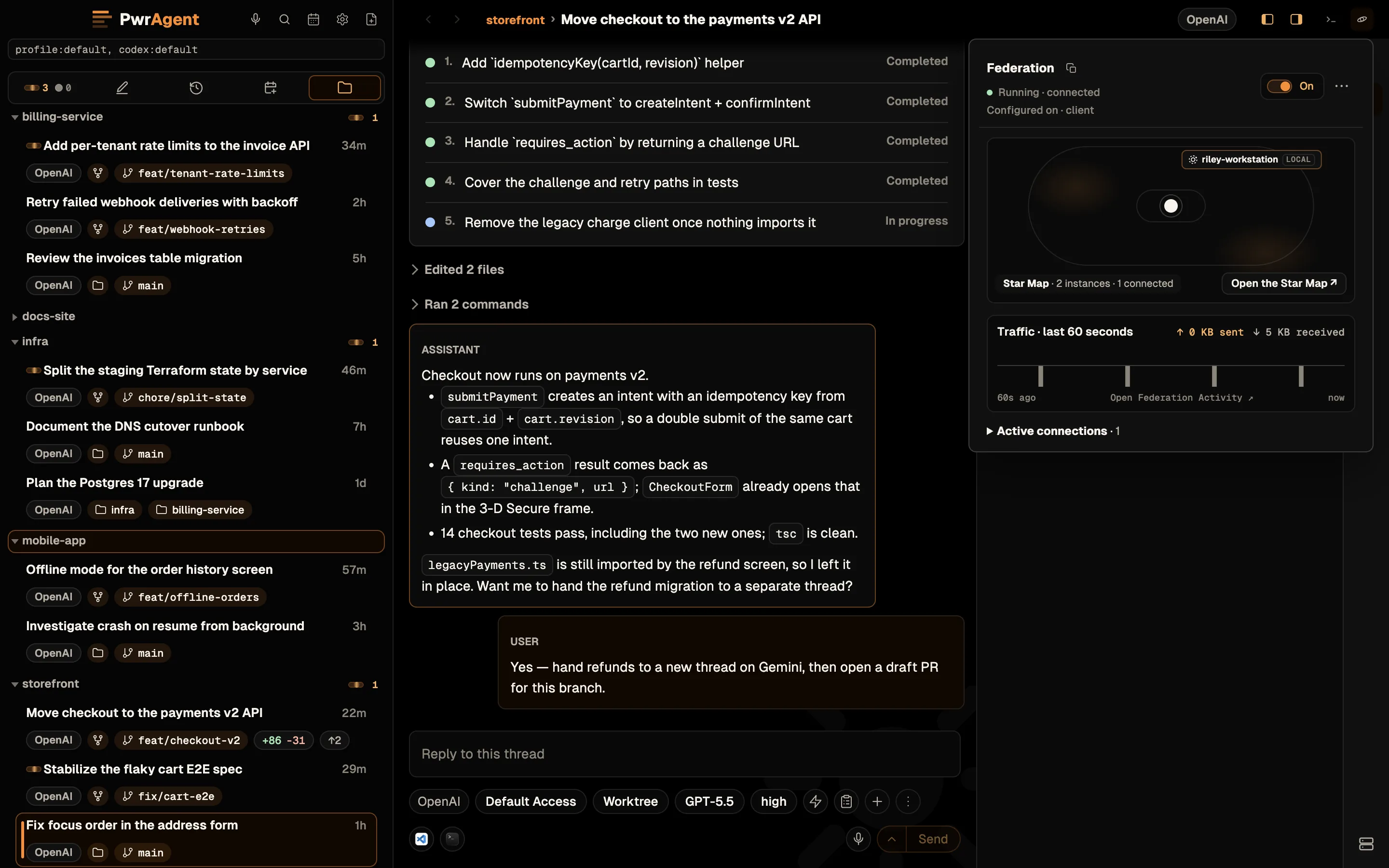
Once it’s configured, the Star Map button in the title bar doubles as the federation status control: hover it for the connection state, an on/off switch for this app instance, and a preview of the connected machines.
Capabilities
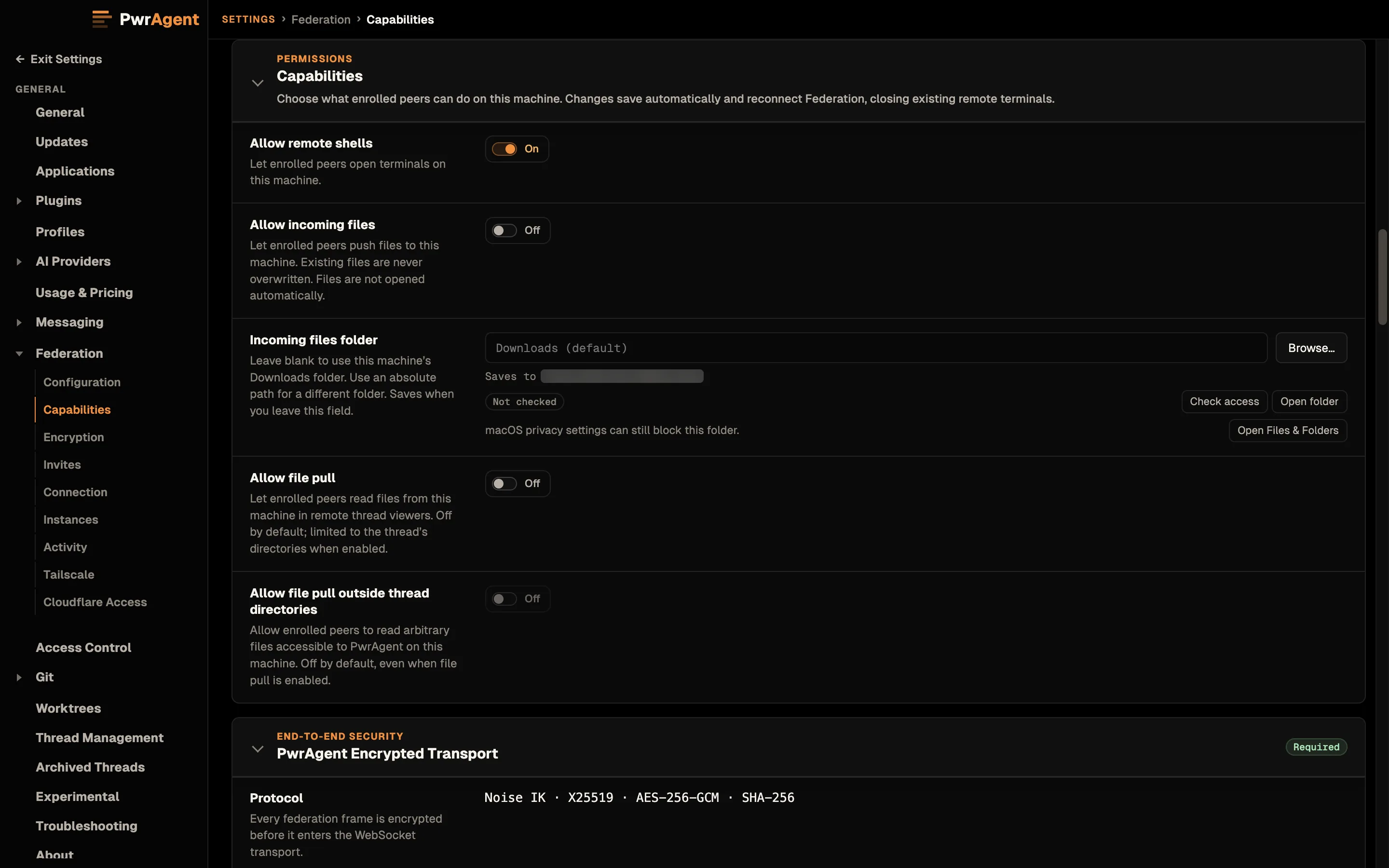
Each machine decides what its peers may do to it. Changes save immediately and reconnect federation, which closes any open remote terminals.
| Switch | Default | Lets peers |
|---|---|---|
| Allow remote shells | On | Open terminals on this machine. |
| Allow incoming files | Off | Push files here, into Incoming files folder (your Downloads folder unless you set one). Existing files are never overwritten, and nothing opens automatically. |
| Allow file pull | Off | Read files from this machine in remote thread viewers, limited to the thread’s directories. |
| Allow file pull outside thread directories | Off | Read any file PwrAgent can read on this machine. |
Working across machines
With peers connected:
- Remote threads mount into viewer windows with the live transcript and pull-request state, and you drive them the same way as local ones. Connected machines are listed in the Profiles menu under Remote Instances.
- Remote terminals open on the peer, rooted in the thread’s workspace, when that peer allows remote shells.
- Quick jump (Command+K, or Control+K on Windows and Linux) searches threads on every connected machine.
- Choose where new work runs. The new-thread menu has a New chat on list of machines. A thread’s right-click Sub-thread in New Worktree (or New Workspace) action opens a New worktree on / New workspace on list, with the parent’s machine first.
- Mentions. The composer’s
@autocomplete lists federated machines and profiles alongside directories. - Files. Agents can push files to a peer that allows incoming files. Markdown files a remote agent wrote open in your local viewer when the peer allows file pull.
Send a thread to another machine
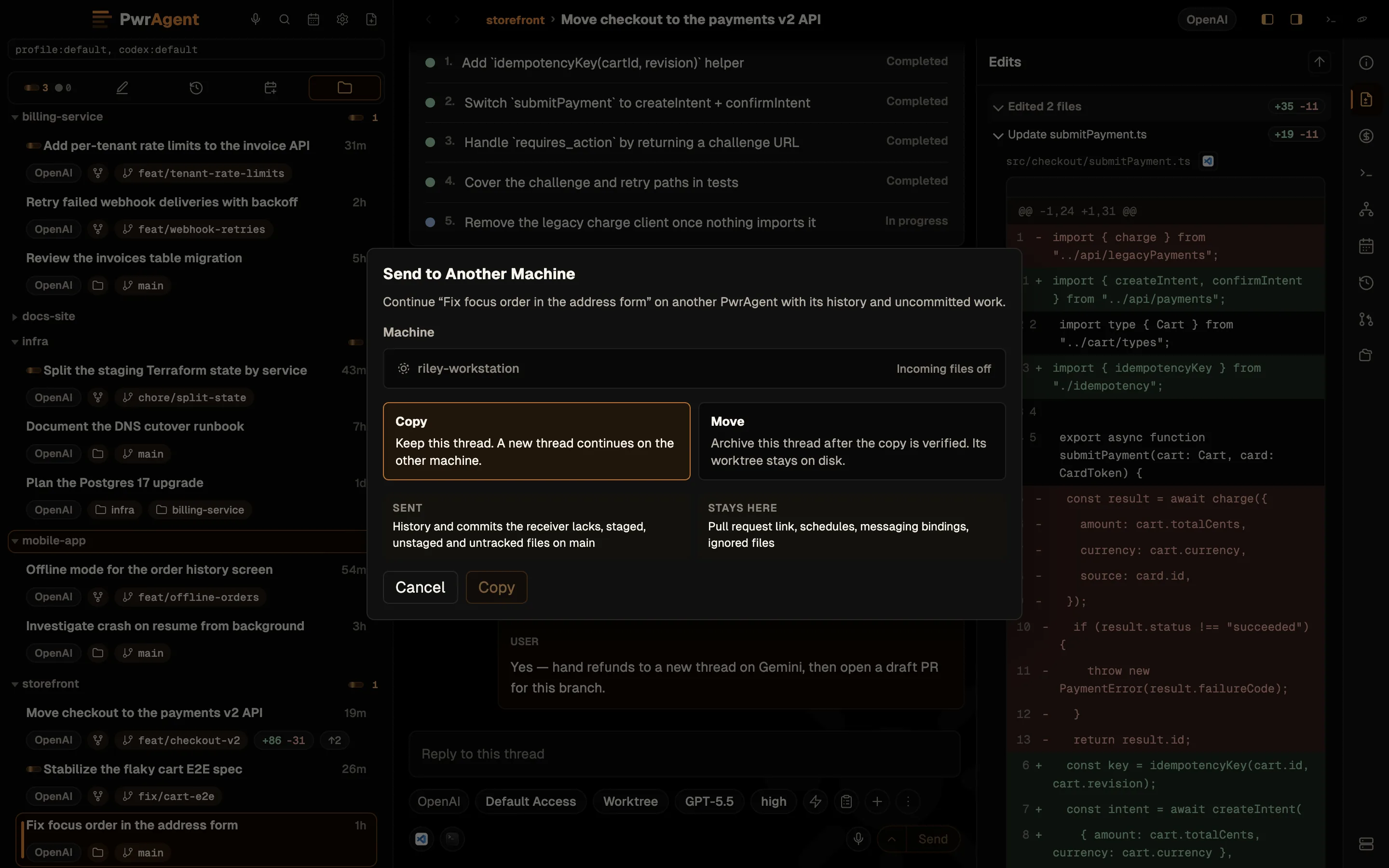
Right-click a Codex thread and choose Send to Another Machine… to continue the conversation somewhere else, history included. Pick the machine, then:
- Copy keeps this thread, and a new thread continues on the other machine.
- Move does the same, then archives this thread once the copy is verified. Its worktree stays on disk.
When the thread has a project, the dialog finds the matching clone on
the other machine (by its origin, or by name if it has to) and
carries the Git state across: commits the receiver lacks, plus staged,
unstaged, and untracked changes. The pull-request link, schedules,
messaging bindings, and ignored files stay where they were. Sending
waits for a running turn to finish, and the other machine must allow
incoming files.
Star Map
The title bar’s Star Map button opens the Star Map in its own window. Projects sit at the centre of their own systems and threads orbit them as cards, for every connected machine as well as this one. Pan and zoom freely — fly with W A S D, drag cards to arrange them, marquee-select several at once, and filter with chips. A layout switch arranges the map by Lanes, Instances, or Projects, and arrangements persist.
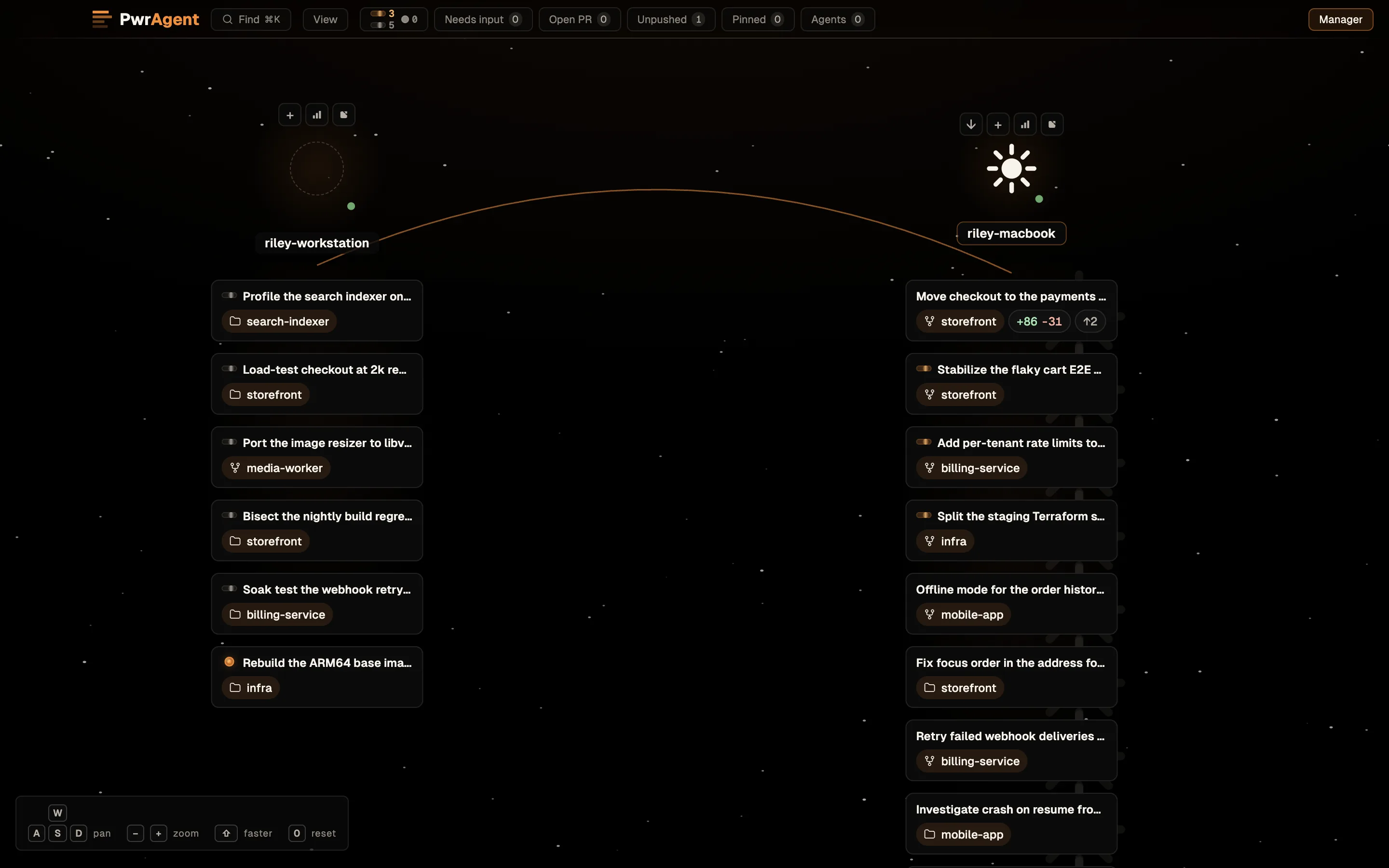
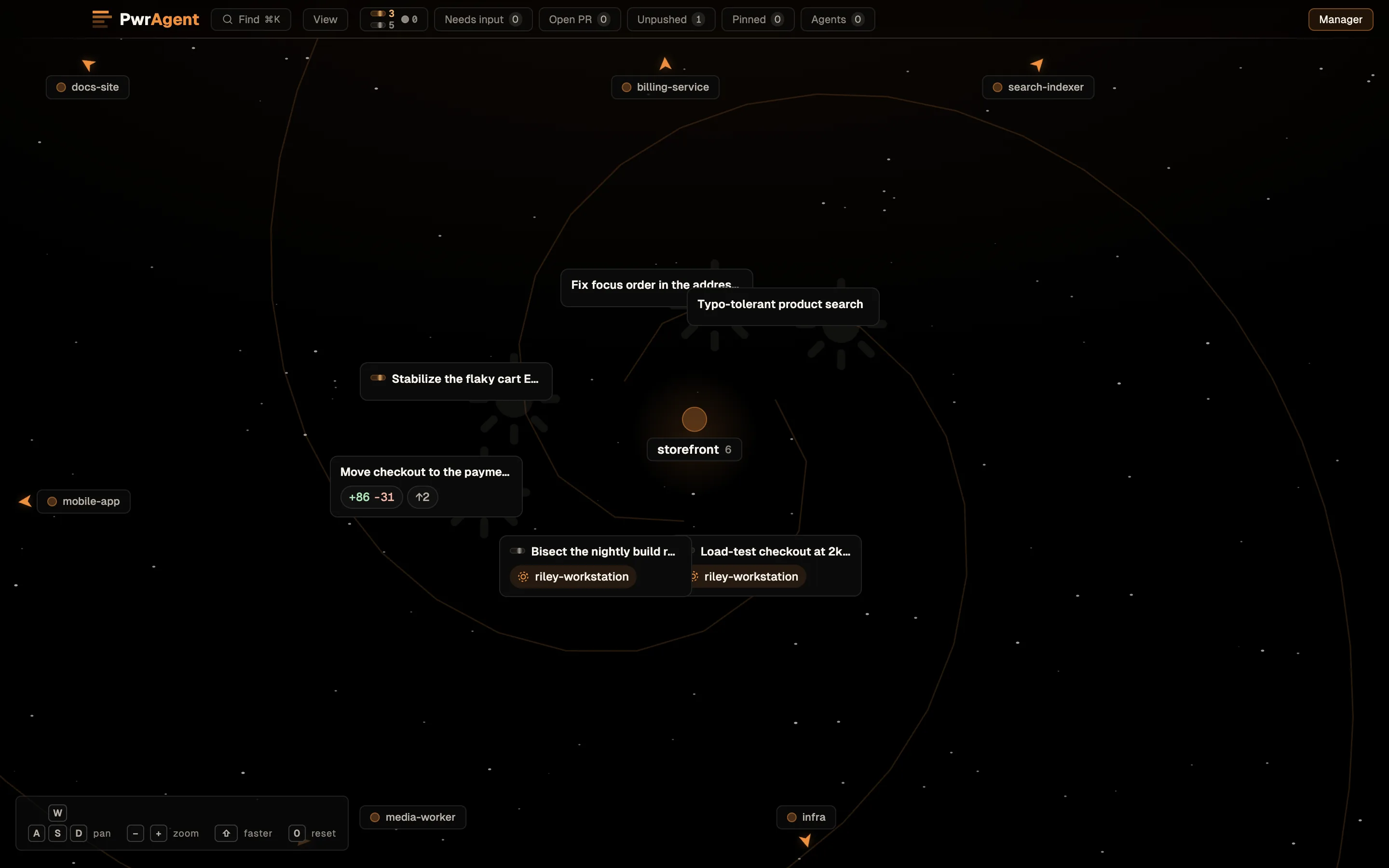
Floating chat cards carry a real Markdown composer, so you can send a turn without leaving the map, and Command+K (Control+K) flies straight to a thread. The Manager chip asks the Star Map manager, an agent that can see the open map and highlight, open, pin, move, archive, or fly between threads for you.
It’s the surface for “I have thirty threads across six repos and two machines and want to see the shape of it”, not a replacement for the sidebar.
See also
- Settings → Federation — the pane overview.
- Desktop — threads, workspaces, and the rest of the app.
- Desktop → Connect PwrSnap and PwrGit — how PwrSuite connections behave on a federated thread.